






Brief Introduction #
The ShipStation module in MultiVendorX streamlines shipping for multi-vendor ecommerce platforms. It syncs orders, generates shipping labels, and tracks shipments seamlessly. Key features include order syncing, label generation, carrier integration, automated workflows, and reporting. It helps merchants manage orders efficiently, improve delivery times, and optimize shipping processes.
Requirements #
Configuration from the Admin dashboard #
To start with the configuration of the Shipstation module of you need to follow the below mentioned steps –
- Go to admin dashboard and Navigate down to MultiVendorX
- Now once the submenu list appears click on the Modules submenu.
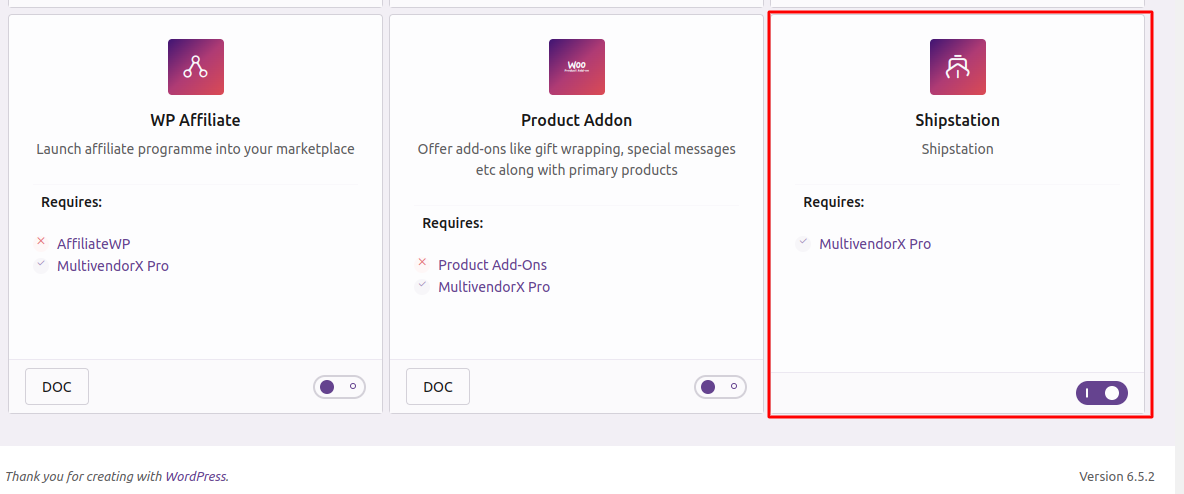
- On the Module page scroll down to the Third party compatibility section and from there enable the Shipstation module.
Configuration from the Vendor dashboard #
Now let us learn the flow from the vendor dashboard –
After logging into the vendor dashboard, you will get the option of Shipstation.
On the Shipstation setting the vendor will get the Auth key to connect their store with their Shipstation account. Also the vendor needs to set the below settings
Export Order Statuses: Define the order statuses they wish to export to ShipStation- EOS
Shipped Order Statuses: Define the order status vendors wish to update to once an order has been shipping via ShipStation. By default, this is Completed. – SOS
Learn how to Connect Your Store to WooCommerce Using the Authentication key #
To begin, visit ShipStation.com. You’ll encounter a ‘Selling Channel’ pop-up enabling you to connect to WooCommerce.
If you already have a ShipStation account, go to Account Settings > Selling Channels > Connect a store or marketplace. Then, locate and choose WooCommerce to proceed with setup.


