





Commission system upgrade notice #
If your marketplace was created using an earlier version of MultiVendorX, it may still be using the older vendor-specific commission system.
In this mode, the Marketplace commission and Commission value settings behave exactly as they did in the previous version. This ensures your existing commission rules keep working without affecting current store earnings.
What this means :
Your marketplace is temporarily operating in compatibility mode, preserving the older commission behavior until you update it.
When the new commission system activates
The moment you save any change on this settings page, MultiVendorX automatically switches your marketplace to the new commission model.
After this switch:
- commissions are calculated using the new system
- marketplace commission settings control the calculation logic
- the older vendor-specific behavior will no longer apply
- the notice automatically disappears
Recommendation :
If your marketplace is already processing orders, review your commission configuration carefully before making changes.
The Commission settings panel in MultiVendorX controls how the marketplace earns from store sales and how revenue is distributed between the marketplace and stores.
When you run a marketplace, every order placed by customers is shared between two parties:
- The marketplace
- The store
The marketplace keeps a portion of the order as commission, and the remaining amount belongs to the store.
This commission system is how marketplaces generate revenue.
For example, if a customer places a $100 order and your marketplace commission is 10%:
- The marketplace earns $10
- The store receives $90
This document explains how commission works in MultiVendorX and how the system decides which commission rule should apply.
How marketplace commission works in MultiVendorX #
Whenever a customer places an order, MultiVendorX automatically calculates:
- How much the marketplace earns
- How much the store receives
Behind the scenes, the earning flow looks like this:
Customer places order
↓
Commission gets calculated
↓
Store earning is created
↓
Store earning moves to wallet
↓
Store receives payout

Understanding this flow is important because every commission setting affects one part of this earning process.
Commission calculation method #
Different marketplaces operate differently.
Some marketplaces calculate commission once for the entire store order.
Others calculate commission separately for every product.
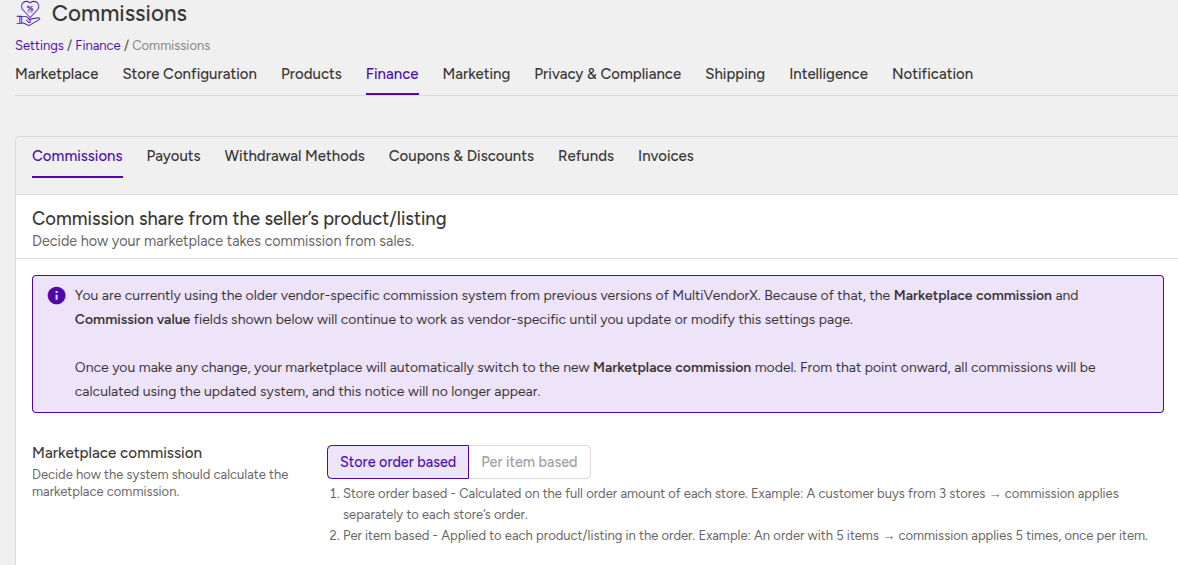
That’s why MultiVendorX provides two commission calculation methods:
- Store order based
- Per item based
You can configure this from:
Settings → Finance → Commission
Store order based commission #
This is the most common commission model for marketplaces.
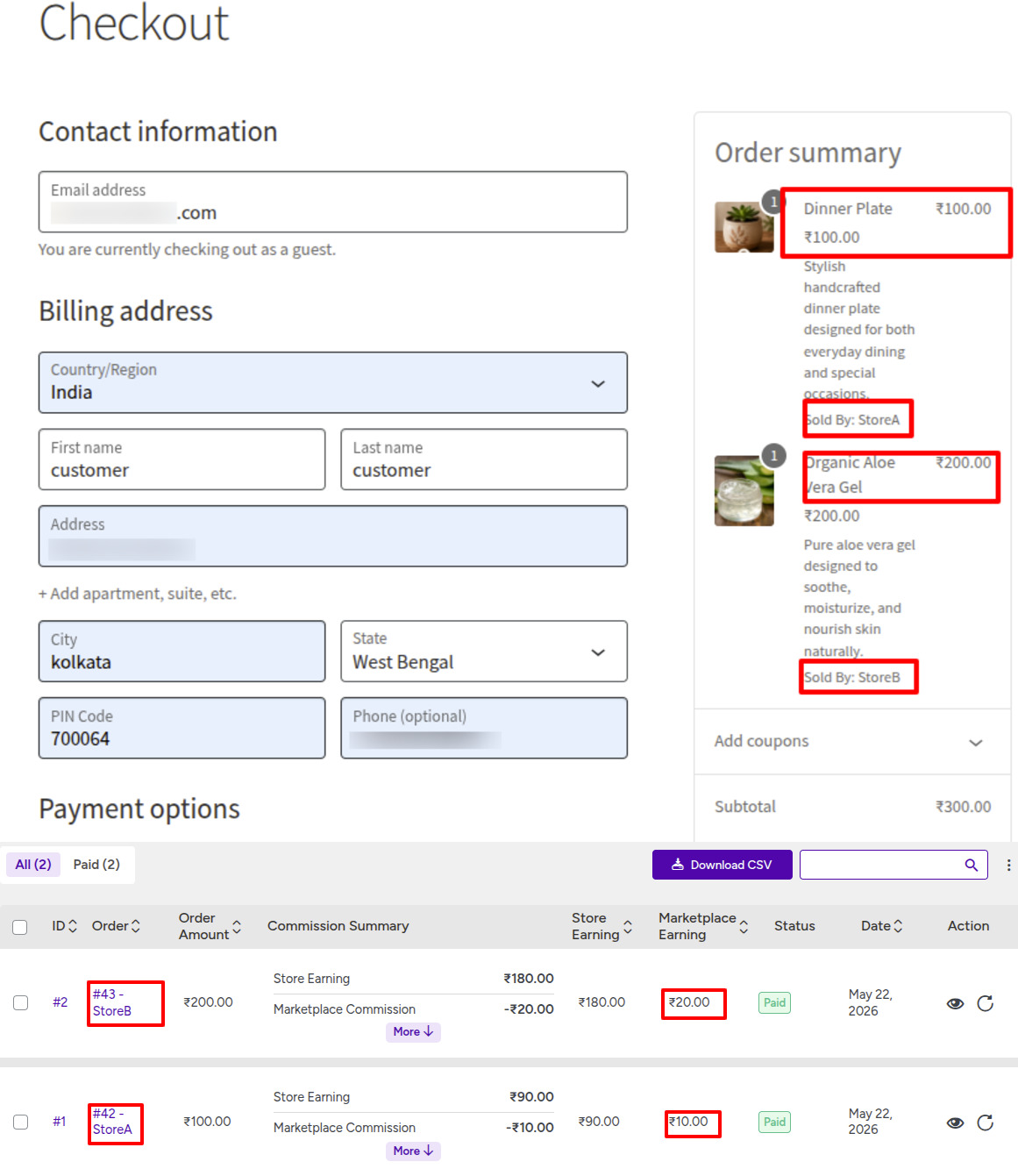
Imagine a customer purchases products from multiple stores in a single checkout.
Instead of treating this as one large order, MultiVendorX creates separate store orders behind the scenes and calculates commission separately for each store.
Example
- Store A order total = $100
- Store B order total = $200
If the marketplace commission is 10%:
- Marketplace earns $10 from Store A
- Marketplace earns $20 from Store B
This method is easier to manage and works best for most marketplaces.
Per item based commission #
Some marketplaces need more flexibility.
For example:
- Booking marketplaces
- Rental marketplaces
- Service marketplaces
In these cases, different products or listings may require different commission structures.
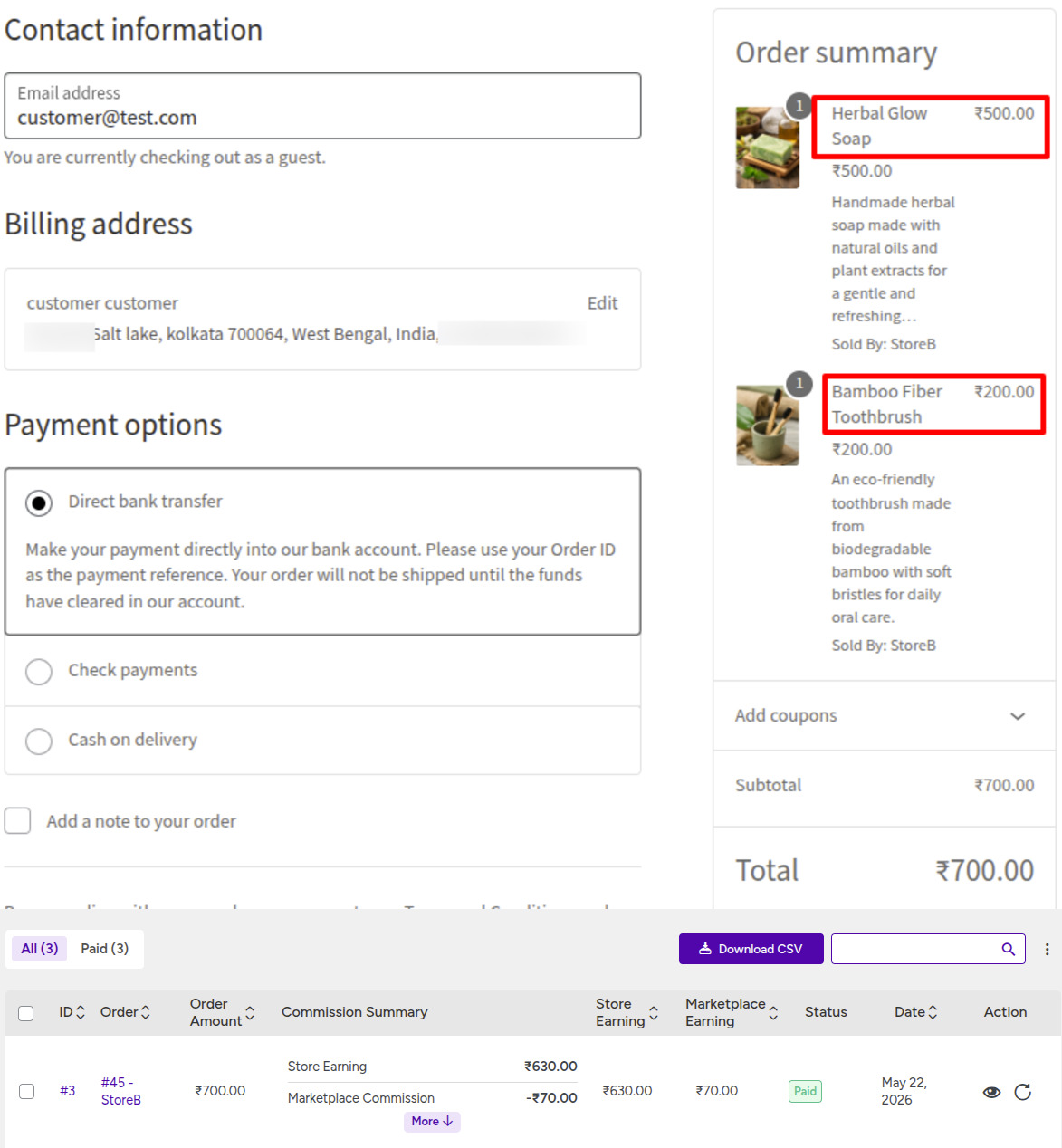
Instead of calculating commission once for the store order, MultiVendorX calculates commission separately for every product or listing.
Example
- Product A (ex: Bamboo Fiber Toothbrush) = $200
- Product B (ex: Herbal Glow Soap) = $500
If the marketplace commission is 10%:
- Marketplace earns $20 from Product A
- Marketplace earns $50 from Product B
All total $70
This method gives more control over product-level earnings and advanced commission structures.
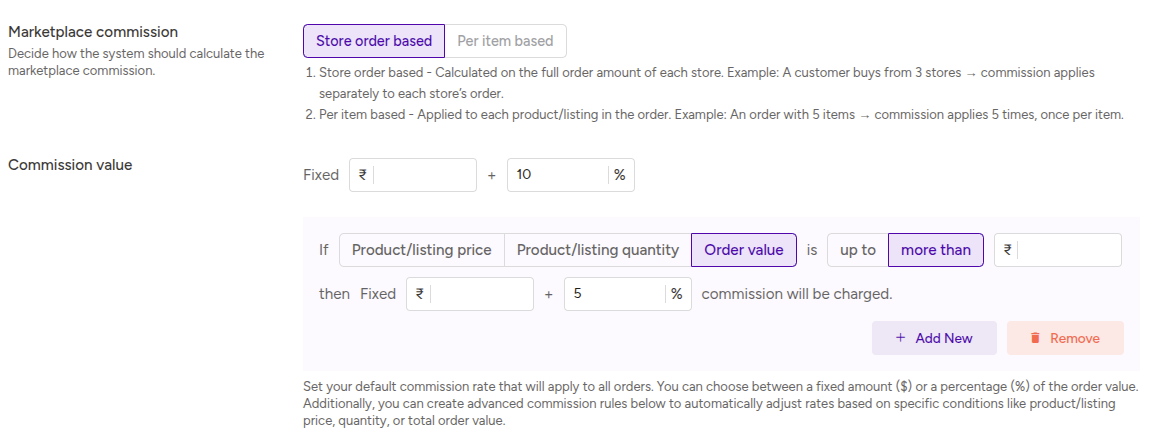
Setting your default marketplace commission #
Once you choose the commission calculation method, the next step is configuring the default marketplace commission.
The default commission acts as the marketplace-wide earning rule.
This commission is used whenever no store, category, or product-specific commission exists.
MultiVendorX allows three commission types:
- Fixed commission
- Percentage commission
- Fixed + percentage commission

Fixed commission #
A fixed commission deducts the same amount from every order regardless of order value.
Example #
If fixed commission is $10:
- A $100 order gives the marketplace $10
- A $500 order also gives the marketplace $10
This model is useful when you want predictable earnings per order.
Percentage commission #
Percentage commission calculates marketplace earnings based on the order value.
Example #
If commission is 10%:
- A $100 order gives the marketplace $10
- A $500 order gives the marketplace $50
This is the most common commission model used by marketplaces.
Fixed + percentage commission #
You can also combine both commission types together.
Example #
- Fixed commission = $5
- Percentage commission = 10%
For a $100 order:
- Fixed earning = $5
- Percentage earning = $10
Total marketplace earning = $15
This approach gives marketplaces both predictable base earnings and scalable commission.
Understanding commission hierarchy #
As marketplaces grow, they often need more control over how commission is applied.
Instead of using one global commission for everything, MultiVendorX allows commission setup at multiple levels.
You can configure commission for:
- The entire marketplace
- Individual stores
- Product categories
- Specific products
This allows you to create flexible earning structures without affecting the whole marketplace.
Global commission #
Global commission is the default commission for the entire marketplace.
It acts as a fallback commission rule and is used only when no other commission configuration exists.
For example, if no product, category, or store commission is configured, the marketplace will use the global commission automatically.
This is the best starting point for new marketplaces.
Store commission #
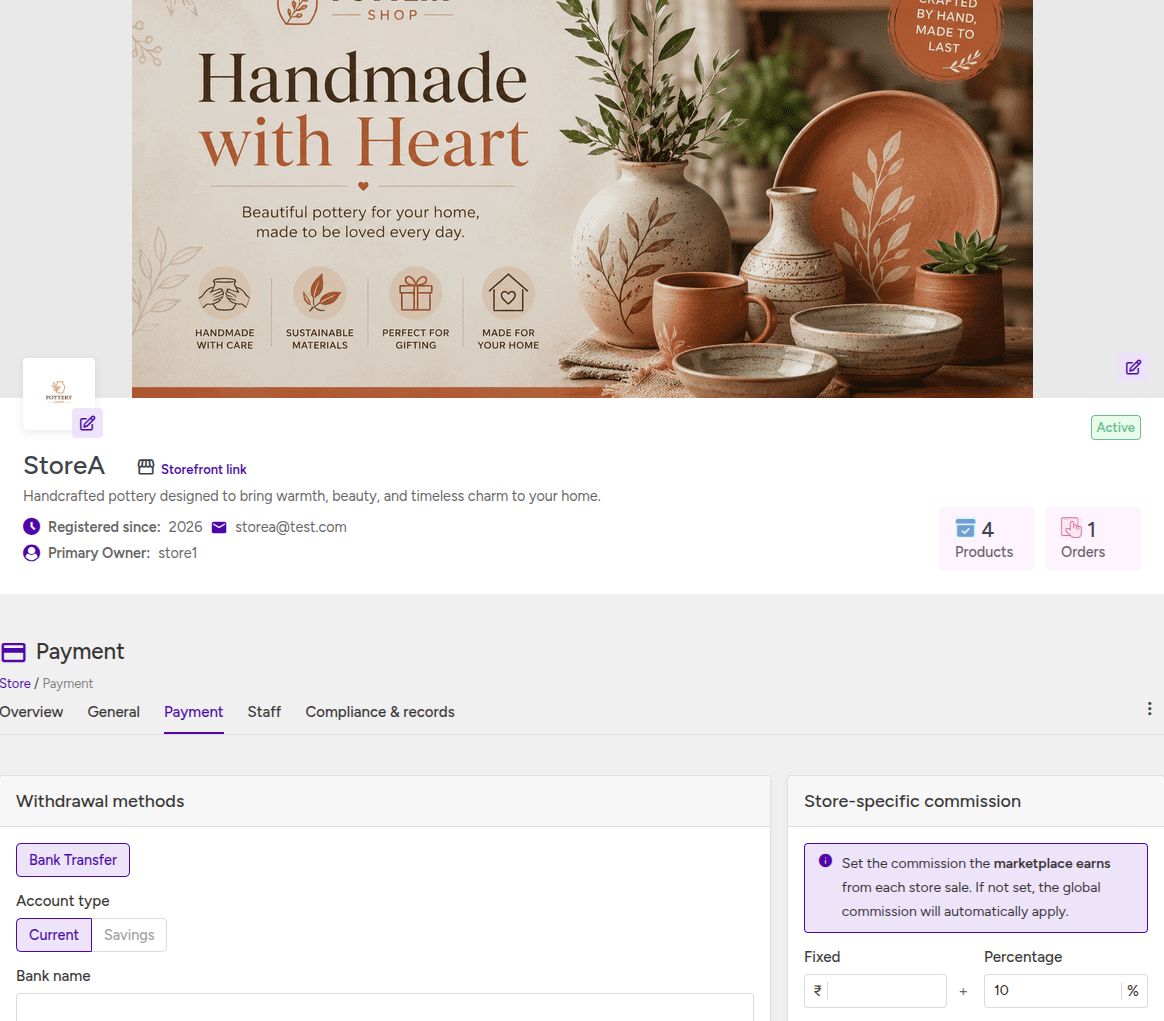
Store commission allows you to create different commission structures for individual stores.
For example, you may want to:
- Give better commission rates to premium stores
- Create special agreements with high-performing vendors
- Charge different commission for subscription-based stores
If a store commission exists, it overrides the global commission.
Category commission #
Category commission allows marketplaces to charge different commission rates for different product categories.
This is useful because some categories naturally operate with different profit margins.
For example:
- Electronics marketplaces usually use lower commission
- Handmade or digital products often use higher commission
If a category commission exists, it overrides both store and global commission.

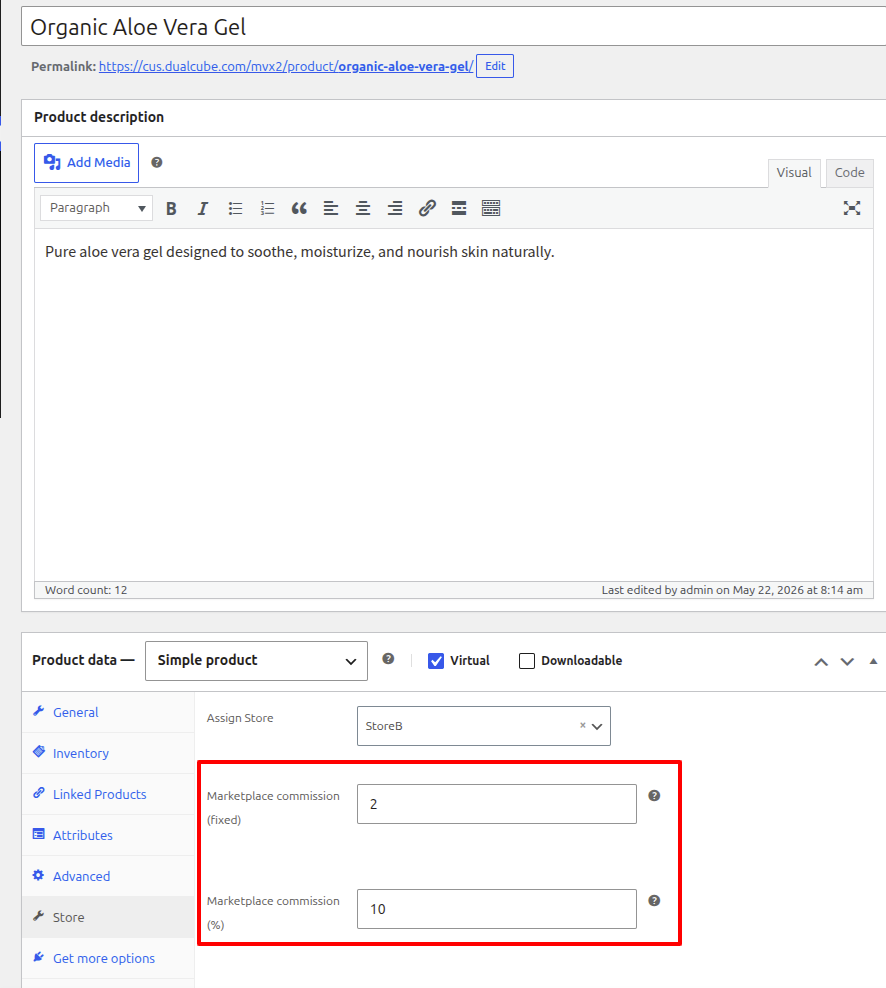
Product commission #
Product commission has the highest priority in the marketplace.
This allows you to create custom commission structures for specific products or listings.
It is usually used for:
- Premium products
- Featured listings
- Luxury items
- Exclusive marketplace partnerships
If a product commission exists, MultiVendorX will always use it first.
How commission priority works #
One of the most common beginner confusions is understanding why a certain commission rule gets applied.
MultiVendorX does not combine multiple commission rules together.
Instead, the system always selects the highest-priority matching rule.
Commission hierarchy #
| Priority | Commission level |
|---|---|
| 1 | Product commission |
| 2 | Category commission |
| 3 | Store commission |
| 4 | Global commission |
Think of commission like layers.
The closer the rule is to the product, the higher its priority becomes.
Understanding commission priority with an example #
Imagine your marketplace has the following setup:
- Global commission = 10%
- Store commission = 15%
- Category commission = 20%
- Product commission = 25%
Now imagine a customer purchases a product that already has a product-level commission.
Even though other commission rules exist, MultiVendorX applies only the product commission.
Final commission = 25% #
This happens because product commission has the highest priority.
Important thing to remember #
Commission rules do not combine together.
Only one commission rule is applied at a time.
The system simply selects the highest-priority matching rule automatically.
This is one of the most common areas of confusion for new marketplace owners.
Understanding advanced commission rules #
As marketplaces grow, they often need more flexible commission structures.
That is where advanced commission rules become useful.
Advanced rules allow MultiVendorX to automatically change commission rates based on conditions such as:
- Product price
- Product quantity
- Total order value
Example of advanced commission logic #
Imagine you want to reward larger orders with higher commission rates.
You could configure rules like this:
- Orders up to $100 → 5% commission
- Orders above $100 → 10% commission
Now:
- A customer spending $80 generates 5% commission
- A customer spending $200 generates 10% commission
This allows marketplaces to create smarter earning strategies automatically.
Final thoughts #
Marketplace commission is the foundation of your marketplace earning system.
Once you understand:
- How commission is calculated
- How commission priority works
- How earnings are split between marketplace and stores
The rest of the finance system becomes much easier to manage.
A simple commission structure is usually the best approach for new marketplaces.
You can always introduce more advanced commission rules later as your marketplace grows.
What to read next #
Continue with: Understanding marketplace taxes and fee deductions
In the next document, you will learn about:
- Tax distribution
- Marketplace fees
- Gateway fees
- Facilitator fees
- How deductions affect store payouts
What is the best commission setup for a new multi-vendor marketplace? #
For most new marketplaces, the recommended setup is:
Store order based commission
One global percentage commission
This setup is easier to manage, calculate, and troubleshoot.
Why is my global marketplace commission not applying? #
In most cases, a higher-priority commission rule already exists.
Commission priority order in MultiVendorX
Product commission
Category commission
Store commission
Global commission
The higher-level rule always overrides lower-level commission settings.
Which is better: store order based or per item based commission? #
Store order based commission
Best for:
Fashion marketplaces
Grocery marketplaces
General multi-vendor marketplaces
Per item based commission
Best for:
Booking marketplaces
Rental marketplaces
Service marketplaces
Can I set different commission rates for different vendors?
#
Yes.
MultiVendorX allows:
Global commission
Store-wise commission
Category-wise commission
Product-wise commission
The system automatically applies the highest-priority matching rule.
Can I use advanced commission rules in MultiVendorX? #
Yes.
You can create advanced commission rules based on:
Product price
Quantity
Order value
This helps marketplaces create flexible earning structures.


