MVX Products on Sale: #
Helps to find the products on sale by the vendors. Drag the widget and Drop it to the Add Block option and the users can see the Products on Sale on the left side of the shop Page.
ATTRIBUTES:
- Title: Add some tittle
- Enter No. of Products: No. Of product you want to
- Display Select Vendor: The vendor’s product you want to see on Sale.

Vendor Top Product: #
Display top products of selected vendor in a grid. Drag the widget and Drop it to the Add Block option and the users can see the Top Products on the left side of the shop Page.
ATTRIBUTES:
- Name of the vendor: Add the name of the vendor whose products you want to display

Top Rated Vendors: #
Displays the top rated vendors in the Grid .Drag the widget and Drop it to the Add Block option and the users can see the Top Products on the left side of the shop Page.
ATTRIBUTES:
- Display top rated vendors in a grid: Add the Title you want to see on your Product page.

Contact Vendor: #
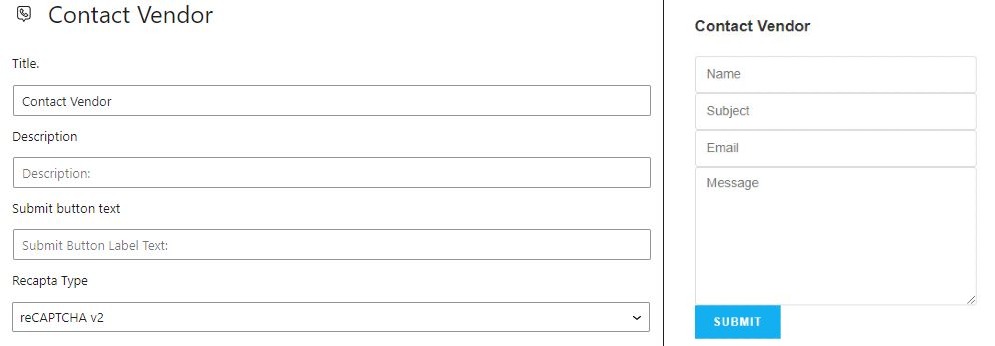
Here users can contact vendors.Drag the widget and Drop it to the Add Block option and the users can see the Contact Vendors option on the left side of the shop Page.
ATTRIBUTES:
- Title: The title you want
- Description: Any description you want to add
- Submit button text
- Recapta Type: Select the type of recapta.
- Recapta Script
- Site Key
- Secret Key
- Select Vendor: The vendor you want users to contact
Vendor Coupons: #
Displays the coupons added by the vendor.Drag the widget and Drop it to the Add Block option and the users can see the coupons on the left side of the shop Page.
ATTRIBUTES:
- Title: Add some title.
- Select Vendor: Select the vendor

Vendor Location: #
Displays the Location of the Vendor. Drag the widget and Drop it to the Add Block option and the users can see the Location of the vendor on the left side of the shop Page.
ATTRIBUTES:
- Title: Add the title you want
- Select Vendor: Select the vendor whose location you want display
Vendor’s Policies: #
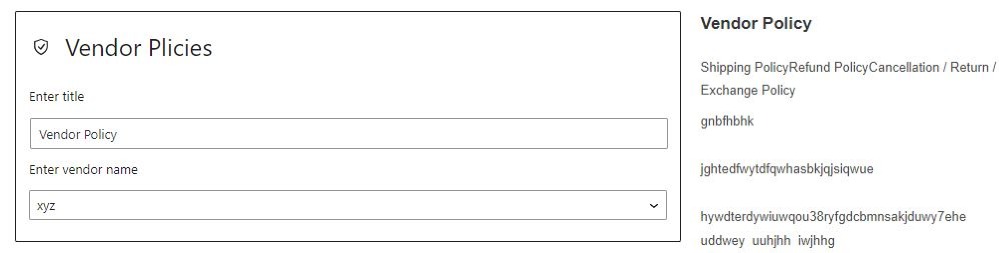
Displays the Policies added by the vendor. Drag the widget and Drop it to the Add Block option and the users can see the Policies on the left side of the shop Page.
ATTRIBUTES:
- Enter title: Add the title you want.
- Enter vendor name: Enter The vendor whose Policies you want to display.
Vendor Reviews: #
Displays the Reviews given by the Customers. Drag the widget and Drop it to the Add Block option and the users can see the vendor reviews on the left side of the Dashboard.
ATTRIBUTES:
- Title: The title you want to add.
- Name of the vendor: The vendor you want to Show Reviews.
- No. of Reviews: No. of Reviews you want to display.

Quick info: #
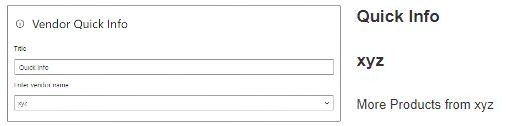
Displays the info about the vendor.Drag the widget and Drop it to the Add Block option and the users can see the Quick Info. on the left side of the shop Page.
ATTRIBUTE:
- Title: The title you want.
- Vendor Name: Enter the name of the vendor.
Vendor Recent Product: #
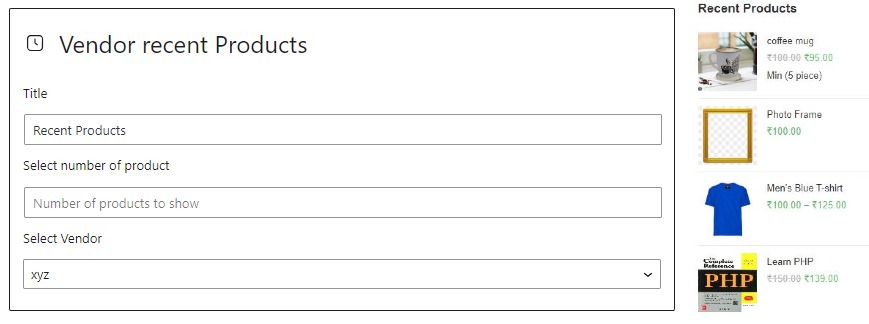
Displays the recent product added by the vendor.Drag the widget and Drop it to the Add Block option and the users can see the Recent Products added on the left side of the shop Page.
ATTRIBUTES
- Title: Add the title you want to display.
- No.of Product: Add the no.of products you want to display.
- Select Vendor: Select the vendor you want to see the recently added products.
Vendor’s Product Categories: #
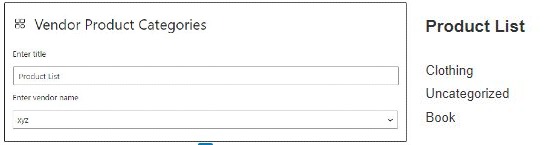
Displays the product categories added by the vendor.Drag the widget and Drop it to the Add Block option and the users can see the Product categories on the left side of the shop Page.
ATTRIBUTES:
- Title: Enter the title you want to display.
- Vendor Name: Enter the name of the vendor
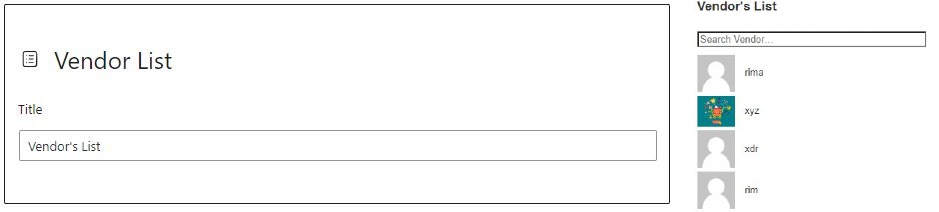
Vendor list: #
Displays the list of vendors.Drag the widget and Drop it to the Add Block option and the users can see the Vendor list on the left side of the shop Page.
ATTRIBUTES:
- Title: Add the title you want to display.