





Brief Introduction #
Customer feedback is the backbone of any successful marketplace. Reviews help potential buyers make informed decisions while giving store owners valuable insights to improve their offerings.
The MultiVendorX Store Review module lets customers share their experiences and rate different aspects of a store. Store owners can view these reviews directly from their dashboard, allowing them to monitor feedback, build trust, and enhance the overall shopping experience.
Required Module #
- Store Review
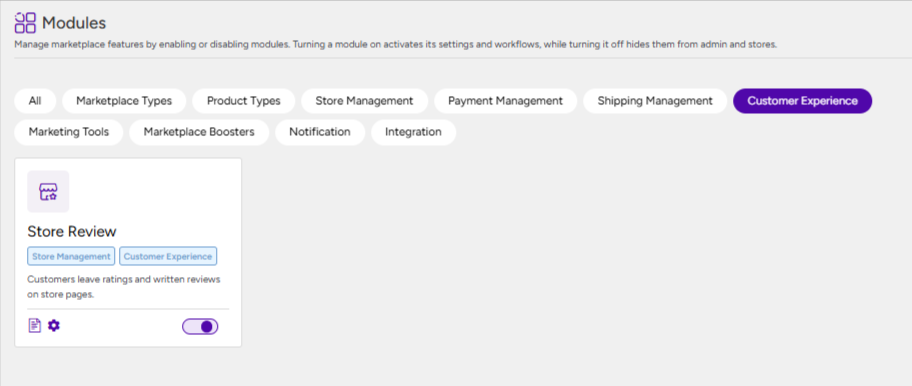
To begin, the admin must first enable the Store Review module by following the below path:
- Go to your WordPress Dashboard → MultiVendorX → Modules
- At the top, select the Customer Experience tab
- Find the Store Review module in the list
- Enable it
Understanding the store review workflow #
The store review system operates as a connected marketplace process involving three primary users:
- Marketplace Admin
- Store Owner
- Customer
A typical workflow follows this sequence:
- The marketplace admin configures how store reviews should operate
- Customers place orders from stores
- Eligible customers submit ratings and feedback
- Reviews become associated with the respective store
- Store owners monitor and respond to reviews
- Admins moderate and manage marketplace-wide review activity
Each review directly contributes to the public reputation of a store and influences customer trust across the marketplace.
Configuring store reviews as the marketplace admin #
Before customers can start reviewing stores, the marketplace admin must configure how the review system should function.
To access the settings:
- Go to MultiVendorX
- Open Settings
- Navigate to the Marketplace tab
- Open Store Reviews
The Store Reviews section allows the marketplace admin to manage how customer reviews and ratings are collected, structured, and displayed across the platform.
These settings control the overall review system for all marketplace stores, helping ensure consistent and meaningful customer feedback.
Using the Store Reviews settings, the admin can:
- Control who is allowed to submit store reviews
- Configure and manage review rating categories
- Define the evaluation criteria customers will use while reviewing stores
- Customize the structured feedback system for store performance and customer experience
- Manage how reviews are validated and displayed throughout the marketplace
All configurations made in this section are applied marketplace-wide and affect every store operating on the platform.
1. Restricting reviews to verified buyers #
The Verified Buyer Reviews Only option determines whether review submissions should be limited to customers who have actually purchased from a store.
When enabled:
- Only customers with valid orders can submit reviews
- The system checks purchase history before allowing review submission
- Unverified visitors cannot leave store feedback
- Review authenticity improves across the marketplace
This setting becomes especially important for marketplaces where trust and seller credibility directly impact purchasing decisions.
Once a customer completes an order, the system automatically associates the customer with the corresponding store. During review submission, the platform validates this relationship before displaying the review form.
If the setting remains disabled:
- Any customer can submit reviews
- Store pages remain publicly reviewable
- Purchase verification is skipped during review submission
This flexibility may be useful for marketplaces that want open community feedback rather than purchase-restricted reviews.
Important: This validation only affects store reviews. Product reviews continue to follow WooCommerce review behavior independently.
2. Setting up customer rating criteria #
Customers do not simply leave a general star rating. The marketplace admin can define specific rating parameters customers must evaluate while reviewing stores.
These parameters create a more structured review process and help customers provide meaningful feedback.
Examples include:
- Communication
- Delivery handling
- Product quality
- Customer support
- Packaging experience
These rating criteria appear during review submission and become part of the store evaluation process.
3. Managing default rating parameters #
The module includes default rating parameters to help marketplaces begin collecting reviews immediately after setup.
Admins can modify these parameters according to their business model and marketplace structure.
Although default parameters can be edited, they cannot be removed until additional parameters are created first. This restriction prevents the review system from operating without at least one active evaluation criterion.
Once updated, the modified parameters immediately become visible within the customer review interface.
4. Creating custom rating parameters #
Different marketplace types often require different evaluation standards.
To support this, admins can create custom rating parameters tailored to their business model.
For example:
- A rental marketplace may evaluate equipment condition
- A booking marketplace may evaluate scheduling accuracy
- A subscription marketplace may evaluate renewal support
- A service marketplace may evaluate response time
Custom parameters can later be:
- Edited
- Reordered
- Removed when no longer required
These parameters directly shape how customers assess stores and influence overall seller ratings.

Customer store review workflow #
Once the review system is configured, customers can begin submitting reviews through different areas of the marketplace.
The review workflow is integrated into multiple customer touchpoints to improve review participation and simplify feedback collection.
Submitting reviews from the store page #
Customers can directly review stores from the public store page.
After visiting a store page, customers can:
- Select rating scores
- Evaluate configured rating parameters
- Leave written feedback about their experience

When the customer submits the review:
- The review becomes attached to the store profile
- Store rating calculations update automatically
- The feedback becomes visible within store review sections
- Store owners gain access to the submitted review inside their dashboard
If verified buyer validation is enabled, the system first confirms whether the customer has completed an order from that store before displaying the review form.
Customers who fail verification cannot proceed with review submission.
Reviewing stores from the customer account area #
Customers can also leave reviews later from their account dashboard.
To access this option:
- Open My Account
- Navigate to Orders
- Open the relevant sub-order details
From here, customers can submit reviews for stores associated with that order.

This delayed review workflow is particularly useful when customers want to review:
- Delivery experience
- Product condition after usage
- Seller communication
- Post-purchase support
- Return or issue resolution handling
Because reviews can happen after the complete order experience, customers are able to provide more accurate and experience-based feedback.
Store owner review management #
Once reviews start appearing, store owners can manage customer feedback directly from the store dashboard.
This allows sellers to monitor satisfaction levels, address customer concerns, and build stronger storefront credibility.
1. Accessing customer reviews from the store dashboard #
Store owners can access all submitted reviews for their store from the dashboard.
To view reviews:
- Open Store Support
- Click Customer Reviews
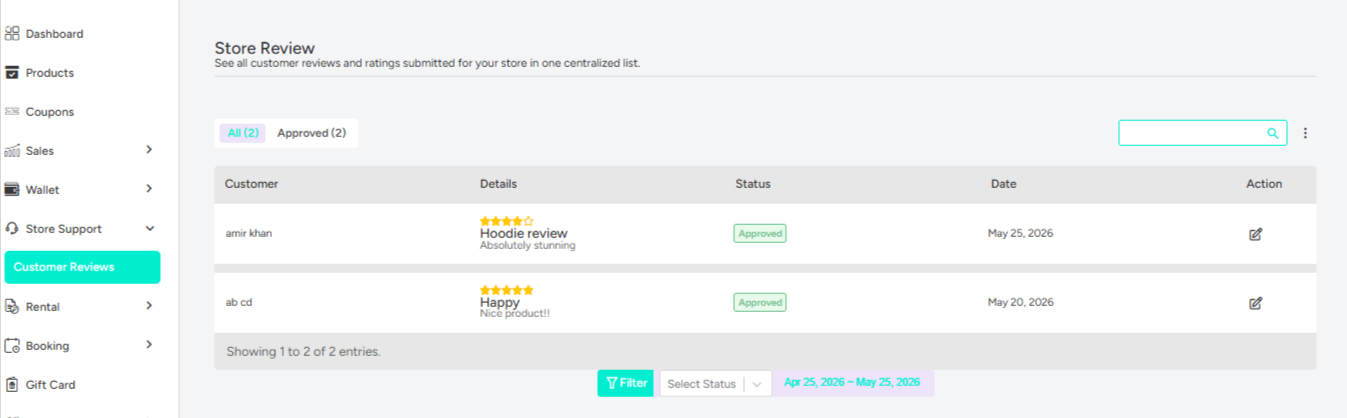
This section displays all reviews submitted for the store.
Store owners can monitor:
- Overall ratings
- Customer comments
- Rating breakdowns
- Review history
- Feedback trends
This becomes the primary review management area for sellers.
2. Responding to customer reviews #
Store owners can reply directly to customer reviews using the available action options beside each review entry.
Seller replies help create transparent communication between stores and customers.
Store owners commonly use replies to:
- Thank customers for positive reviews
- Clarify misunderstandings
- Respond to complaints
- Explain delays or service issues
- Provide resolution updates

Once a reply is submitted:
- The response becomes connected to the original review
- Customers can view the seller response publicly
- Admins can monitor the interaction from the backend
This interaction system improves trust and encourages better customer-store communication across the marketplace.
Admin review monitoring and moderation #
Even though store owners manage their own customer feedback, the marketplace admin maintains complete visibility over all reviews submitted across the platform.
This centralized moderation layer helps maintain marketplace quality and trust.
1. Viewing marketplace-wide store reviews #
To access all store reviews:
- Open MultiVendorX
- Navigate to Customers
- Open Store Reviews

This section displays review activity across every store operating within the marketplace.
Admins can monitor:
- Customer feedback
- Seller ratings
- Store review activity
- Seller responses
- Negative review trends
- Repeated customer complaints
This visibility helps admins identify operational issues affecting the marketplace experience.
2. Managing and moderating submitted reviews #
The admin can take moderation actions whenever required.
Depending on marketplace policies, admins may:
- Reply to reviews
- Remove inappropriate feedback
- Delete spam reviews
- Moderate abusive content
- Monitor seller-customer interactions

When a review is deleted:
- The review disappears from storefront review sections
- Store rating calculations update automatically
- Store averages may change
- Store owners lose visibility of the removed review
This moderation workflow helps marketplaces maintain reliable and trustworthy feedback systems.