





Brief Introduction #
Empower your stores with greater control and flexibility through store-specific policies.The Store Policy module in MultiVendorX allows stores to define and implement their own policies, be it related to shipping, returns, refunds, or warranties. By tailoring policies to suit their unique business needs, stores can build transparency, set clear expectations, and foster trust with customers. This not only enhances the overall shopping experience but also strengthens store credibility within your marketplace.
Store owners can either use the global policies defined by the Admin or create their own custom store policies if policy override is enabled.
Required Module #
- Store Policy
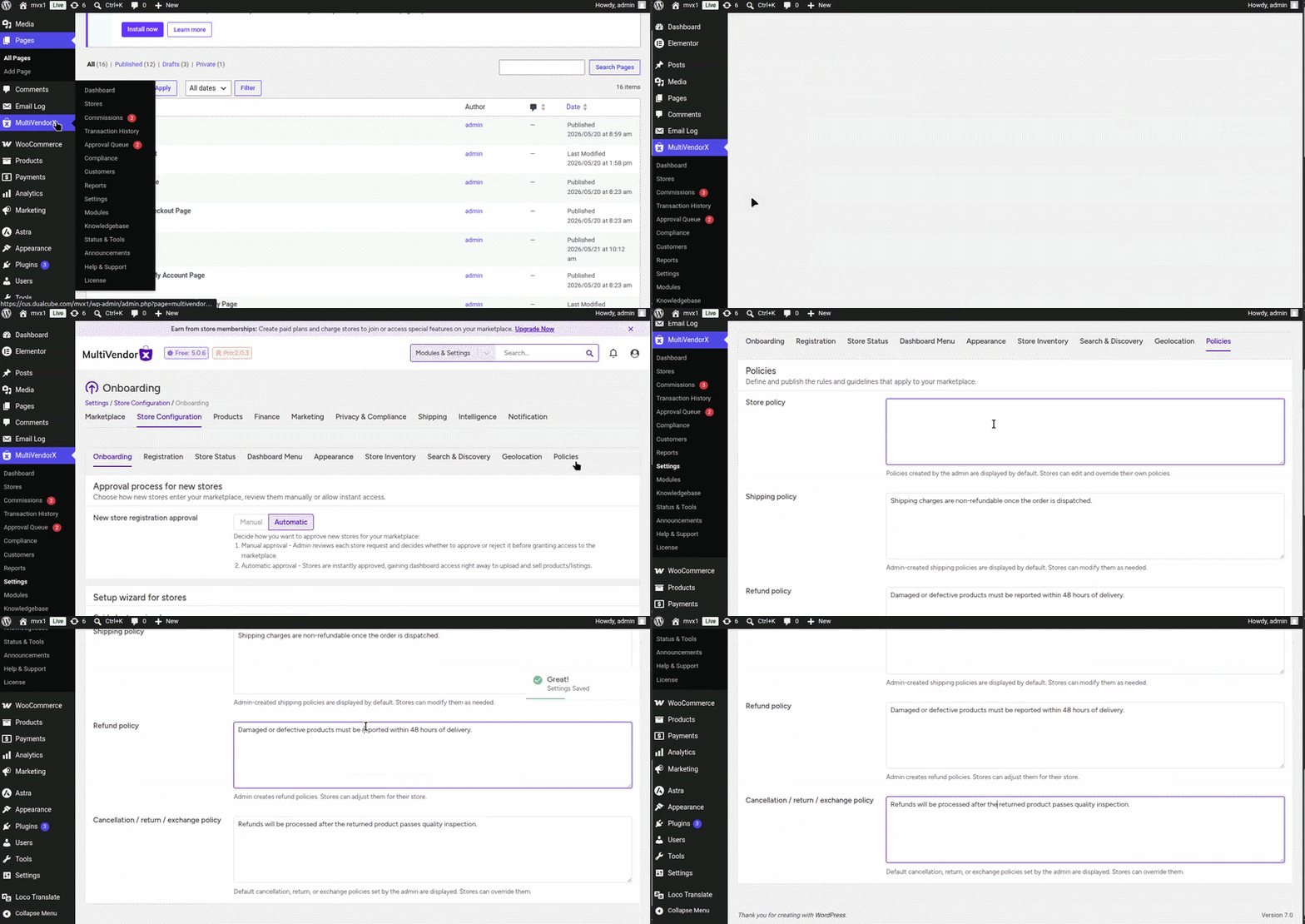
To enable this module navigate to:
- Admin Dashboard → MultiVendorX → Modules
- Select the Store Management tab
- Find Store Policy and enable it

Global Marketplace Policy Configuration #
After enabling the module, admins can create marketplace-wide default policies from:
MultiVendorX → Settings → Store Configuration → Policies
From here, the Admin can create global marketplace policies that will apply to all stores by default.
From this section, the Admins can configure:
- Store policy
- Shipping Policy
- Refund Policy
- Cancellation/Return/Exchange Policy
Note: These global policies are applied across all stores by default to maintain consistency throughout the marketplace.
Allow Store Owners to Override Policies #
If marketplace administrators want store owners to manage their own policies independently, the Policy Override option must be enabled.
Steps to enable policy override:
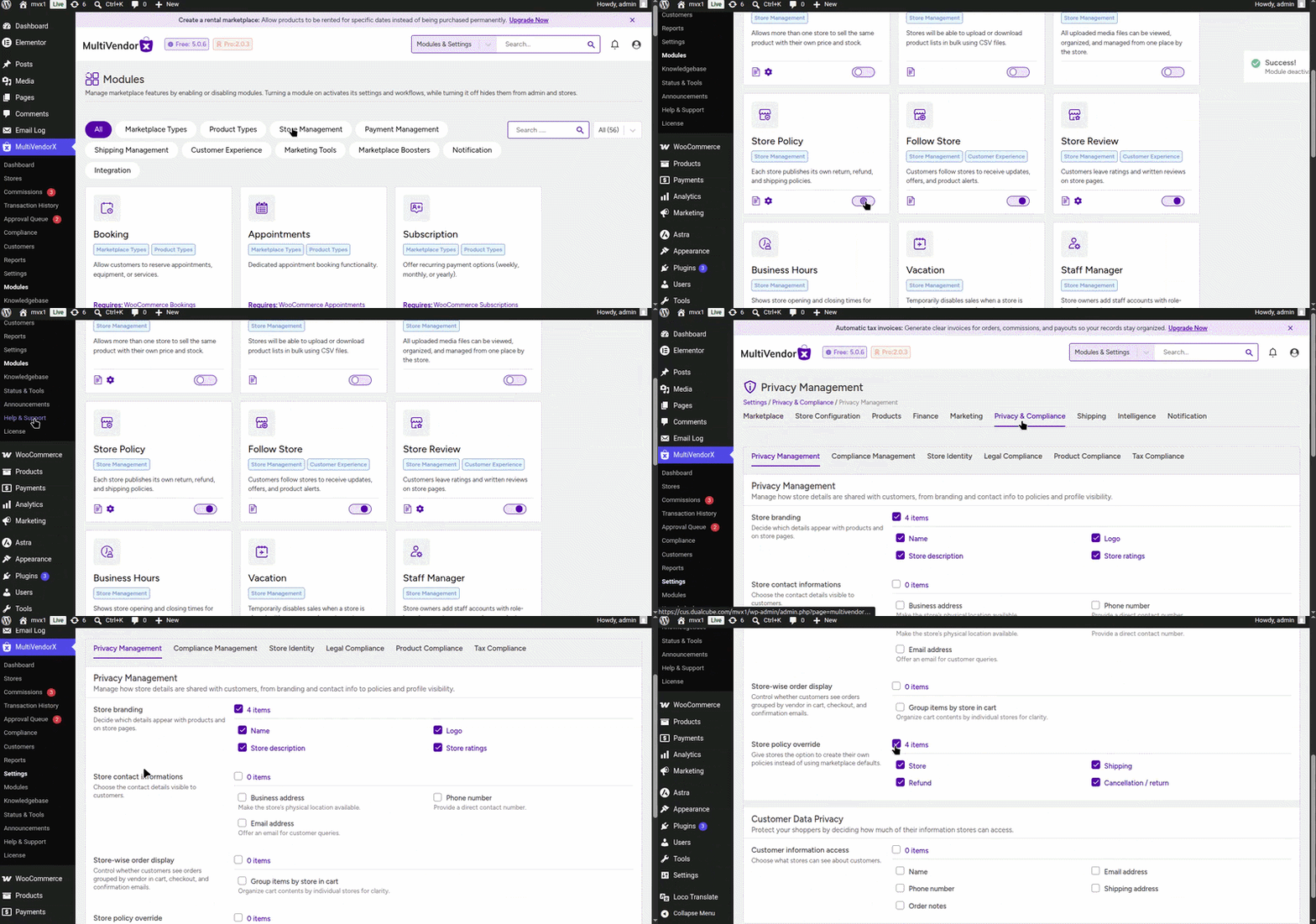
- Go to MultiVendorX → Modules → Store Management tab
- Enable the Privacy module
- Then go to MultiVendorX → Settings → Privacy & Compliance → Privacy Management
- Find Store Policy Override and choose which policies store owners can customise
This gives store owners greater flexibility to manage policies according to their business requirements.
Note: When Policy Override is enabled, store owner-created policies will take higher priority over the default policies configured by the Admin.
Store-Level Policy Management
#
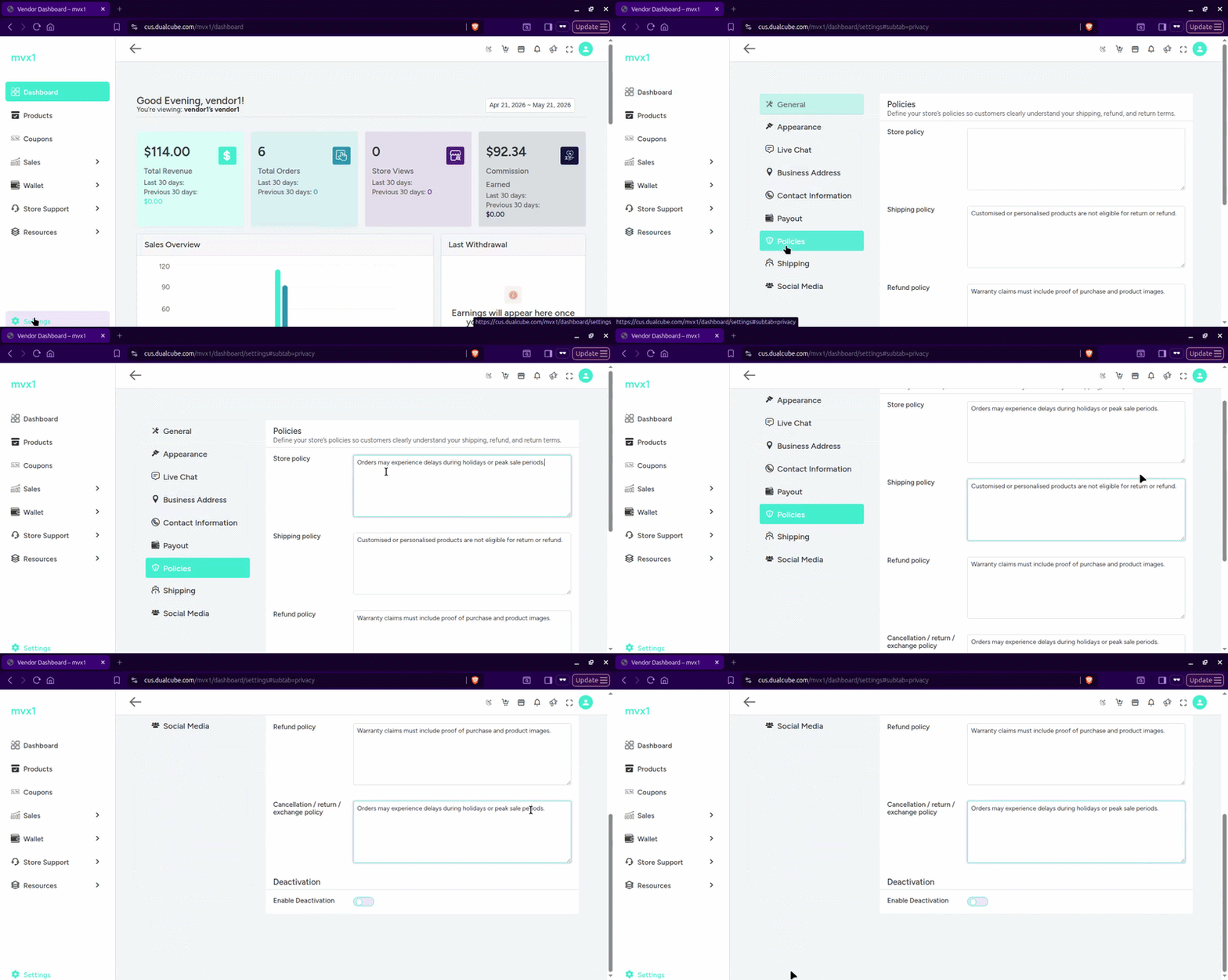
Store owners also have the option to set their own store-specific policies directly from their dashboard. To add policies, store owners can follow these steps:
- Navigate to Store Dashboard → Store Settings → Policy
From this section, store owners can add or update:
- Store Policy
- Shipping Policy
- Refund Policy
- Cancellation/Return/Exchange Policy
This allows stores to clearly communicate their terms and conditions to customers.
Product-Specific Policy Configuration #
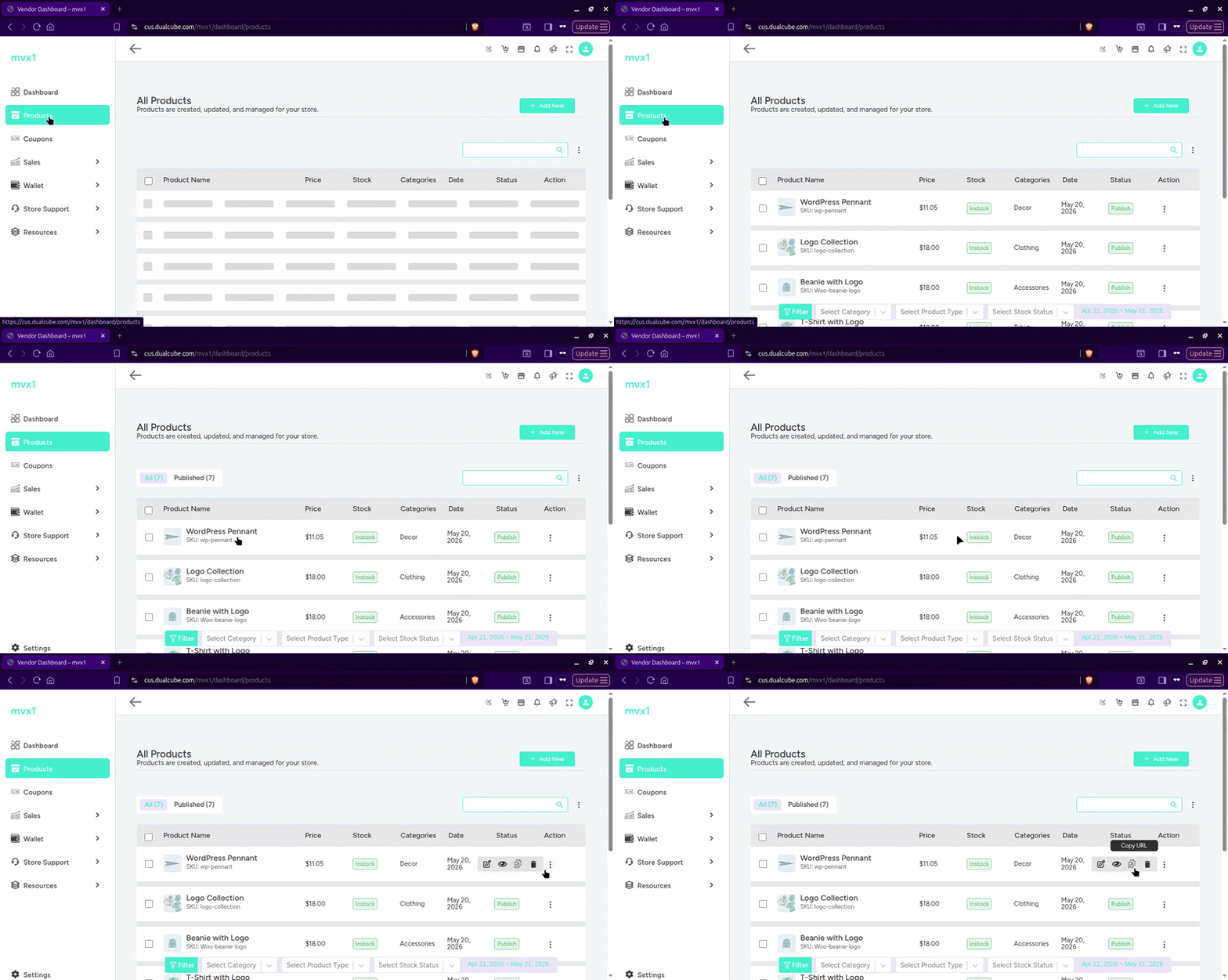
Store owners can also define product-specific policies for individual products.
Navigate to:
Store Dashboard → Products → Edit Product → Policies
From the Policies section, store owners can add product-specific policy details.
These policies will appear under the Policy tab on the Single Product Page.
Frontend Policy Display #
Once configured, the policies will be visible to customers on:
- Store pages
This helps customers clearly understand store terms before making a purchase.


