





Here’s the opportunity to earn more by turning your local marketplace into a high-powered auction website with the help of MultiVendotrX Pro’s auction product feature. Vendors can set up products for auction using this feature. They can also specify or extend the auction time, create auction widgets, enable various types of auctions, such as normal, proxy, reverse, or sealed auctions, and secure payments. So, stop waiting and jump right into learning about the auction product type now!
Requirements #
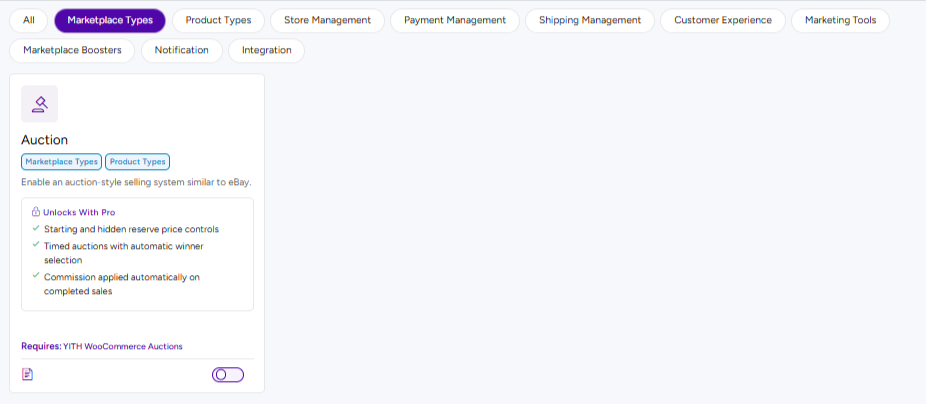
Enable Auction Product Type #
Do away with bid paddles, table arrangements, five-course meals, and the auctioneer calling out prices. Create your very own auction marketplace by simply enabling the auction product type option. If this product type were enabled, different vendors could set up their own auctions. To enable this product type –
- Go to MultiVendorX from your admin dashboard and hover cursor till the menu-list appears.
- Select the Settings option from the menu-list.
- Once you get directed, go to the Module Page, swipe the Auction Type option from the Marketplace Types list.
- And there you have it! Let Sellers hold as many auctions as they like.
Add Auctionable Products #
Sellers interested in holding auctions can do so directly from their dashboards. Let’s go through the steps sellers need to follow to list an auctionable product.
- First, sellers need to navigate to Product Manager from their dashboard menu. Under the Product Manager section, select Add Product. Alternatively, sellers can directly click the Add Product link available in the top menu.
- If you have the CPG option enabled, sellers must select the product category before proceeding to the next step.
- Once the product category is selected, sellers can fill in the product details by following this article.
- After adding the relevant details, such as the product name, description, and image, sellers can configure the auction details.
Auction Products with YITH WooCommerce Auctions #
If you are using the YITH WooCommerce Auctions extension, sellers need to configure the following details.
Note: MultiVendorX does not provide a separate auction product type. Instead, it allows sellers to add and manage auction products through their dashboards when you have the YITH WooCommerce Auctions extension installed and configured.
Auction Tab #
Since MultiVendorX provides customizable product tabs, you can enable the tabs relevant to auction products. The Auction tab is the first one. To start an auction, sellers need to configure the settings available under this tab.
The Auction tab includes the following options:
- Item Condition – This option allows sellers to specify the condition of their products. They can choose between New and Used.
- Auction Type – This refers to how customers can bid on an item. There are two types of auctions:
- Normal – Customers place increasingly higher bids on the product.
- Reverse – Customers compete by placing progressively lower bids.
- Proxy Bidding – This allows customers to enter the maximum amount they are willing to pay. The system automatically places bids on their behalf whenever they are outbid, up to their specified maximum limit.
- Starting Price – This refers to the initial bidding amount. In a normal auction, customers must place bids higher than the starting price.
- Bid Increment – Sellers can specify the minimum amount by which each subsequent bid must increase.
- Reserve Price – This refers to the minimum price at which sellers are willing to sell their items. If sellers do not wish to sell below a certain amount, they can set a reserve price. The reserve price is not disclosed to bidders, but they can see whether the auction has a reserve price and whether it has been met. If the reserve price is not met, the product cannot be purchased.
- Buy It Now – This option allows customers to purchase an item immediately at a predefined price without participating in the bidding process.
- Auction Dates – Sellers must select the auction start and end dates using the auction calendar.