





Eager to get started? So are we. You can set up your marketplace with MultiVendorX in less than five minutes with our very helpful MVX Admin Setup Wizard. Or, you can configure more advanced features by going to the MultiVendorX settings submenu. So without further ado,let’s get started on the setup process.
Stores #
In the admin dashboard, the Stores page is where the admin can manage all stores on the marketplace. From this section, the admin can manually add new stores, view the list of existing stores, edit store details, and perform bulk actions such as activation, rejection, or suspension of stores.

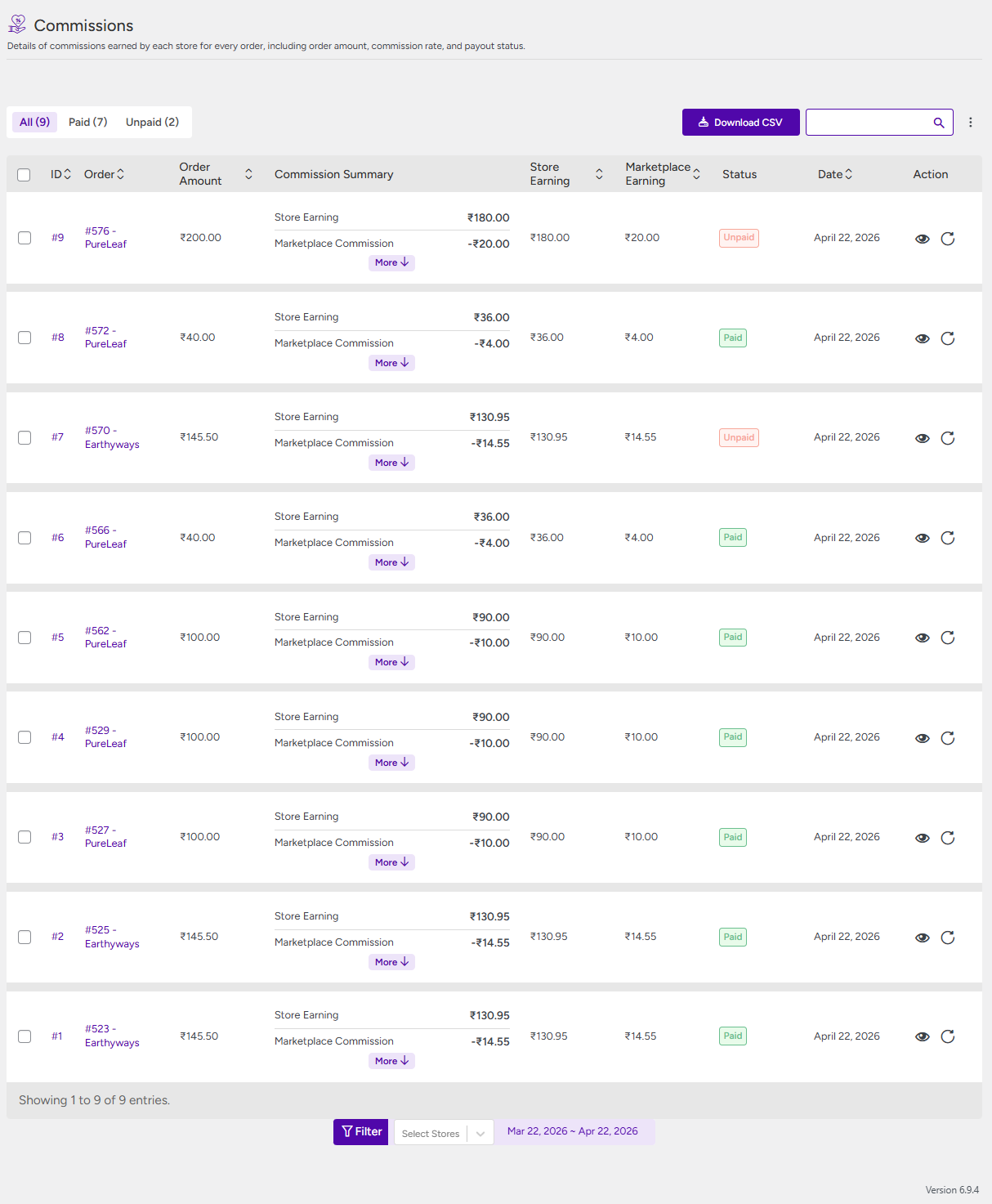
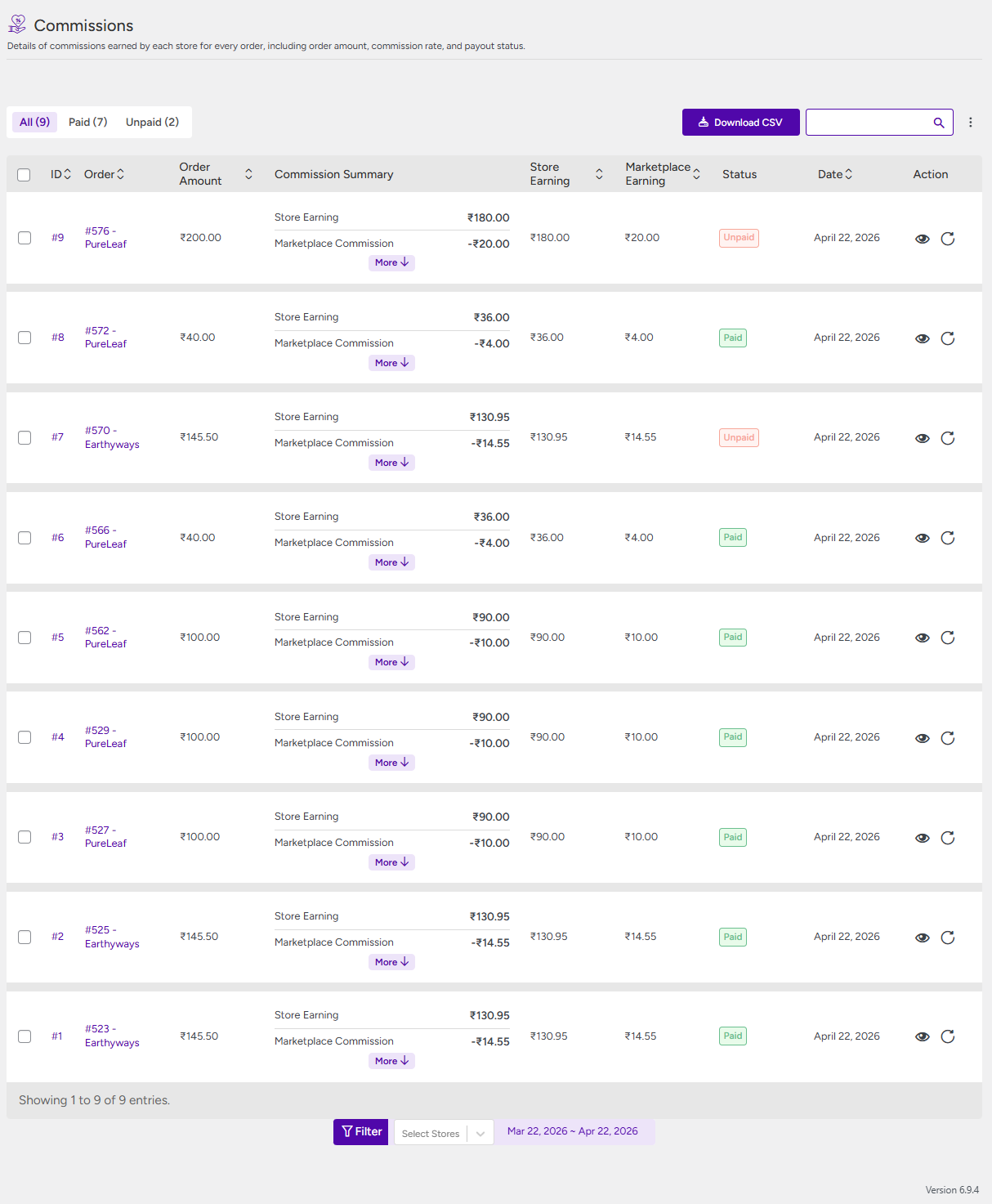
Commissions #
This section displays all commission records for the stores in the marketplace. From here, the admin can view detailed commission information, filter commissions by store, and download the data as a CSV file for further analysis of marketplace sales.
Transaction History #
In this section, the admin can view store-wise transaction details and gain insights into financial data such as credits, debits, withdrawals, pending commissions, and overall earnings for each store.
Approval Queue #
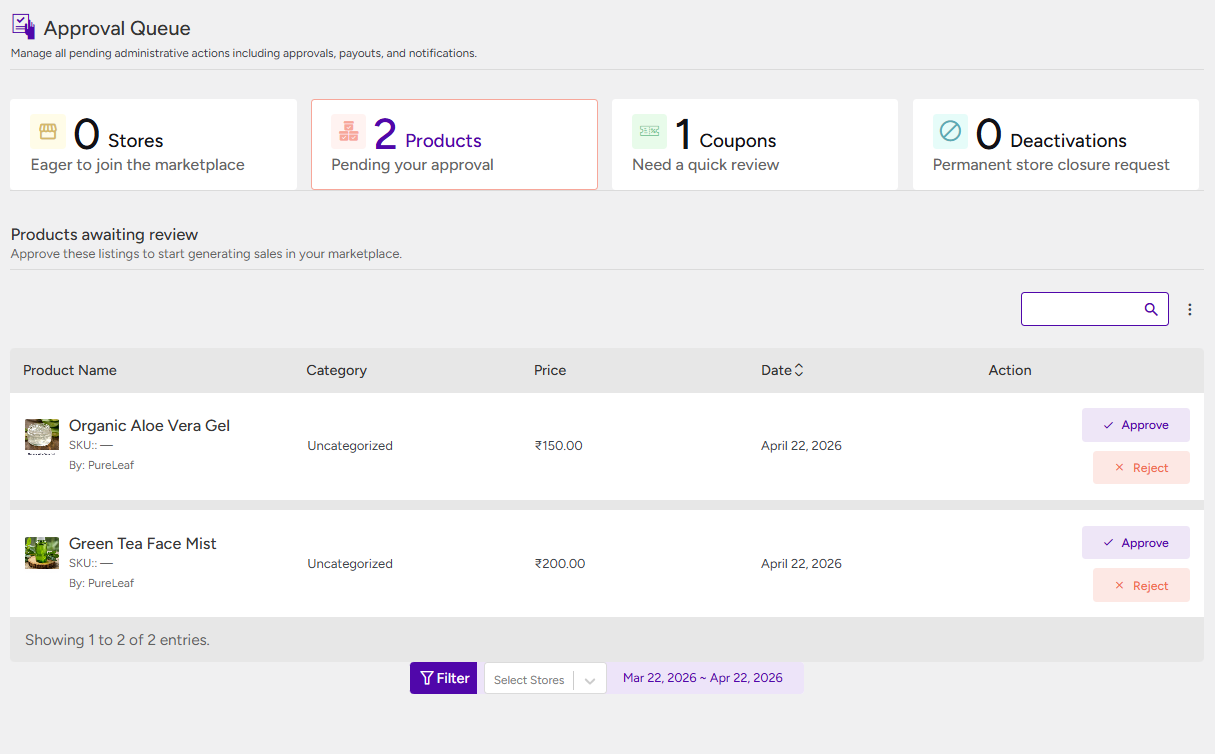
This section provides the admin with a centralized view of all pending actions across the marketplace. From here, the admin can review and approve items such as store registrations, products, coupons, withdrawal requests, and other pending activities.
Compliance #
All requests related to marketplace compliance are logged here. This includes customer-submitted reports such as product abuse, as well as tax compliance details provided by store owners, which the admin can review and approve.
Customers #
This area provides a centralized view of all customer-related interactions and data across the marketplace. It allows the admin to monitor and manage customer activities efficiently.
For example, when a customer submits a query about a product, it is logged here, enabling the admin to review and respond directly. Customer-generated content such as store reviews is also displayed, allowing the admin to oversee feedback and take action if required.
Additionally, this section includes a list of wholesale users along with their details, helping the admin manage and track B2B customers effectively.
Reports #
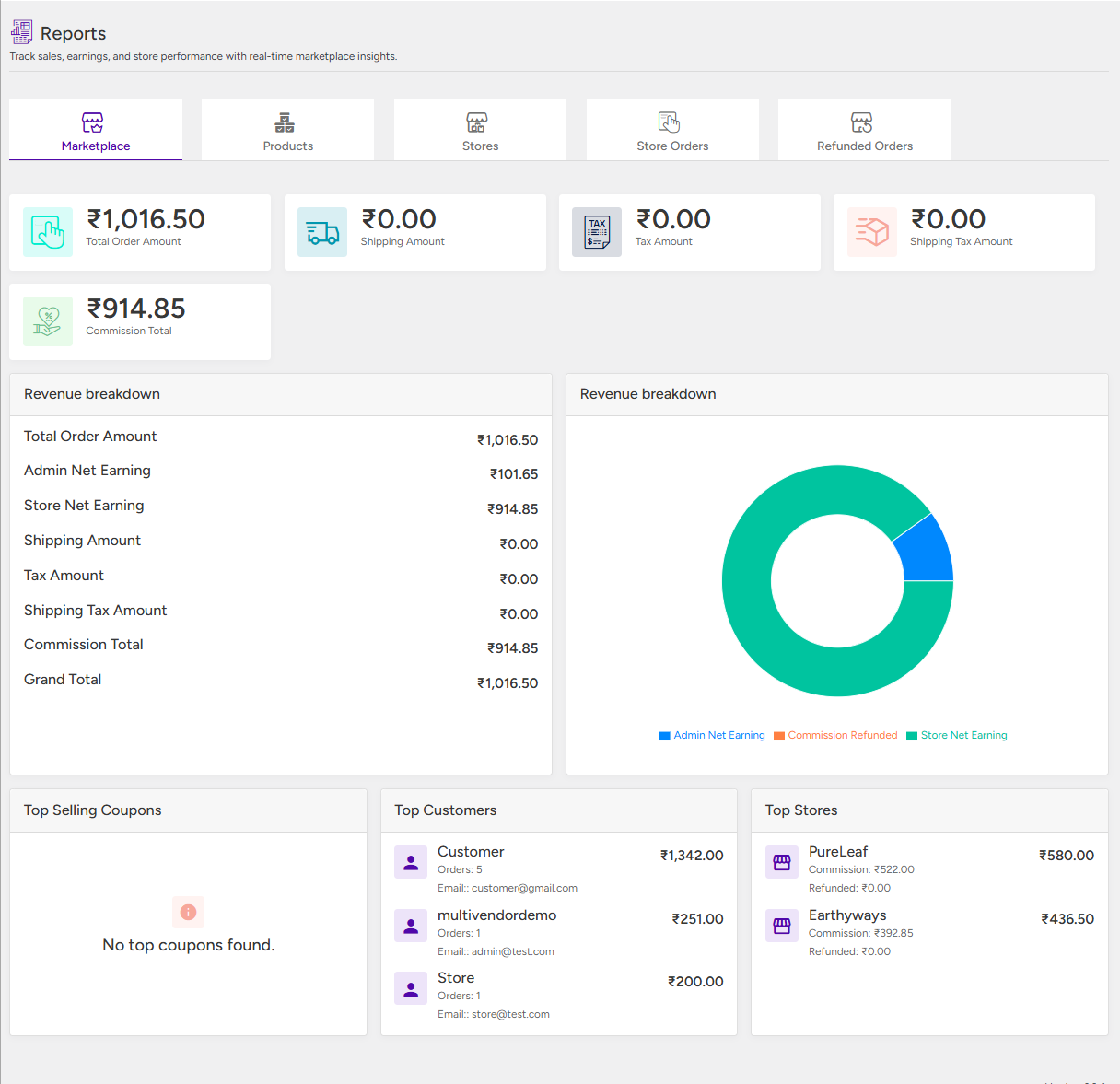
The Reports section provides the admin with a comprehensive analytical overview of marketplace performance. From here, the admin can track key insights such as top-performing stores, popular coupons, top customers, overall orders, and refunded orders, helping in better decision-making and performance monitoring.
MultiVendorX Settings #
In case you have chosen to skip the MultiVendorX Admin Setup Wizard or wish to configure more advanced settings, go to the Admin dashboard. Navigate to the MultiVendorX menu, and then choose the Settings submenu.
Once the Settings page loads, you will uncover options that will elevate your ordinary marketplace into something special.
Marketplace #
In this section, the admin can access various options to configure and manage different settings related to the marketplace.
Overview Section #
- Marketplace Pages Configuration – Admins can set up the essential system pages required for the marketplace, including the store registration page and the store dashboard.
- Customer-Facing Order Presentation & Invoicing – Admins can define which order statuses trigger customer email notifications, generate PDF invoices, and display order details in the customer’s account.
- Enable Content Styling Tools for Stores – Add your TinyMCE API credentials here to enable advanced visual editing tools across the marketplace for both admin and store owners.
- Shortcode Library – This section provides a list of all available shortcodes that can be used across your site. For more details, please refer to the documentation here.

Store Permissions #
In this section, the admin can configure the permissions available to store owners, including access to product management, order handling, customer support, and other store dashboard functionalities.
For detailed information about these settings you can refer to our documentation here.
User Capabilities #
This section allows the admin to assign different capabilities to various user roles within the marketplace. For more details, please refer to the documentation.
Store Reviews #
This section allows the admin to configure all settings related to the Store Review module. For more information about the module, please refer to our detailed knowledge base documentation.


