





Brief Introduction #
Handling refunds properly is important for maintaining customer trust in any marketplace. Customers feel more confident purchasing products when they know there is a clear refund process available if something goes wrong with their order.
The Marketplace Refund module in MultiVendorX creates a structured refund workflow between Customers, Store Owners, and Admins. Instead of handling refund requests manually through emails or support tickets, the entire process can be managed directly from the marketplace dashboard.
This system helps:
- Customers easily submit refund requests
- Store Owners review and respond to requests
- Admins maintain complete control over refund approvals and payment handling
Required module #
Refund module
To enable the Refund Module:
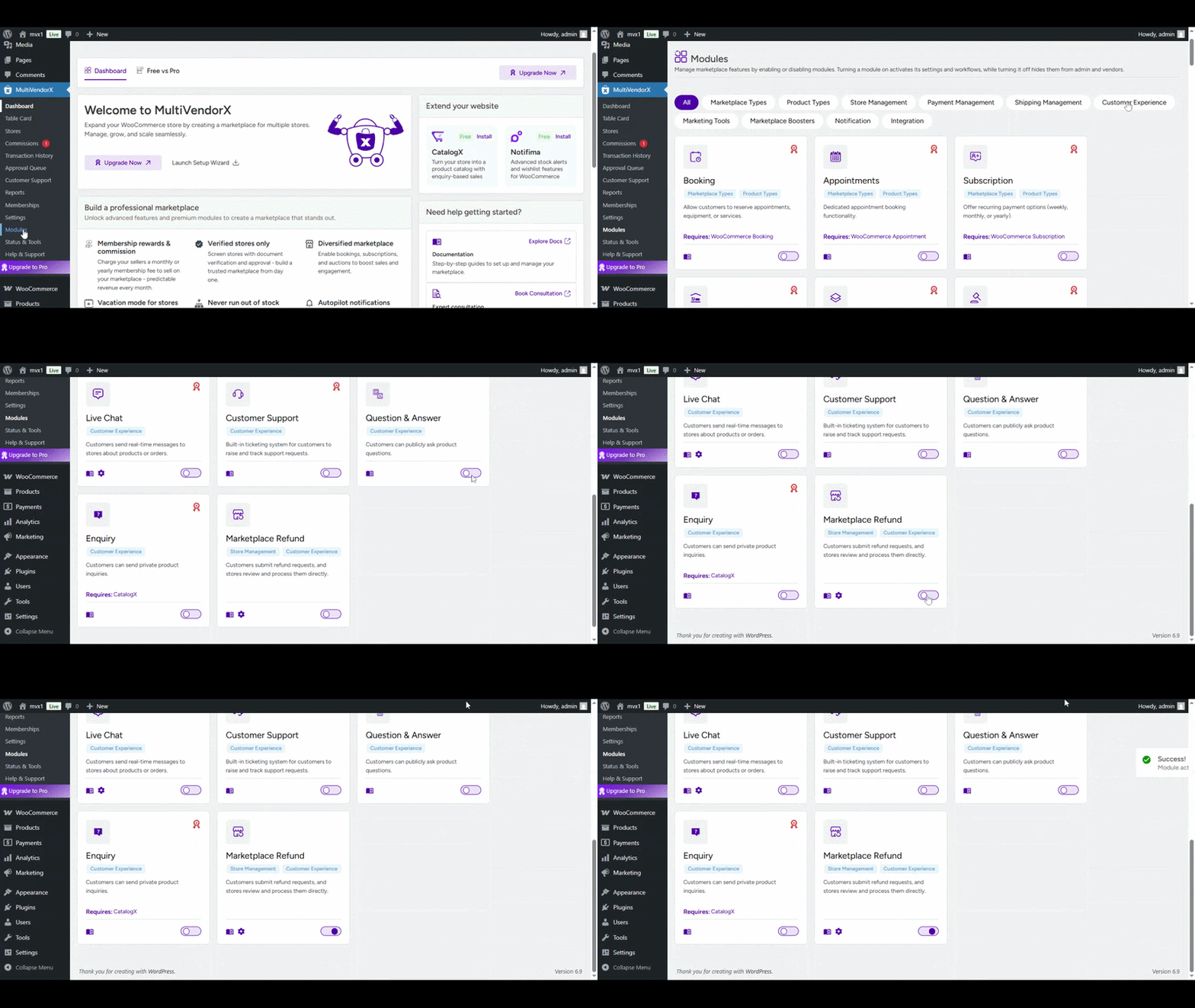
- Go to Admin Dashboard → MultiVendorX → Modules
- Select the Customer Experience tab
- Find Marketplace Refund and enable it
Once enabled, refund functionality becomes available across the marketplace.
How the Refund System Works #
Before configuring the settings, it is important to understand how the refund process works inside the marketplace.
- Customer places an order.
- Customer submits a refund request from their account dashboard.
- Store Owner or Admin reviews the request.
- The request is approved or rejected.
- Once the refund request is approved, the refund amount is handled manually by both the Admin and the respective store owner based on their commission share.
Refund Configuration Settings from admin dashboard #
Once enabled, the Admin must configure how refunds should function in the marketplace:
- Go to MultiVendorX → Settings
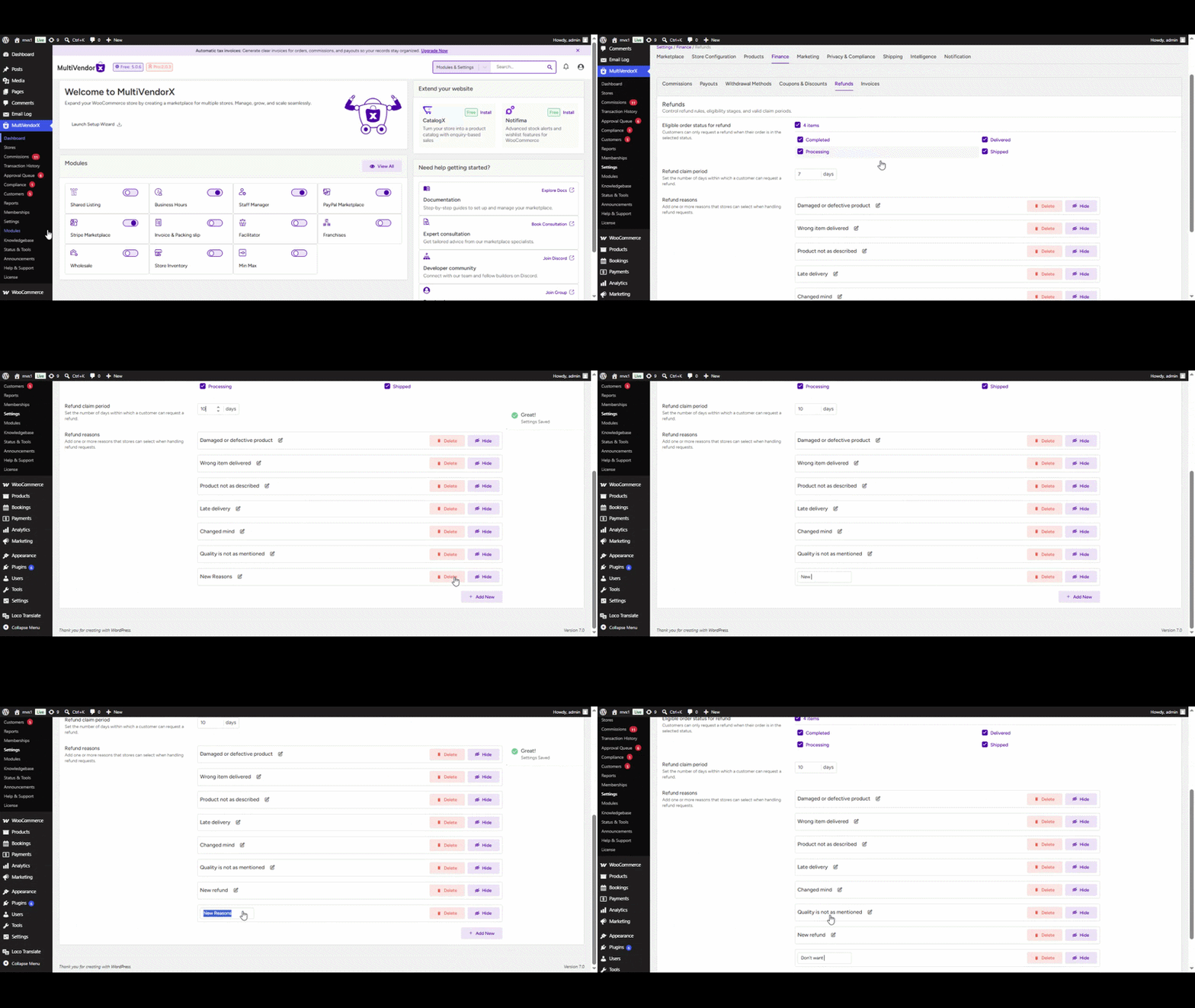
- Open the Finance tab → Refunds sub-tab
Here, you can adjust the following settings:
- Eligible Order Status for Refunds
- Decide at which order stage customers can request refunds. For example:
- – Processing – Customers can submit a refund request while the order is in Processing status.
– Completed – Customers can submit a refund request only after the order has been marked as Completed.
– Delivered – Customers can submit a refund request for orders that have the Delivered status.
– Shipped – Customers can submit a refund request for orders that are marked as Shipped.
This gives marketplace owners flexibility to define refund policies based on their business model.
For example:
- A digital marketplace may only allow refunds for completed orders
- A physical goods marketplace may allow refunds after delivery
- Refund Claim Period
The refund claim period defines how long customers can request refunds after placing an order.
Example:
- 7 days
- 14 days
- 21 days
Once the claim period expires, customers will no longer be able to submit refund requests for that order.
This helps maintain a clear and fair refund policy across the marketplace.
- Predefined Refund Reasons
- Admins can add predefined refund reasons that customers can select while submitting a refund request.
Default reasons include:
- Damaged or defective product
- Wrong item delivered
- Product not as described
- Late delivery
- Changed mind
Note:Admin can also edit, delete, or add new refund reasons based on marketplace requirements. Using predefined reasons helps standardize refund requests and makes the review process easier for both Admins and Store Owners.
Note: To allow customers to submit refund requests from their end, the admin needs to navigate to MultiVendorX → Settings → Marketplace → Overview and, under the Customer-facing order presentation & invoicing section, select either Suborders Only or Main + Suborders.
This is required because the Request Refund button is displayed to customers only for suborders.
Customer Submits a Refund Request
#
Once configured, customers can submit refund requests directly from their account:
- Go to My Account → Orders
- Open the Suborder details available
- Click Request a Refund
- Choose a reason (and add details or images if needed)
- Click Submit

Once submitted, the customer:
- Receives a confirmation notification.
- Knows their request has been recorded.
- Triggers email notifications to both the Admin and Store Owner with refund request details.
This process ensures customers don’t need to manually contact support – the request is tied directly to their order, making it easier to track.
Store Owner Reviews the Refund Request #
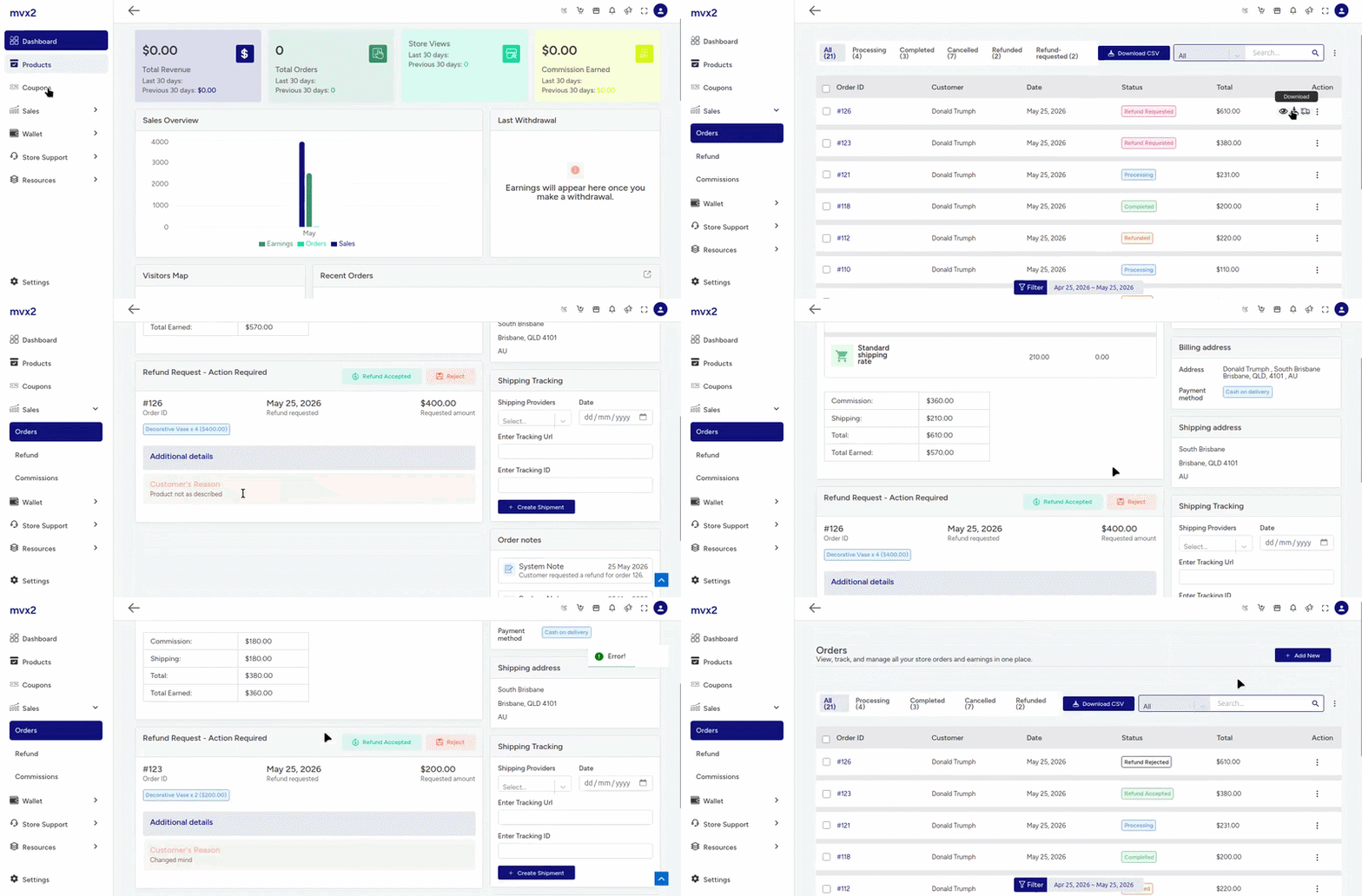
After the refund request is submitted, the Store Owner can review it from their dashboard.
The Store Owner can:
- Check the refund reason
- Review customer notes or uploaded images
- Verify order details
- Accept or reject the request
At this stage, the Store Owner does not directly refund the customer. Their role is only to review and respond to the refund request.
If the Store Owner Rejects the Refund Request #
- The refund status is updated in the customer’s My Account → Orders section
- The customer receives an email notification regarding the rejection
- The request is marked as rejected for future reference
This helps customers clearly understand the current refund status without needing additional communication.
If the Store Owner Accepts the Refund Request #
The refund request status changes to Refund Accepted
The Admin receives an email notification about the accepted request
The request becomes available in the Admin backend panel for further review
The Admin can view accepted refund requests from Admin Dashboard → MultiVendorX → Customers
From there, the Admin can:
- View refund details
- Review customer information
- Verify order data
- Check refund reasons and supporting evidence
- Manually manage the refund process
This approval structure ensures marketplace owners maintain full control over financial transactions.
Admin Processes the Refund #
Once the refund request reaches the Admin panel, the Admin can review the request and decide how the refund should be handled.

Note: Accepting a refund request does not automatically transfer money to the customer. MultiVendorX manages the refund workflow and approval system, but the actual payment refund must still be processed manually by the Admin using the payment gateway or payment method used for the order.
Refund Notifications and Status Updates
#
Throughout the refund process, automated notifications help keep everyone informed.
Notifications are triggered when:
- A customer submits a refund request
- A Store Owner accepts a request
- A Store Owner rejects a request
- The Admin reviews or processes the refund
Depending on the action performed:
- Customers receive order status updates in their My Account section Email notifications are sent automatically Admins receive alerts for accepted refund requests
This ensures complete transparency throughout the refund lifecycle.


