





Brief Introduction #
In many franchise-based businesses, customer orders need to be routed to the most appropriate store or branch for fulfillment rather than being handled by a single central location. This helps streamline operations, reduce delivery times, and ensure customers are served by the nearest or designated franchise.
To achieve this, MultiVendorX Pro comes with the Franchises module. It enables a franchise-style ordering system by allowing stores to create orders, place orders for admin-managed products, and automatically assign customer orders to the appropriate store based on the customer’s location. This ensures efficient order distribution while simplifying franchise management for marketplace administrators.
Requirements #
Configuring the Franchises Module from the Admin Dashboard #
To get started, navigate to Admin Dashboard → MultiVendorX → Modules. Under the Store Management section, locate the Franchises module and enable it to activate the franchise management features for your marketplace.
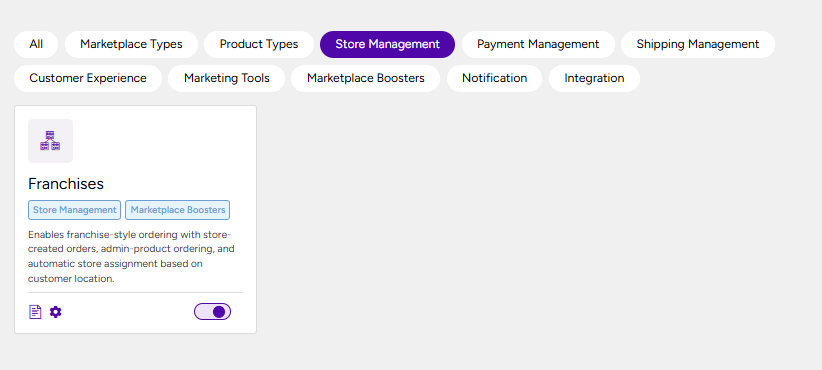
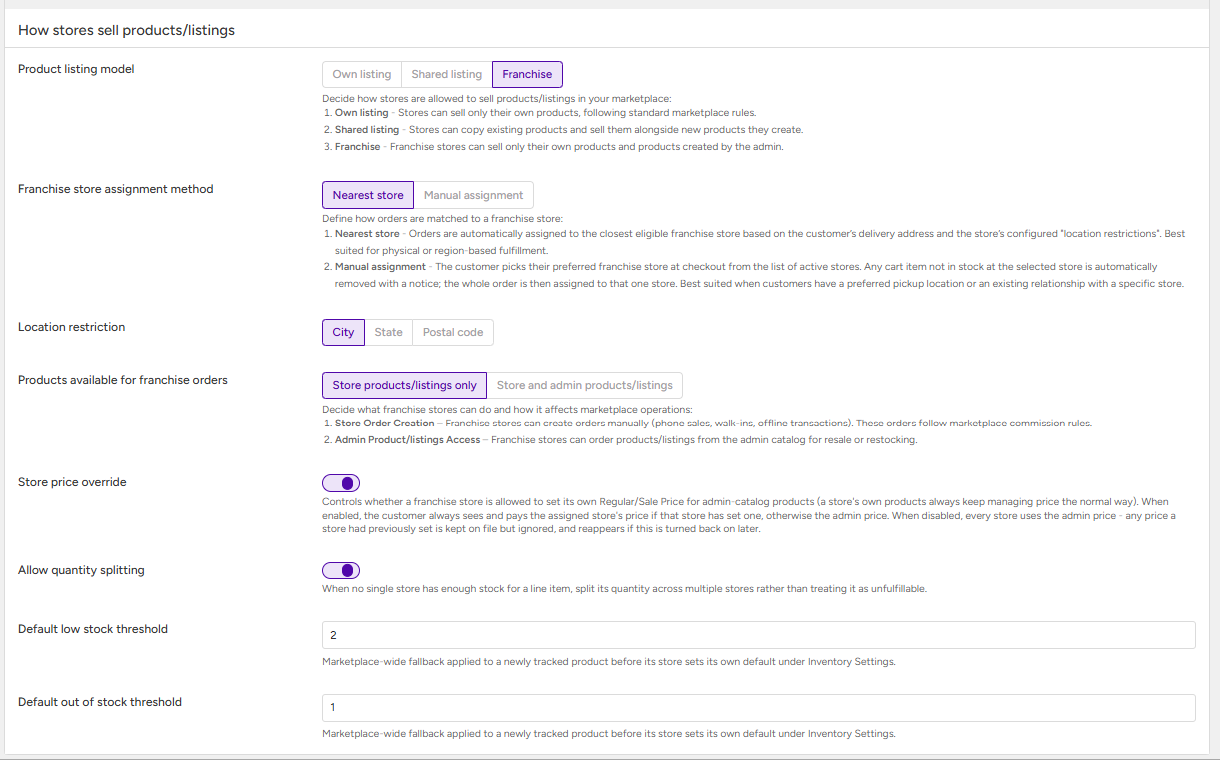
Once the Franchises module has been activated, navigate to MultiVendorX → Settings → Store Configuration → Onboarding. Scroll down to the How stores sell products/listings section to configure the franchise settings.
- Product Listing Model – Select Franchise as the product listing model.
Enabling this option allows franchise stores to sell both:
- Their own products/listings.
- Products/listings added by the marketplace administrator.
- Franchise Store Assignment Method – Choose how customer orders should be assigned to franchise stores.
Nearest Store
Orders are automatically assigned to the closest eligible franchise store based on:
- The customer’s delivery address.
- The store’s configured location restrictions.
This method is ideal for marketplaces that rely on regional or location-based order fulfillment.
Manual Assignment
Customers can select their preferred franchise store during checkout from the list of available stores.
If any product in the cart is unavailable at the selected store, it is automatically removed from the cart and the customer is notified. The remaining order is then assigned entirely to the selected franchise store.
This method is best suited for businesses where customers prefer a specific pickup location or have an existing relationship with a particular franchise.
- Location Restriction – This setting determines how the Nearest Store assignment method matches customers with franchise stores.
The admin can choose to match stores based on:
- City
- State
- Postal Code
- Products Available for Franchise Orders – Choose the actions that franchise stores are allowed to perform.
Store Order Creation
Allows franchise stores to manually create customer orders, such as phone orders, walk-in purchases, or other offline transactions. These orders continue to follow the marketplace’s commission rules.
Admin Product/Listings Access
Allows franchise stores to order products or listings from the admin’s catalog for resale or inventory replenishment.
- Store Price Override – This option determines whether franchise stores can set their own prices for products from the admin catalog.
Enabled: Franchise stores can define their own Regular Price and Sale Price for admin-managed products. Customers will see and pay the price configured by the assigned franchise store. If no custom price has been set, the admin’s price is used.
Disabled: All franchise stores use the admin-defined product price. Any custom prices previously configured by stores are retained but remain inactive. If this option is enabled again later, the stored custom prices become effective once more.
Note: Products created by franchise stores always manage their own pricing independently.
- Allow Quantity Splitting – Enable this option to allow customer orders to be fulfilled by multiple franchise stores when a single store does not have sufficient inventory.
When enabled, if one store cannot fulfill the required quantity of a product, the quantity is automatically split across multiple eligible stores instead of marking the item as unavailable.
- Default Low Stock Threshold – Set the default low stock threshold for products across the marketplace. Once the available stock reaches this value, the product will be considered low in stock.
- Default Out of Stock Threshold – Set the default out-of-stock threshold for products across the marketplace. When the available stock reaches this value, the product will automatically be treated as out of stock throughout the marketplace.
Configuration From the Store Dashboard #
Once the admin has completed the configuration, franchise store owners can navigate to Store Dashboard → Inventory to manage their product inventory. From here, they can update the available stock for their products, allowing the marketplace to accurately track inventory and assign customer orders based on stock availability and the configured franchise settings.