




The Store Order Management system helps store owners manage customer orders, track earnings, handle shipments, and monitor sales activity from a centralized store panel.
Store owners can access order-related information from two main areas:
- Dashboard → For quick performance insights and recent order activity
- Dashboard → Sales → Orders → For complete order management and shipment handling
This workflow allows sellers to monitor business activity and efficiently process customer orders from start to finish.
Dashboard Overview #
When a store owner logs into the store panel, the dashboard displays important business and order-related insights.
The dashboard provides a quick summary of:
- Store performance
- Revenue and earnings
- Order activity
- Sales reports
- Recent customer purchases
This helps sellers understand overall business performance without opening individual order pages.
Monitoring Store Performance #
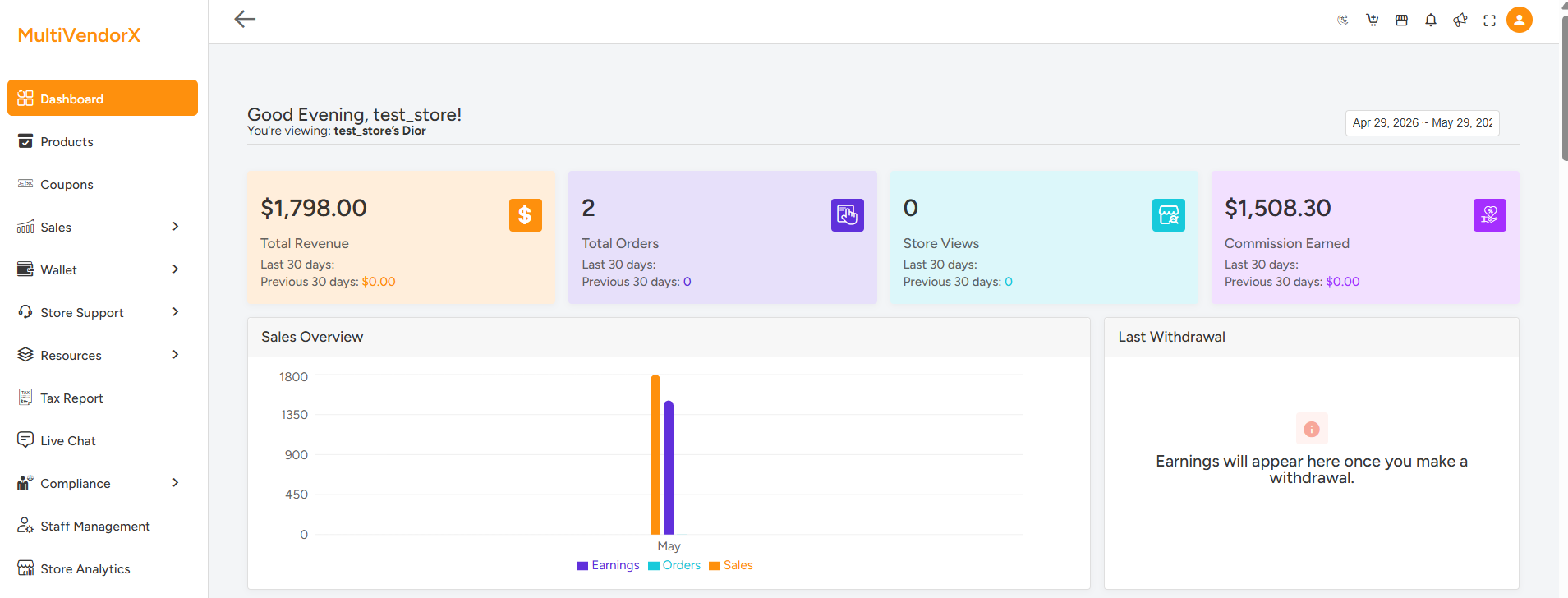
The top section of the dashboard displays key performance indicators for the selected date range.
These reports help store owners monitor store growth and sales activity.
Total Revenue : The revenue section displays the total sales generated during the selected period.
Example:
Last 30 Days Revenue: $1,798.00
Previous 30 Days Revenue: $0.00
This allows sellers to compare current and previous sales performance.
Total Orders : This section shows the total number of customer orders received.
Example:
Total Orders: 2
This helps store owners quickly track order activity.
Store Views : The store views section displays how many visitors viewed the store page. This helps sellers understand customer engagement and store visibility.
Commission Earned : The commission section shows the seller’s total earnings after marketplace commission deductions.
Example:
Commission Earned: $1,508.30
This gives sellers a clear understanding of their actual earnings.

Sales Overview #
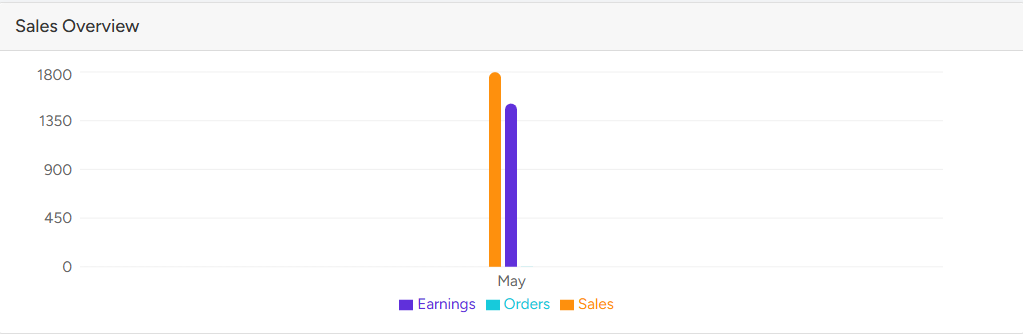
The Sales Overview section displays a graphical report of store activity.
The graph may include:
- Earnings
- Orders
- Sales totals
This visual report helps store owners analyze, over a selected time period :
- Sales trends
- Revenue growth
- Order performance
Recent Orders #
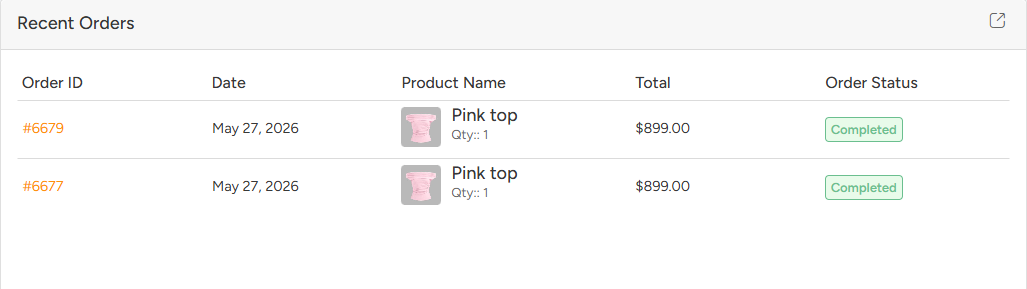
The Recent Orders section displays the latest customer purchases directly on the dashboard.
The table include:
- Order ID
- Order Date
- Product Name
- Quantity
- Total Amount
- Order Status
Accessing the Orders Management Section #
To manage all customer orders, store owners need to navigate to:
Dashboard → Sales → Orders
This section provides complete order management functionality.
Store owners can:
- View all orders
- Search specific orders
- Filter orders by status
- Download CSV reports
- Open detailed order pages
- Manage shipping and tracking information
Managing Orders #
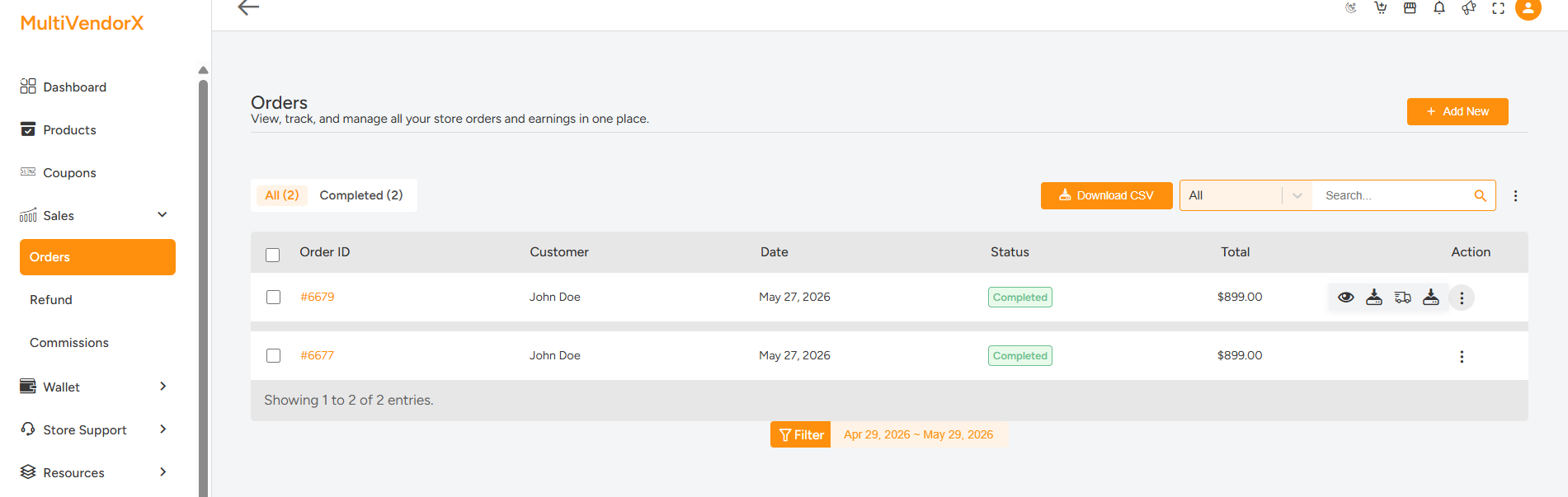
The Orders page displays all customer orders associated with the store. The order table may include:
- Order ID
- Customer Name
- Order Date
- Order Status
- Order Total
- Actions
Filtering and Searching Orders #
The Orders page includes filtering and search tools to help sellers quickly locate orders.
Store owners can:
- View All Orders
- View Completed Orders
- Search using Order ID
- Search using Customer Name
Downloading Order Reports #
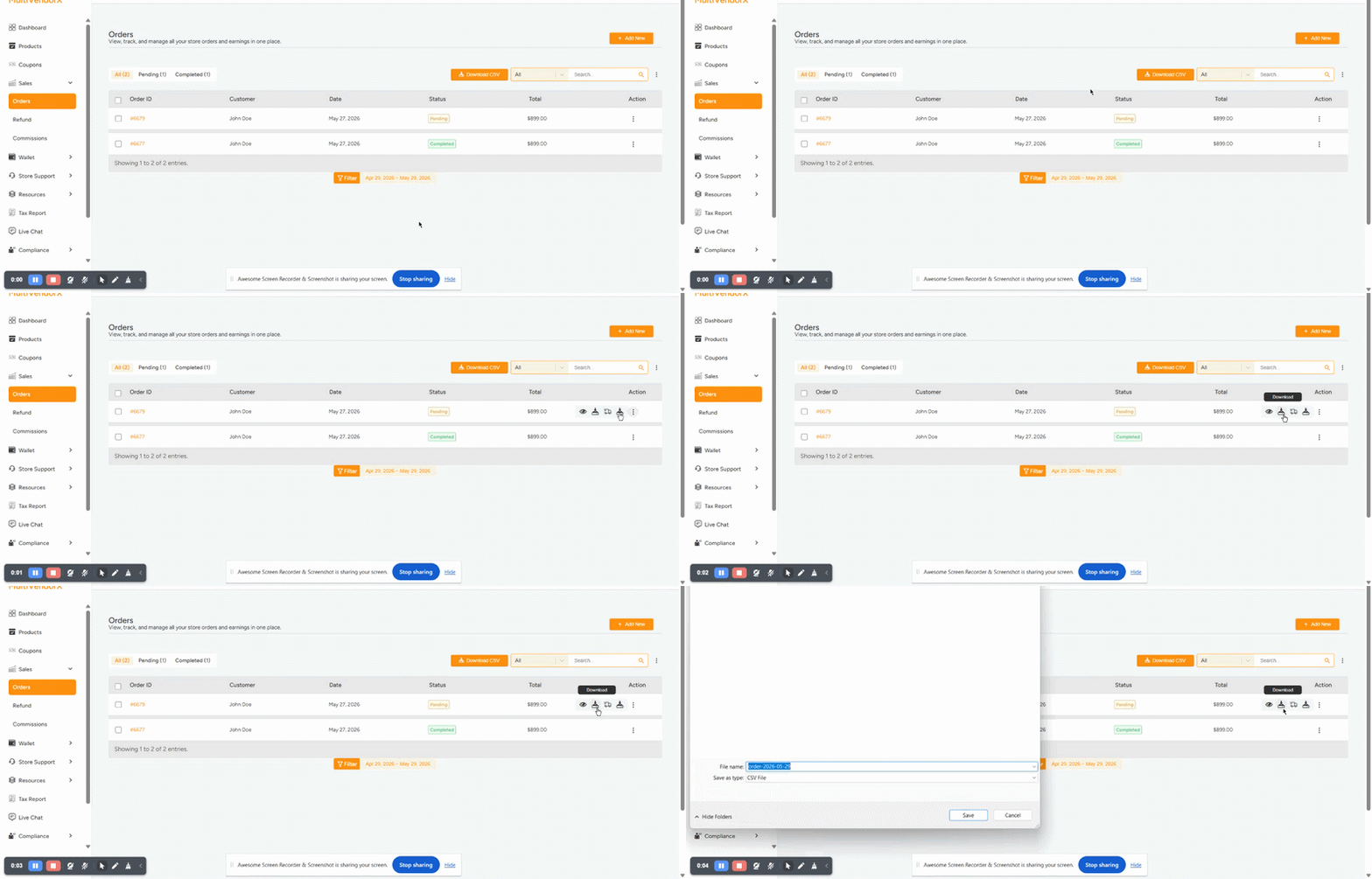
Store owners can export order information using the Download CSV option.
The exported file may include:
- Order IDs
- Customer details
- Product information
- Order totals
- Order statuses
- Order dates
Viewing Order Details #
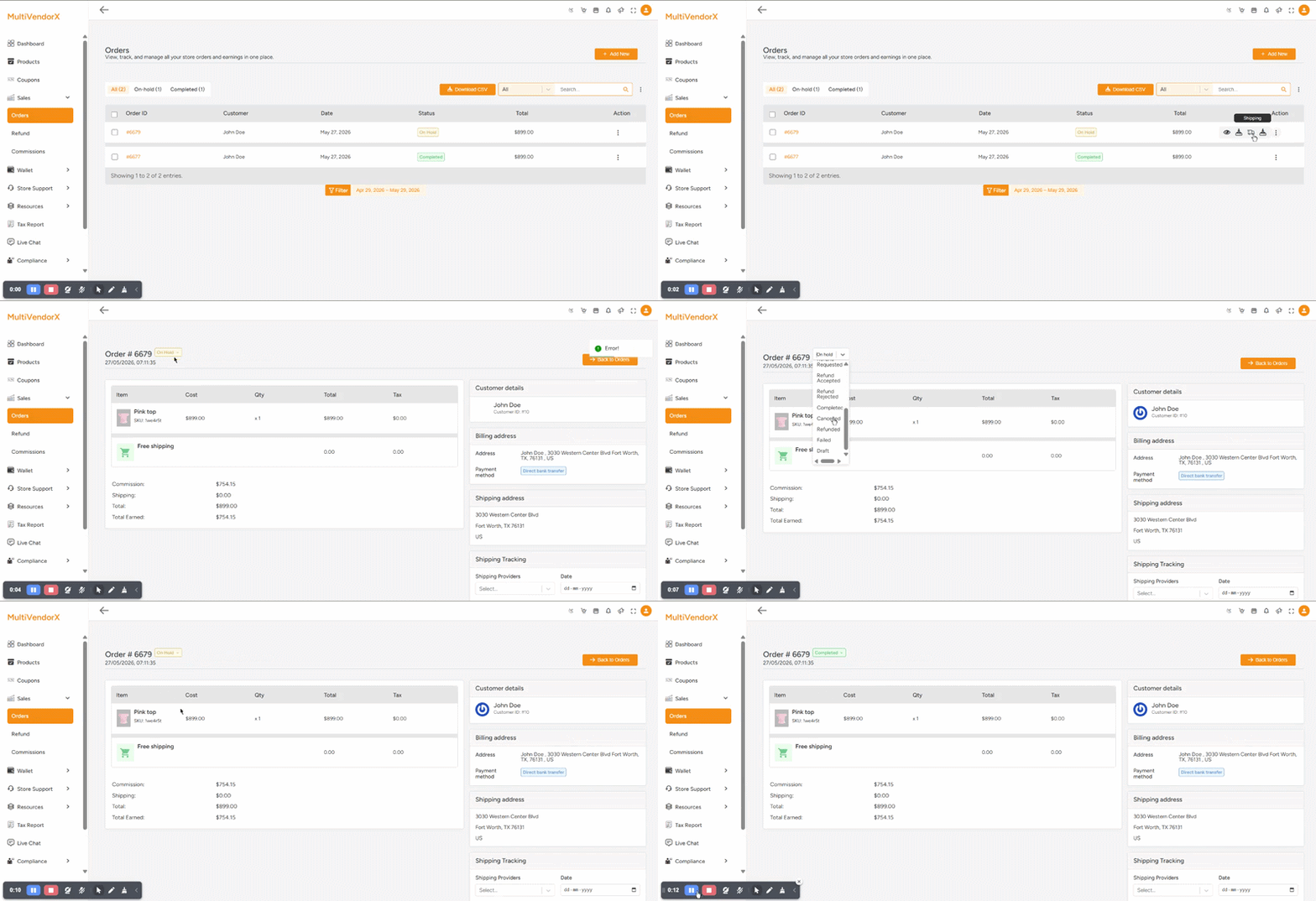
Clicking on an order opens the detailed order management page.
The order details section displays:
- Order Number
- Order Status
- Order Date and Time
- Product Details
- Customer Information
- Earnings Breakdown
- Shipping Information
- Order Notes
Understanding Product Information #
The order item section includes:
- Product Name
- SKU
- Product Price
- Quantity
- Tax
- Shipping Cost
- Total Amount

Commission and Earnings Breakdown #
The order page also displays seller earnings.
Example:
- Commission Earned:
$754.15 - Shipping:
$0.00 - Total Order Value:
$899.00 - Total Earned:
$754.15
This provides transparency regarding seller payouts and marketplace commissions.
Customer Information #
Store owners can access complete customer details directly from the order page.
The system displays:
- Customer Name
- Customer ID
- Billing Address
- Shipping Address
- Payment Method
Example payment method:
- Direct Bank Transfer
This information helps sellers process orders correctly.
Managing Shipping and Tracking #
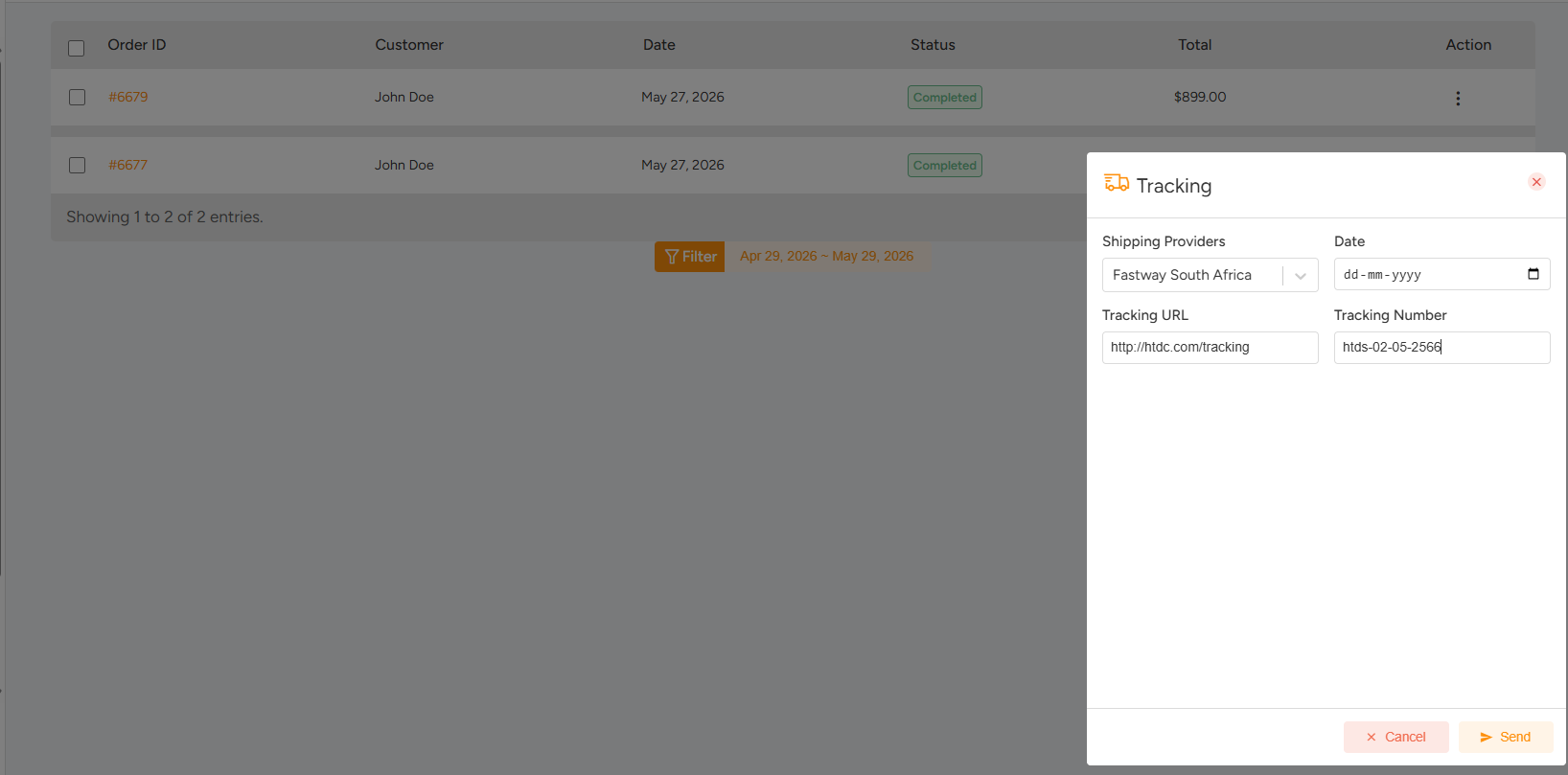
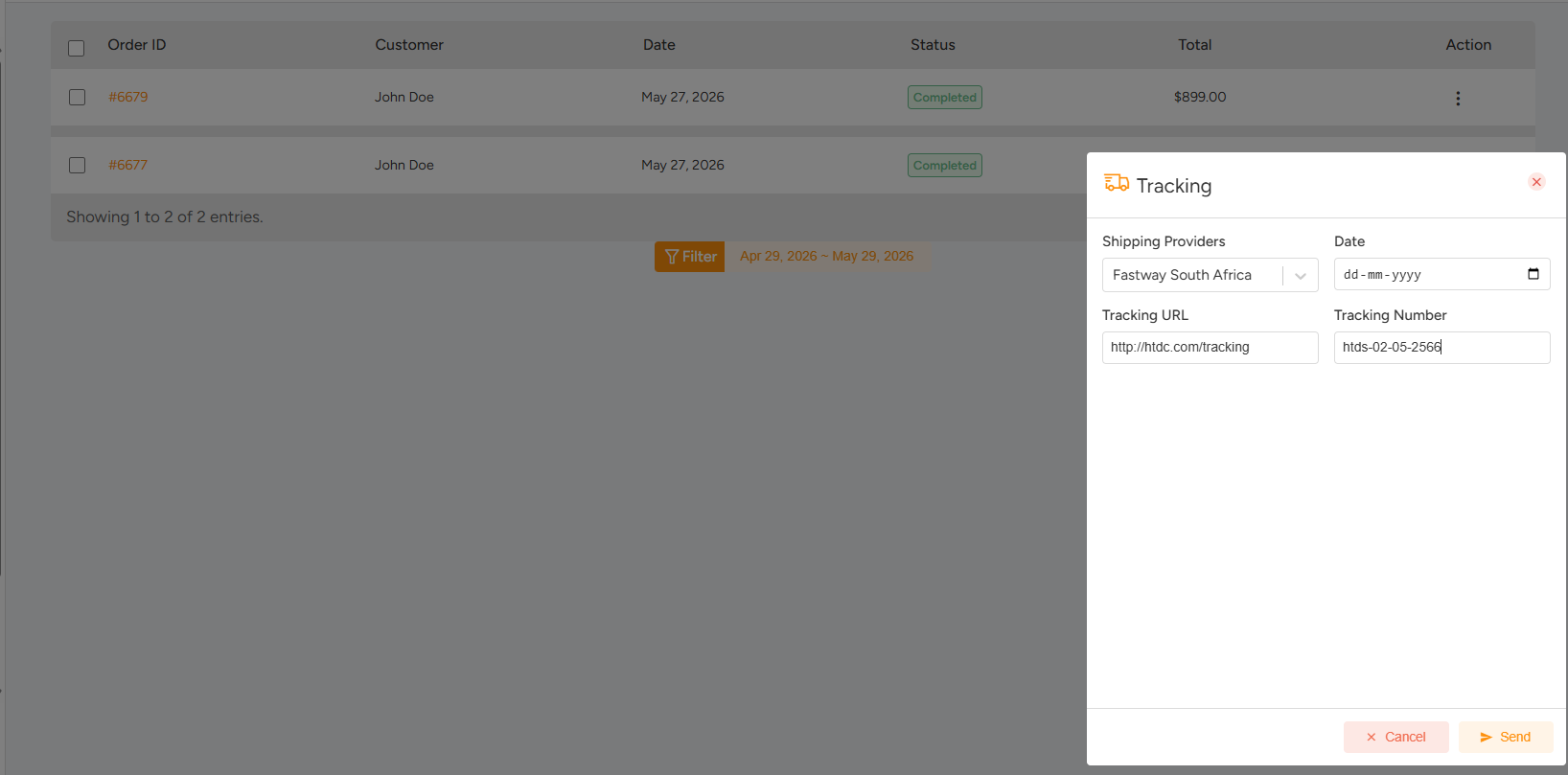
After reviewing the order, the seller can create shipment information directly from the order details page.
The shipping section allows sellers to enter:
- Shipping Provider
- Shipment Date
- Tracking URL
- Tracking Number
After entering the required information, click:
- Create Shipment
Customers can then use the tracking information to monitor shipment progress.
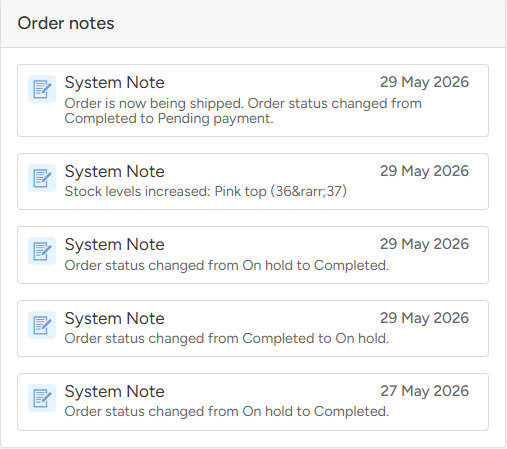
Order Notes and Activity Logs #
The order notes section automatically records important order activities.
The system tracks:
- Order status updates
- Payment changes
- Stock reductions
- Shipment creation