





Brief Introduction #
Zone-wise Shipping in MultiVendorX allows store owners to define shipping costs based on specific geographical zones. By configuring different shipping rules for different regions, store owners can offer accurate and flexible shipping rates, optimize delivery costs, and provide a better checkout experience for customers—no matter where they’re located.
This helps:
- Provide accurate shipping charges during checkout
- Reduce delivery cost mismatches
- Offer location-specific delivery methods
- Improve the customer checkout experience
- Allow store owners to manage their own shipping preferences
Module Required #
- Store Shipping
To enable Store Shipping module:
- Navigate to MultiVendorX → Modules from the admin dashboard.
- From the Shipping Management section enable the Store Shipping module.
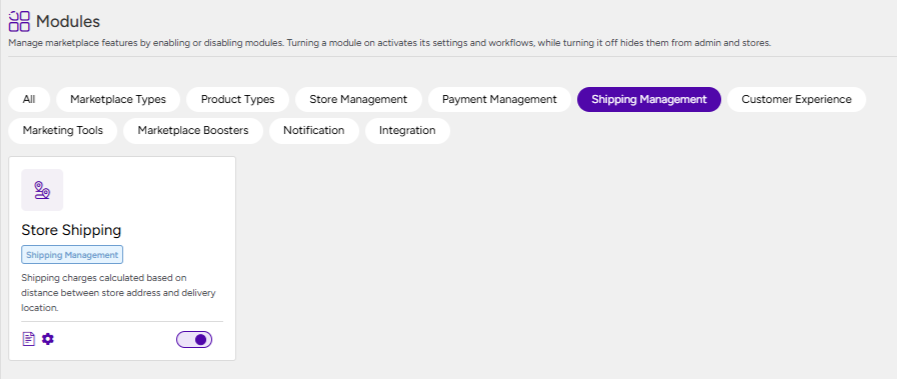
Once the module is activated,
- Navigate to MultiVendorX → Settings
- Open the Shipping tab.
- Locate the Zone-Based Shipping option and enable it.
- After enabling shipping method Click on Settings
- Then select Add Zones
This redirects to the WooCommerce Shipping Zones page.
From this section, the admin can define shipping zones based on regions and add Store Shipping as the shipping method for each zone so that each store set it’s own shipping costs for that zone.

Once the admin finishes creating zones and assigning the Store Shipping method:
- The configured zones become visible to store owners
- Store owners can now configure shipping methods for their own stores
- Shipping settings become available inside the vendor dashboard
- Customers will later see shipping charges dynamically based on their delivery location
Managing individual Store Shipping from the Admin Dashboard #
Apart from global zone creation, admins can also configure shipping settings directly for individual stores.
This is useful when:
- A store owner needs assistance with setup
- The marketplace owner wants centralized control
- Shipping methods need verification before going live
To configure shipping for a specific store:
- Navigate to MultiVendorX → Stores
- Select the required store
- Click on Settings
This opens the store-specific configuration page.
Inside the store settings:
- Open the Shipping tab
- Select Shipping by Zone
The store will now display all shipping zones previously created by the admin.
Configure Shipping Methods for Each Zone #
For every available zone, the admin can assign shipping methods such as:
- Flat Rate
- Free Shipping
- Local pickup
These methods determine how customers receive shipping options during checkout.

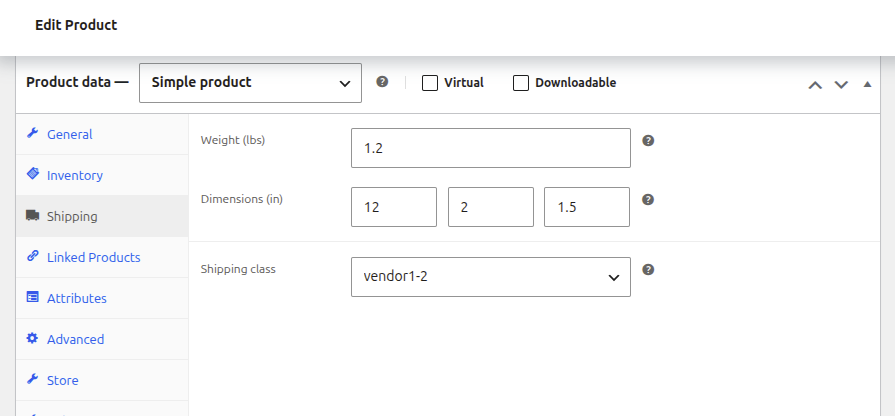
Note: If the admin adds products to a store from the admin dashboard, a shipping class must also be assigned to those products. Otherwise, customers may not see any available delivery options during checkout.
Configuring Zone-Based Shipping from the Store Dashboard #
Store owners can manage shipping directly from their store dashboard for the zones created by the admin.
To add zones from the dashboard
- Navigate to Settings
- Open the Shipping section
- Select Shipping by Zone
All admin-created shipping zones will appear here.
For each available zone:
- Select a shipping method
- Configure charges or conditions
- Save the settings
Note: Store owners can also delete any admin created shipping methods for any zone

Once saved, customers from matching regions will see those shipping options during checkout.
Available Shipping Methods #
Flat Rate Shipping #
Flat Rate Shipping in MultiVendorX allows store owners to charge a fixed shipping cost for orders within a specific shipping zone.
- This cost can be:
- Based on order value (using formulas)
- A simple fixed amount
- Based on quantity
When Flat Rate is selected inside a zone, the following options are available:
Base Cost :The base shipping cost applied to the entire cart.
Additional per-item or conditional costs can be configured using advanced cost rules.
- Cost of Shipping Class :This is an additional cost added based on product shipping class.
Example:
- Base cost = $2
- Heavy item class = $8
- Total shipping = $10
Advanced Cost: The Cost field supports formulas, allowing flexible pricing like:
- Per quantity pricing
- Percentage-based charges
- Combined rules
Examples:
10 + (2 * [qty])
- $10 base + $2 per item
20 + [fee percent="10"]
- $20 base + 10% of order value

Free Shipping #
Free Shipping in MultiVendorX allows store owners to offer zero shipping cost to customers based on certain conditions.
Min Order – Free shipping is applied when the order reaches a minimum amount.
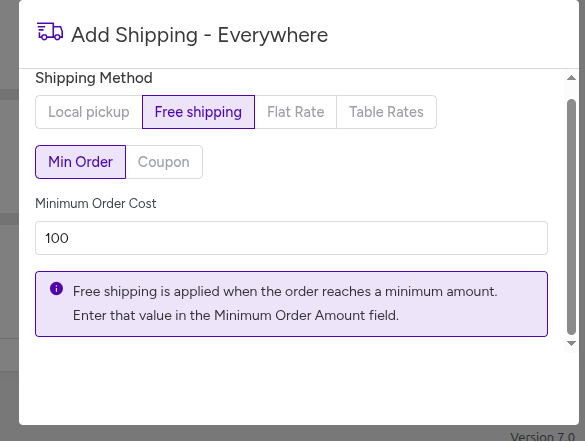
Coupon– Free shipping is applied only when a valid coupon is used.

Local Pickup #
Local Pickup allows customers to collect the product themselves instead of getting it delivered.

Customer Checkout Flow #
After shipping setup is completed:
- Customer adds products to the cart
- Customer enters the shipping address
- MultiVendorX matches the shipping zone
- Available shipping methods are displayed
- Customer selects the preferred option
- Shipping charges are calculated automatically
- Order is placed successfully.


