





Brief Introduction #
Different countries often have different shipping regulations and delivery costs. To manage this efficiently, MultiVendorX provides a country-based shipping feature that allows shipping charges to be configured separately for different countries.
This helps store owners apply accurate shipping costs based on customer location while providing a smoother checkout experience.
Module Required #
- Store Shipping
To enable the Store shipping module, from the admin dashboard
- Navigate to MultiVendorX → Modules
- Open the Shipping Management section
- Enable the Store Shipping module
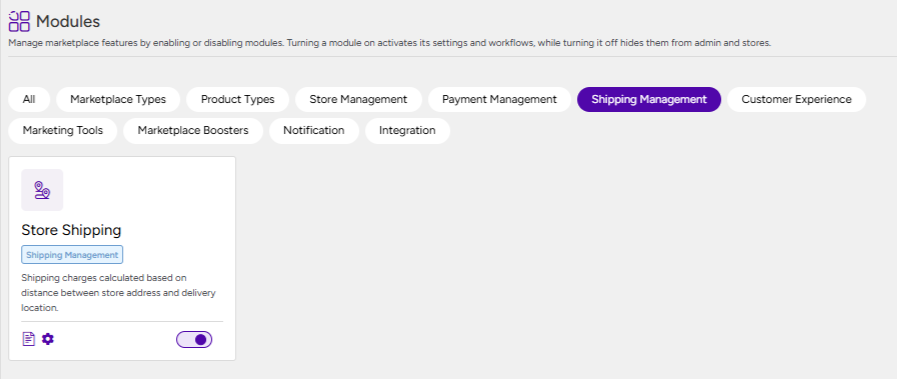
Once enabled, shipping management features become available across the marketplace.
Note: If the Store Shipping module remains disabled, vendors will not be able to configure any shipping method from their store dashboard.
Enable country-based shipping #
After enabling the module:
- Navigate to MultiVendorX → Settings
- Open the Shipping tab
- Locate Country Wise Shipping and enable it
Once enabled, the country-based shipping method becomes available for both admin-level and vendor-level store configuration.
After enabling the shipping method:
- Click on Settings
- Enter a preferred Shipping Method Name
This name will be displayed to customers during checkout when shipping charges are calculated.
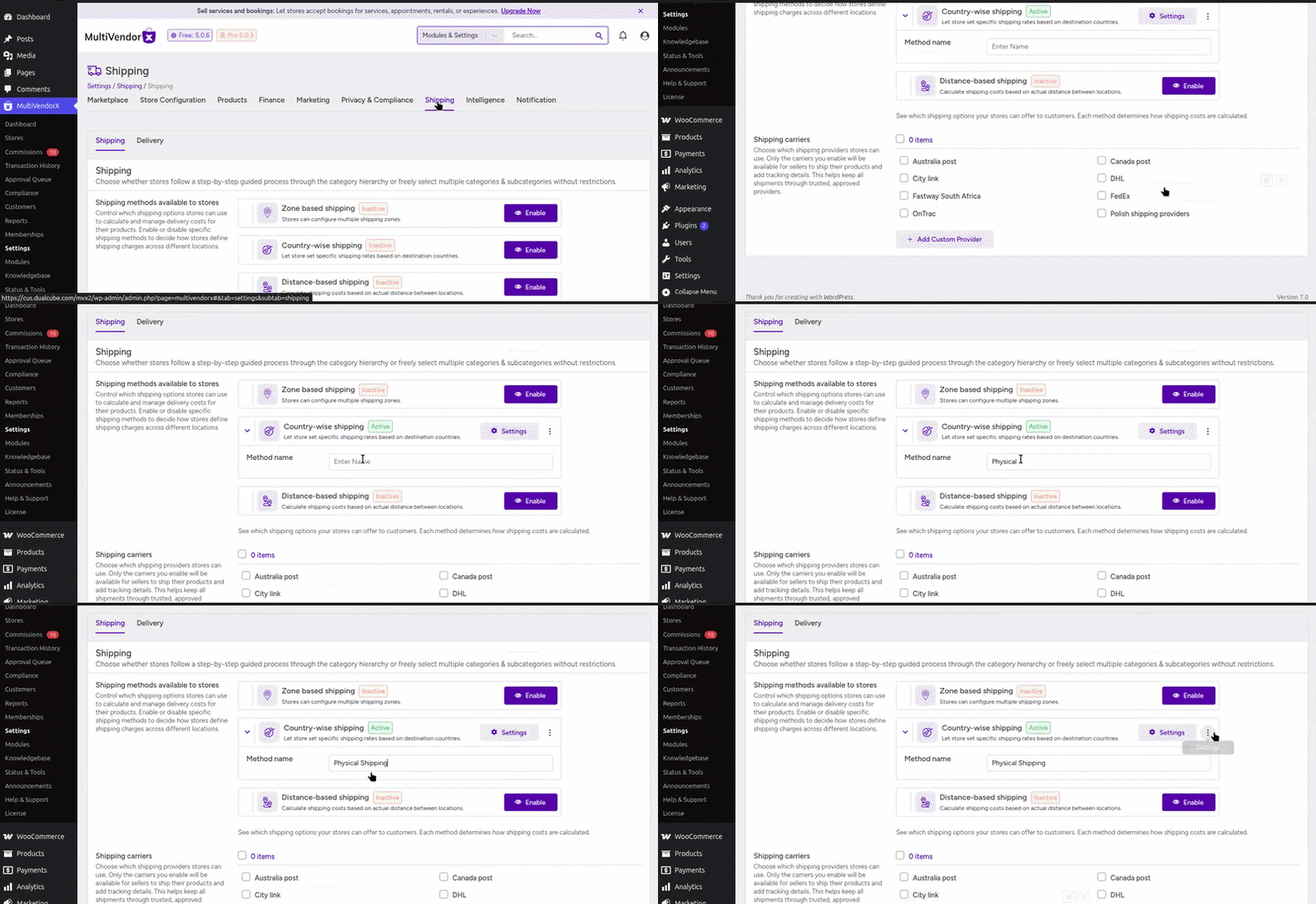
After this , the shipping method becomes active for supported stores.
Configuring Country-Based Shipping for individual Stores from the Admin Dashboard #
The admin can manage and configure shipping settings for individual stores directly from the MultiVendorX dashboard.
From the admin dashboard:
- Navigate to MultiVendorX → Stores
- Select the required store
- Click on Settings
Inside the store settings page:
- Open the Shipping tab
- Select Shipping by Country as the shipping method
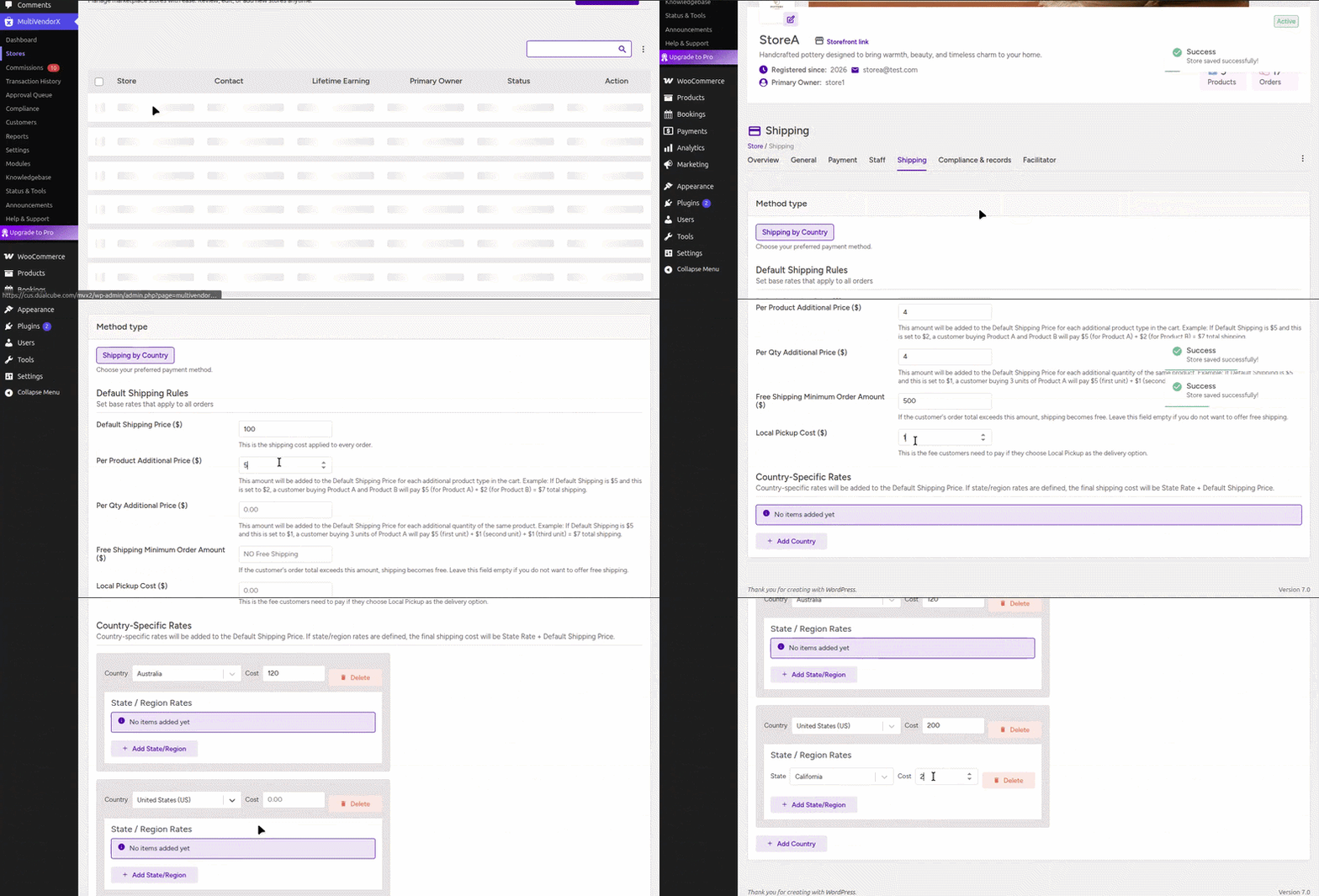
Once selected, additional shipping configuration fields will appear.
Various shipping configuration options #
- Default Shipping Price – Defines the base shipping cost applied to every order by default.
- Per Product Additional Price – Specifies the additional shipping charge applied for each different product added to the cart, in addition to the default shipping price.
- Per Quantity Additional Price – Specifies the additional shipping charge applied for each additional quantity of the same product, added to the default shipping price.
- Free Shipping Minimum Order Amount – Defines the minimum order value required for free shipping eligibility.If the customer’s order total exceeds this amount, shipping charges will not be applied.
- Local Pickup Cost – Defines the fee customers must pay when selecting Local Pickup as their delivery method.
- Country-Specific Rates – Allows additional shipping charges to be applied based on the customer’s country.
- These rates are added to the Default Shipping Price.
- If state or region-level rates are configured, the final shipping cost is calculated as:
State/Region Rate + Default Shipping Price
Example:
- Default Shipping Price = $5
- Country Rate for Canada = $4
Final shipping cost for Canadian customers: $9
If state or region-level rates are also configured, the final shipping amount is calculated using:
- State or Region Rate + Default Shipping Price
This allows stores to maintain flexible and location-specific delivery pricing.
Configuring the Country based shipping from the Store dashboard #
Store owners can also manage country-based shipping directly from their own dashboard without requiring admin intervention.
This gives vendors flexibility to define shipping costs according to their own delivery policies and supported countries.
For that open shipping settings From the store dashboard:
- Navigate to Settings
- Open the Shipping section
- Select Shipping by Country
Once enabled, the same shipping configuration options become available to the store owner.
Store owners can then configure:
- Default shipping price
- Per product additional charges
- Per quantity charges
- Free shipping conditions
- Local pickup cost
- Country-specific shipping rates
After saving the settings, the configured shipping rules become active immediately for customer orders.
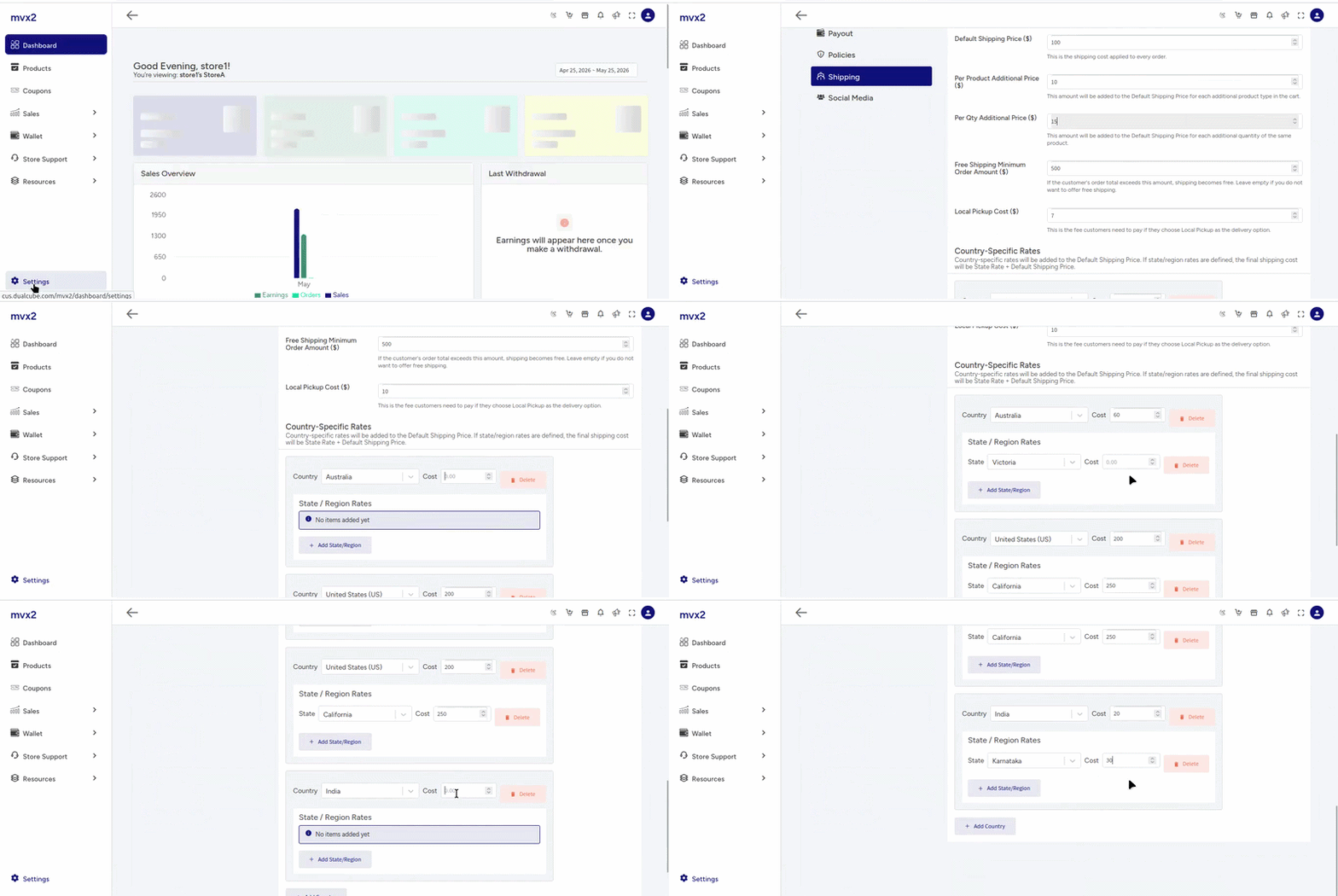
Note: Store owners can edit or delete the shipping charges, country or state-based rules, and pricing methods configured by the admin.
Customer checkout experience #
Once country-based shipping is configured, customers automatically see shipping charges based on their delivery location during checkout.
When a customer:
- Adds products to the cart
- Enters the shipping country
- Proceeds to checkout
MultiVendorX automatically:
- Detects the customer’s delivery country
- Applies the configured shipping rules
- Calculates the final shipping cost
- Displays the available shipping method and charges
If free shipping conditions are met:
- Shipping charges are removed automatically
If Local Pickup is selected:
- The configured pickup fee is applied instead of delivery charges

After the order is placed:
The store owner can:
- View the applied shipping method
- Check shipping charges for the order
- Process and fullfil the shipment from the store dashboard
The admin can monitor:
- Store shipping configurations
- Shipping charges applied to orders
- Marketplace-wide shipping behavior from the backend
This ensures better control and transparency across the marketplace shipping workflow.


