Brief Introduction #
Effective communication between customers and vendors plays a key role in building trust and improving conversions in any marketplace. The Customer Queries module in MultiVendorX allows customers to ask product-related questions directly from the single product page before making a purchase decision.
Once a query is submitted, administrators can review and approve it. After approval, store owners are able to respond to customer questions, and both the query and response become visible on the product page. This creates a transparent shopping experience while also helping future customers who may have similar concerns.
All approved questions and answers are displayed publicly on the respective product page for better customer engagement and product clarity.
Note: All approved questions and answers are displayed publicly on the product page, which also helps other customers with similar queries.
Required Module #
- Customer Queries
To enable this module navigate to:
Admin Dashboard → MultiVendorX → Modules → Customer Experience
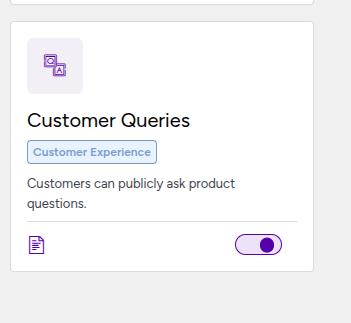
Enable the Customer Queries module.
Customer Interaction Workflow #
Once the module is enabled, customers will see a new Customer Queries tab on single product pages. From this section, customers can:
- View previously answered questions
- Submit new questions about the product
Note: After questions are answered by administrators or store owners, customers can view the responses in the same Customer Queries tab on the product page.

Query Notification Mechanism #
Whenever a customer submits a new question:
- The marketplace administrator receives a notification
- The respective store owner also receives a notification
Admin Query Control #
Admins can manage customer questions through the following process:
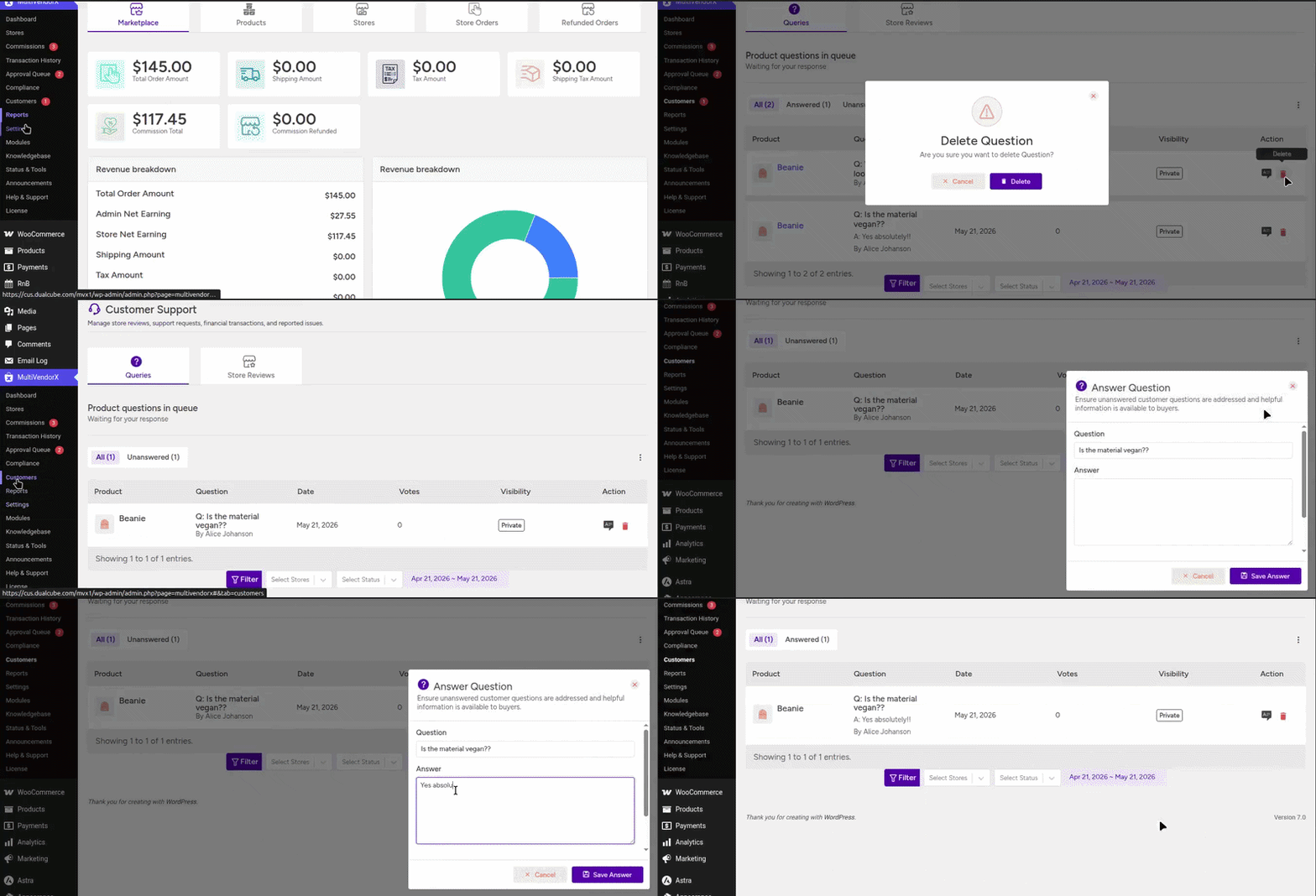
- Navigate to Customers in the admin dashboard under MultivendorX
- Go to the Queries tab to view customer questions
- Locate the Queries table section
- Click the Answer (Edit) option for any question to:
- Provide a reply to the customer’s question
- Set the visibility as Public or Private
- Save the answer to publish or store it
- Delete the question if necessary
Note: Only the Administrator has permission to delete customer queries. Store owners are not allowed to delete any customer-submitted questions.
Store Owner Query Response Management
#
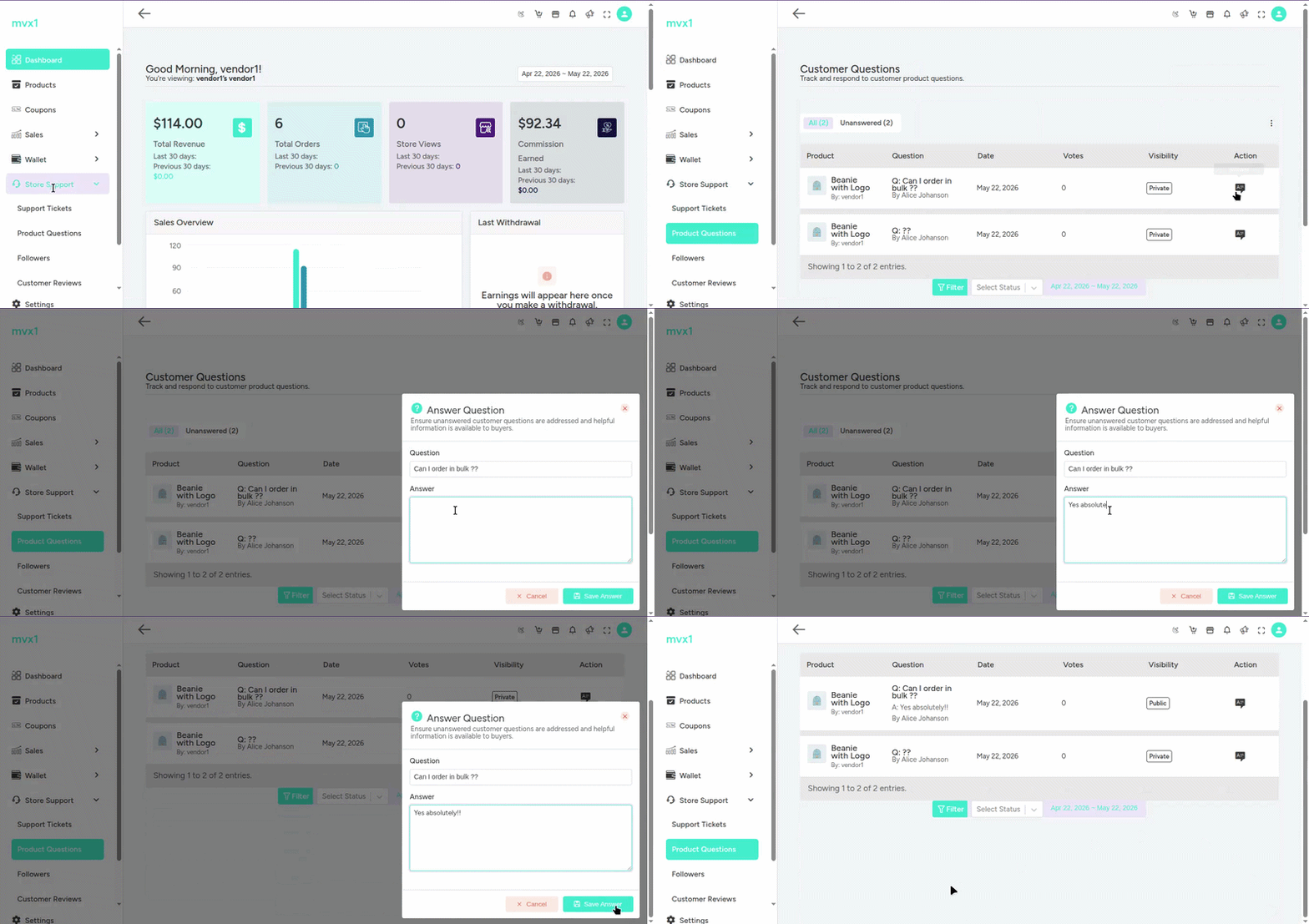
Store owners can also respond to customer questions by following these steps:
- To see customer queries go to Store Dashboard
- Navigate to Store Support
- Click on Customer Questions
- Use the Answer option to write and save replies to customer questions
Note: Store owners can only answer queries assigned to their products and do not have permission to delete customer questions.