





Brief Introduction #
Distance-Based Shipping in MultiVendorX helps calculate delivery charges based on the distance between the store location and the customer’s delivery address.
Using this feature, admins and store owners can:
- Set delivery distance limits
- Define shipping charges based on distance ranges
- Offer fair delivery pricing
- Restrict deliveries outside service areas
This creates a smoother checkout experience for customers while giving better shipping control to store owners.
Module required #
Store Shipping
To enable store shipping module,
- Navigate to MultiVendorX → Modules.
- Select Shipping Management module
- Locate the Store Shipping module.
- Toggle Enable.
Once enabled, distance-based shipping settings will become available across the marketplace.

Note: To use Distance-Based Shipping, the admin must also enable the Geolocation module.
For more information, please refer to the documentation: “https://multivendorx.com/docs/knowledgebase/geo-location/“
Enable Distance-Based Shipping from admin dashboard: #
- Navigate to MultiVendorX → Settings → Shipping
- Enable Distance-Based Shipping
Once enabled, open the settings panel to configure shipping method name shown during checkout

After saving the settings, the shipping method becomes available for store-level configuration.
Configuring Distance -Based Shipping for Individual Stores from the Admin Dashboard #
Admins can also configure shipping settings separately for individual stores.
Navigate to:
- MultiVendorX → Stores → Select Store → Settings → Shipping
- Select Shipping by Distance
- Enable the shipping method
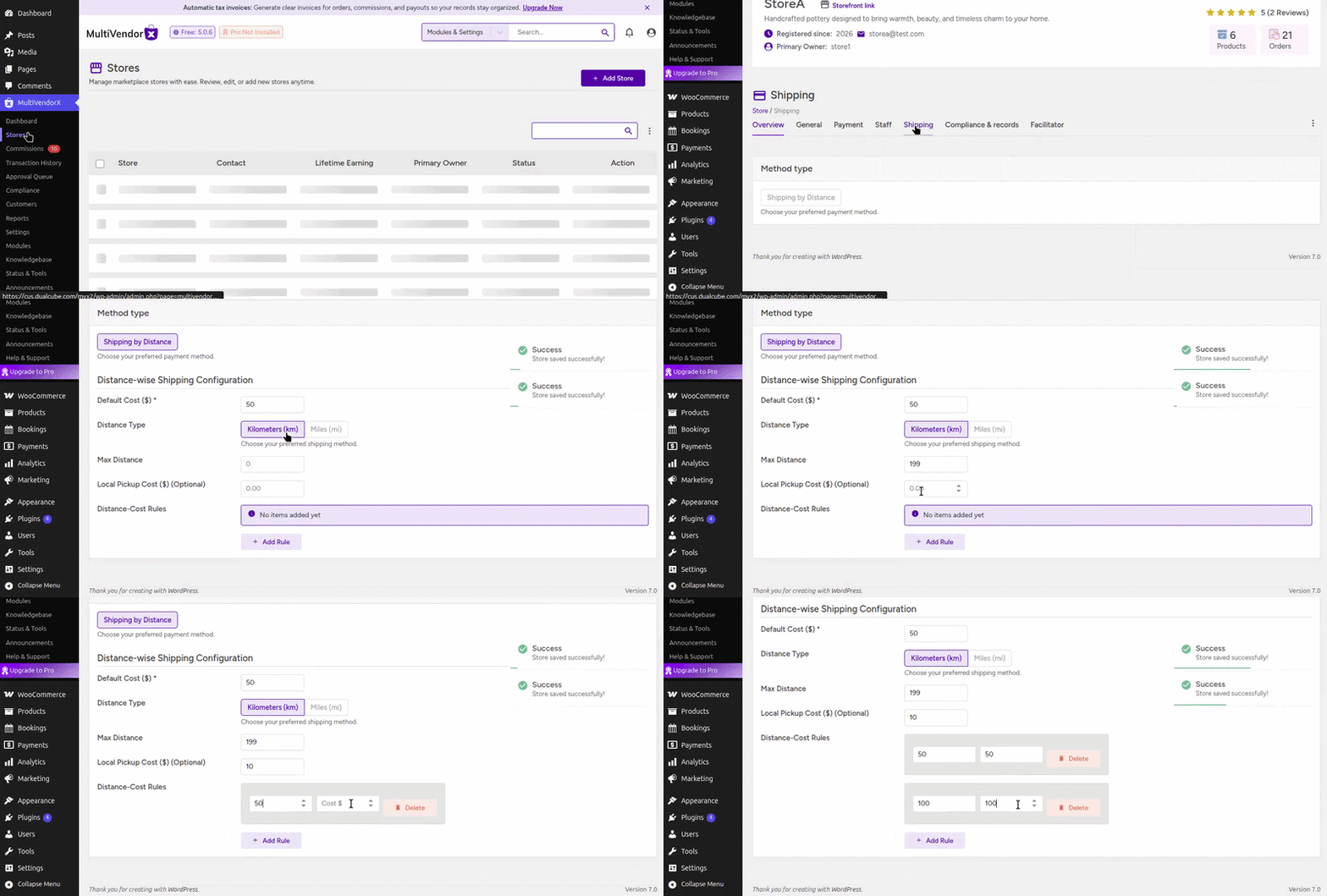
- Default Cost -Defines the base shipping charge added to every order before distance-based pricing is applied.
- Distance Type-Select whether delivery distance should be calculated in Miles (mi) or Kilometers (km).
- Maximum Distance-Defines the maximum delivery range, and the shipping method will be hidden if the customer’s address exceeds this limit.
- Local Pickup Cost -Sets the pickup fee for customers choosing local pickup instead of delivery, which can also be set to 0.00 for free pickup.
- Distance–Cost Rules-Allows different shipping charges to be applied for different delivery distance ranges.
Configuring Distance-Based Shipping from the Store Dashboard #
Store owners can also manage shipping directly from their own dashboard without admin intervention.
Navigate to:
- Store Dashboard → Settings → Shipping
- Then select Shipping by Distance
Store owners can then configure:
- Delivery distance limits
- Distance units
- Base shipping charges
- Distance-cost rules
- Local pickup charges
Once saved:
- The rules immediately apply during customer checkout
- Customers will see shipping charges calculated based on delivery distance
- Orders outside the allowed delivery range will not show this shipping method
Note: Store owners can delete admin-created distance cost rules, add new rules, or modify existing ones according to their preferences.

Customer Checkout Experience #
When a customer enters a delivery address during checkout:
- MultiVendorX calculates the distance from the store location
- The matching shipping rule is applied automatically
- The final shipping cost becomes visible before placing the order
Note: If the customer location exceeds the maximum delivery distance then Distance-based shipping will not be available for that order


