





Once store earnings become payout-ready inside the wallet, the next step is transferring those earnings to the store.
This process is called:
Payout disbursement #
MultiVendorX supports multiple payout methods so marketplace admins can choose how stores receive their earnings.
Different marketplaces use different payout systems depending on:
- Country availability
- Payment provider support
- Marketplace business model
- Automation requirements
- Banking preferences
This document explains how payout methods work in MultiVendorX and how they affect the payout workflow.
Understanding how payouts work #
Before understanding payout methods, it is important to understand how payouts happen inside the marketplace.
Basic payout flow #
Customer places order
↓
Commission gets calculated
↓
Store earning enters wallet
↓
Clearance period completes
↓
Funds become payout-ready
↓
Payout method processes the transfer
↓
Store receives payment
The payout method controls the final step of this flow.
Understanding payout methods #
Payout methods define how store earnings are transferred from the marketplace to the store.
MultiVendorX supports multiple payout options depending on your marketplace requirements.
Supported payout methods #
- Bank transfer
- Stripe Connect
- PayPal Payout
- Cash payout
- Custom payout gateways
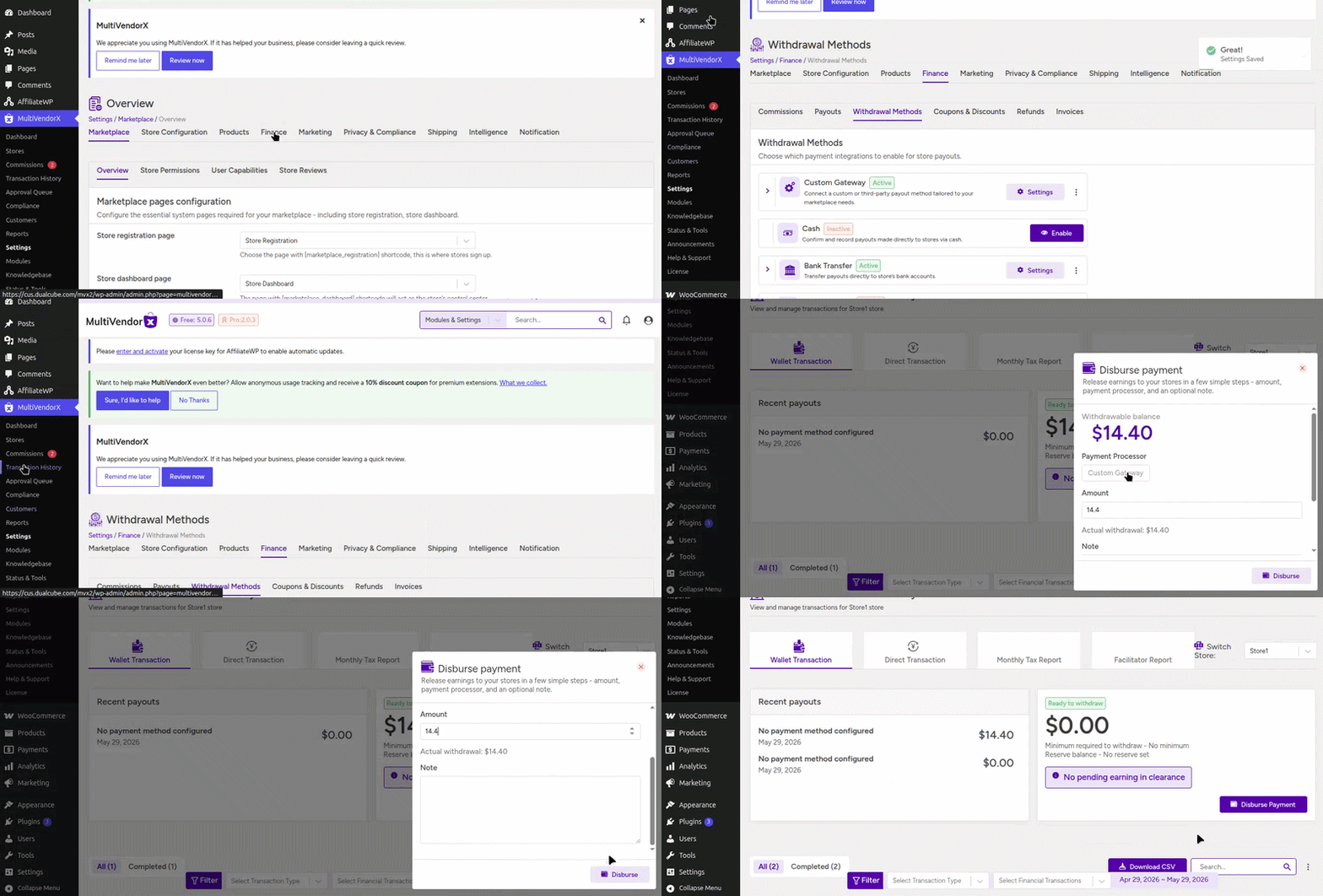
You can enable or disable payout methods from:
Settings → Finance → Withdrawal Methods

Bank Transfer Payouts #
Bank Transfer is one of the most commonly used payout methods for marketplaces. In this method, stores provide their bank account details, and marketplace admins manually transfer earnings directly to the store’s bank account. It is a simple and reliable payout solution that works in almost every country.
For further setup instructions and complete configuration details, follow the link
Stripe Connect Payouts #
Stripe Connect helps marketplaces automate payouts directly to connected store Stripe accounts. Instead of manually sending payments, Stripe securely handles payout transfers automatically, making the process faster and more efficient for both admins and store owners.
For further setup instructions and complete configuration details, follow the link
PayPal Payouts #
PayPal Payout allows marketplaces to send store earnings directly to connected PayPal accounts. This provides a convenient and globally recognized payout solution, especially useful for international marketplaces and cross-border payments.
For further setup instructions and complete configuration details, follow the link
Understanding cash payouts #
Some marketplaces operate partially or fully offline.
In such cases, payouts may happen using direct cash payments.
MultiVendorX allows admins to track and record cash payouts manually.
How cash payouts work #
Store workflow:
- Store requests withdrawal
- Admin pays store offline
- Admin records payout manually
This helps maintain payout records even for offline transactions.
Understanding custom payout gateways #
Some marketplaces use custom financial systems or regional payout providers.
MultiVendorX supports custom payout gateway integrations for these cases.
This allows marketplaces to:
- Build custom payout workflows
- Integrate local payment systems
- Support region-specific banking systems
Manual and Automatic Payouts #
MultiVendorX supports both manual and automatic payout workflows depending on how the marketplace admin wants to manage store withdrawals and payout approvals.
Types of Payout Workflows
- Manual Payouts – Stores submit withdrawal requests, and admins manually review and release payouts for complete approval control.
- Automatic Payouts – Approved earnings are automatically transferred to stores through supported payout gateways without manual admin intervention.
For further setup instructions and complete configuration details, follow the link
Understanding payout schedules #
Automatic payout systems can release payouts on different schedules.
Available payout schedules #
- Hourly – Payouts are processed every hour for faster fund transfers.
- Daily – Store earnings are released once every day.
- Weekly – Payouts are processed once every week on the configured schedule.
- Fortnightly – Store earnings are released every two weeks.
- Monthly – Payouts are processed once every month for consolidated transfers.
The selected schedule determines how frequently stores receive payouts.

Payout Approval Modes
#
MultiVendorX provides different payout approval modes that help marketplace admins control how store withdrawal requests are processed and released. Admins can choose between fully automated payouts, manual approvals, or completely restricting withdrawal requests based on their marketplace requirements.
Automatic approval #
Automatic approval allows withdrawals to be processed instantly through supported payout gateways like Stripe Connect or PayPal Payouts. Once the payout conditions are met, funds are automatically transferred to the store without requiring manual admin action. This helps reduce payout delays and manual workload.
Manual approval #
In manual approval mode, stores submit withdrawal requests which are then reviewed by the marketplace admin before payouts are released. This gives admins complete control over payout verification, approval, and fund management, making it useful for marketplaces that require additional monitoring.
Block withdrawals #
Block withdrawal mode prevents stores from submitting payout requests on their own. In this setup, only marketplace admins can manually release funds to stores whenever needed. This is commonly used in highly controlled or offline marketplace workflows.


