




Brief Introduction #
An invoice is a document you give to your customer on the sale of goods or services. This document keeps a record of the transaction that takes place between you and the customers, as evidence of the transaction. The MultiVendorX invoice module sends an automated invoice to both your sellers and customers. Sellers and customers both have the option to browse or download the invoice. Along with this, sellers can also download packaging slips for procurement purposes and craft separate invoices with the seller’s exclusive brand and logo.
Requirement #
Configure Invoice & Packing Slip #
To get started with the Invoice & Packing Slip module, navigate to MultiVendorX → Modules.
Under the Customer Experience section, locate the Invoice & Packing Slip module and click Enable to activate it.

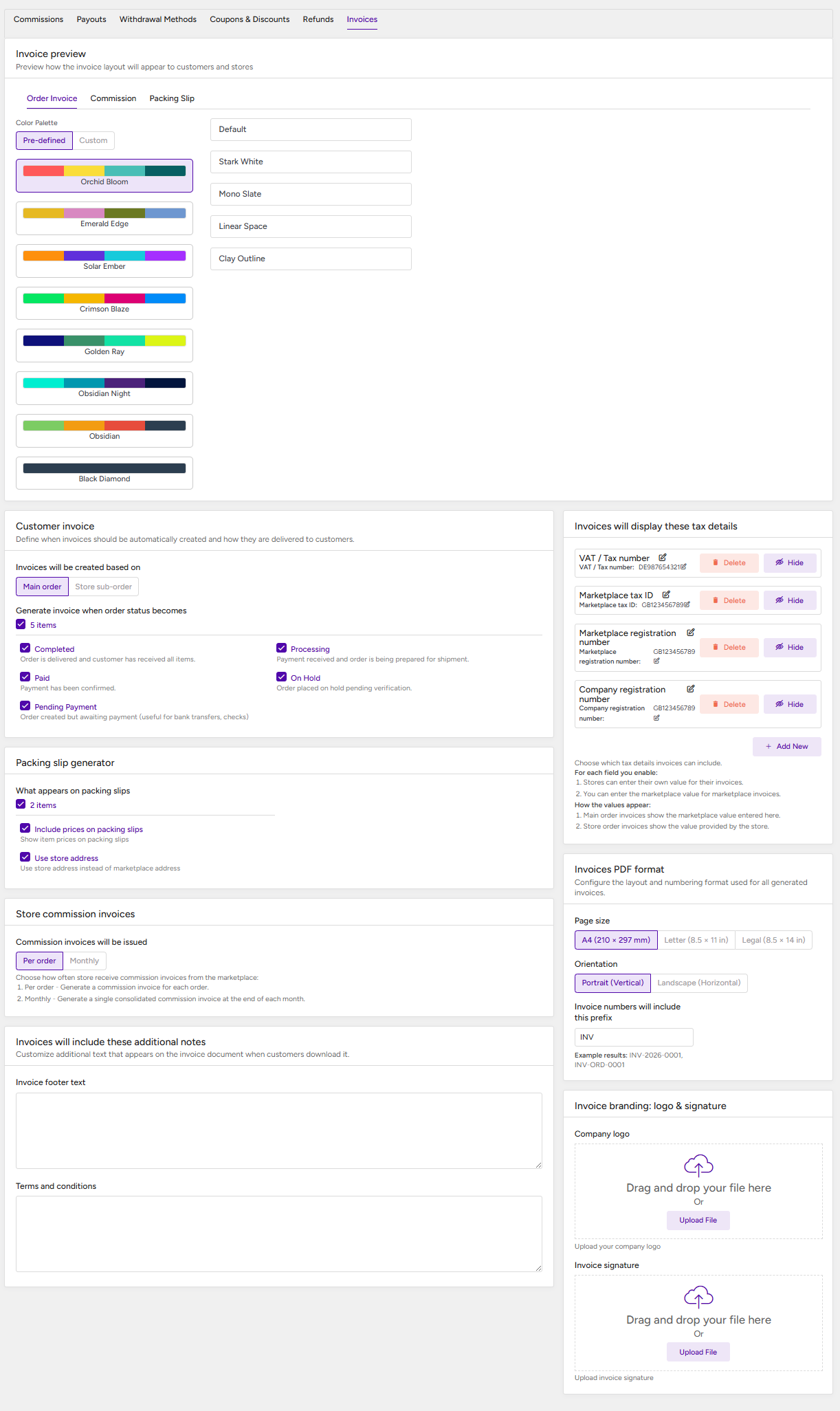
Once the Invoice & Packing Slip module is activated, you can configure its associated settings by navigating to MultiVendorX → Settings → Finance → Invoices.
The available settings are described below.
Invoice Preview #
Under this section, the admin can configure how invoices will appear to customers and stores. You can either select from the predefined invoice layouts or create a custom layout based on your requirements.
Customer Invoice #
This section allows the admin to define when customer invoices should be generated and how they should be made available to customers.
Here, you can:
- Choose whether invoices should be generated based on the main order or sub-order.
- Select the order statuses for which customers will have access to their invoices.
Packing Slip Generator #
Under this section, the admin can configure which details should be included in the packing slips generated for orders.
Store Commission Invoices #
This section allows the admin to configure how stores receive commission invoices from the marketplace.
You can choose whether commission invoices should be generated for each order or on a monthly basis.
Invoice Additional Notes #
The admin can add additional information that will be displayed on invoices. You can add custom invoice footer text as well as Terms & Conditions.
Invoice Tax Details #
Under this section, the admin can choose which tax-related information should be displayed on invoices. You can configure the tax details that should be visible or hidden according to your requirements.
Invoice PDF Format #
This section allows the admin to configure the invoice layout and invoice numbering for generated PDF invoices.
Invoice Branding #
Under this section, the admin can customize the invoice branding. You can upload a logo that will appear on the invoice and add an invoice signature to further personalize the document.
Configure Invoice Settings from the Store Dashboard #
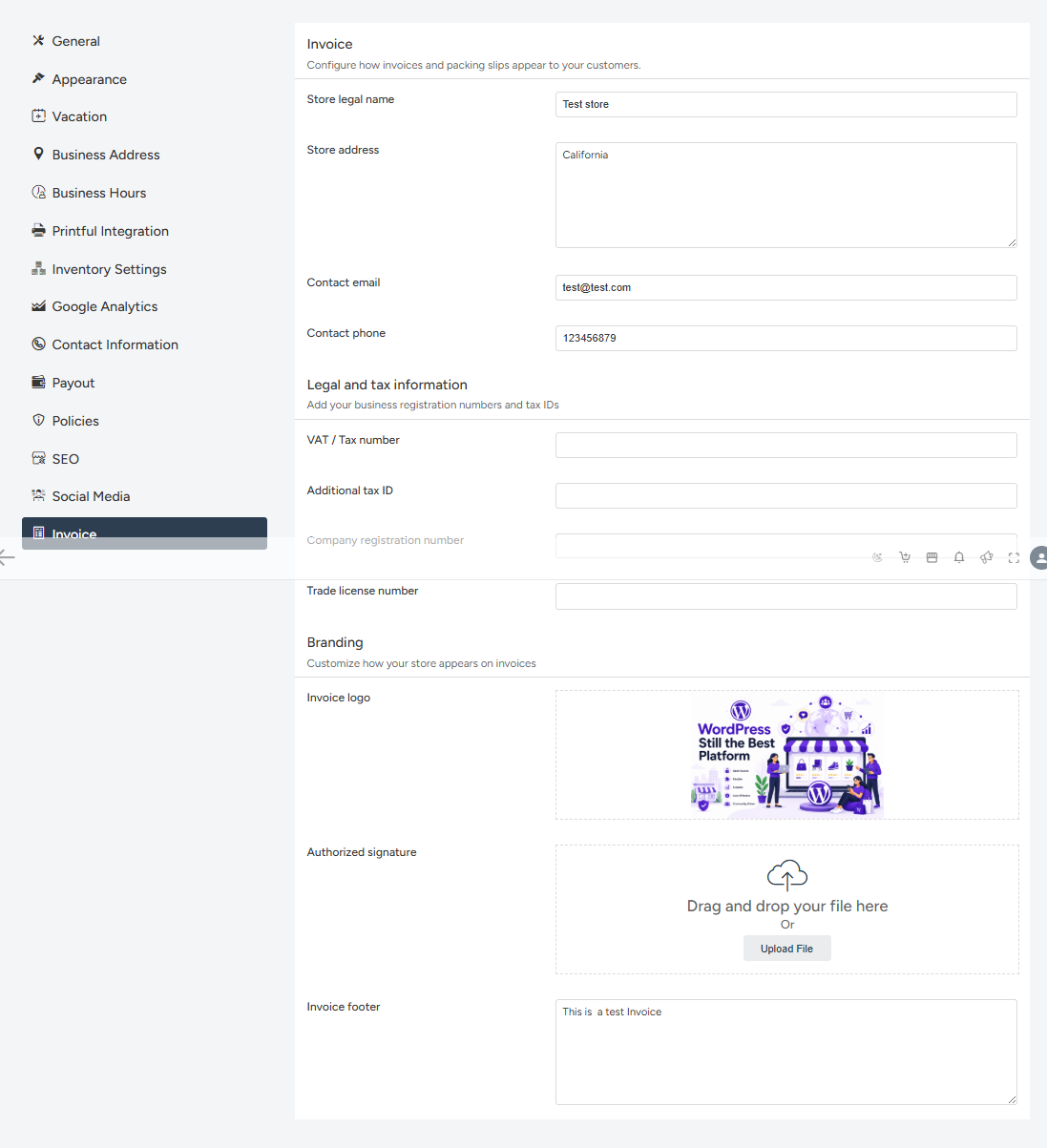
Once the admin has enabled and configured the Invoice & Packing Slip module, store owners can configure their invoice details directly from their Store Dashboard.
To access the invoice settings, the store owner needs to navigate to:
Store Dashboard → Settings → Invoice
The following settings are available:
Invoice #
Under this section, the store owner can provide their basic business and contact information, such as:
- Store name
- Store address
- Contact number
- Email address
The information entered here will be displayed on the customer’s invoice.
Legal & Tax Information #
This section allows the store owner to provide their legal and tax-related business information, including:
- Tax number
- Tax ID
- Trade license
- Business registration number
This information can be displayed on invoices to provide the required legal and tax details.
Branding #
Under this section, the store owner can customize the appearance of their invoices by uploading:
- Store logo
- Invoice signature
- Invoice footer
The branding information configured by the store owner will override the corresponding branding details configured by the admin and will be displayed on invoices generated for that store.