





Brief Introduction #
The Grouped Product type in MultiVendorX Pro allows store owners to group multiple existing products together and display them as a single product listing. Instead of creating a new standalone product, a grouped product serves as a collection of related items, making it easier for customers to browse and purchase complementary products from one place.
This product type is ideal for showcasing product collections, accessories, or similar items that are often purchased together.
Requirements #
Configuration from the Admin Dashboard #
To allow store owners to create Grouped Products, the marketplace administrator must first enable the corresponding product type module.
From the WordPress Admin Dashboard, navigate to MultiVendorX → Modules → Product Types and enable the Grouped Product module.
Once the module is activated, store owners will be able to create and manage Grouped Products directly from their Store Dashboard.

Configuration from the Store Dashboard #
Once the Grouped Product module has been enabled by the administrator, store owners can start creating grouped products from their Store Dashboard.
Step 1: Create a New Product #
Navigate to Store Dashboard → Products → Add New.
When the product creation page loads, select Grouped Product from the Product Type dropdown.
Step 2: Add the Basic Product Details #
After selecting the product type, fill in the required product information, including:
- Product Title
- Full Description
- Short Description
- Product Image
- Product Gallery
- Product Category
- Product Tags
- Any other relevant details
Note: Since a grouped product is a collection of existing products, pricing and certain product-specific fields are managed by the individual products linked to it.
Step 3: Link the Grouped Products #
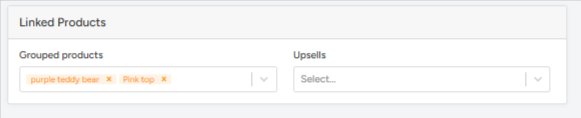
Scroll down to the Linked Products section and locate the Grouped Products field.
Search for and select the existing products that you want to include in the grouped product. You can add multiple products to create a single grouped listing.
Step 4: Publish the Product #
Once all the details have been configured and the required products have been linked, review the settings and click Publish or Submit for Review, depending on your marketplace permissions.
The grouped product will then be available in your store, allowing customers to view the linked products together from a single product page.