





The Intelligence module is an AI-powered feature in MultiVendorX that helps stores create better product listings with less effort.
It adds a smart assistant directly inside the product creation page. Instead of writing everything manually, stores can use AI to generate product titles, descriptions, and even improve images.
In simple terms, it helps turn basic product information into a complete and professional-looking listing.
What It Does #
Once enabled, the module allows stores to:
- Generate product titles based on a short prompt
- Create detailed product descriptions automatically
- Improve or enhance product images
- Reduce the time required to add new products
All of this happens directly from the product edit screen using a simple AI option.
Before You Start #
AI features will not work unless the module is enabled and configured properly.
To get started:
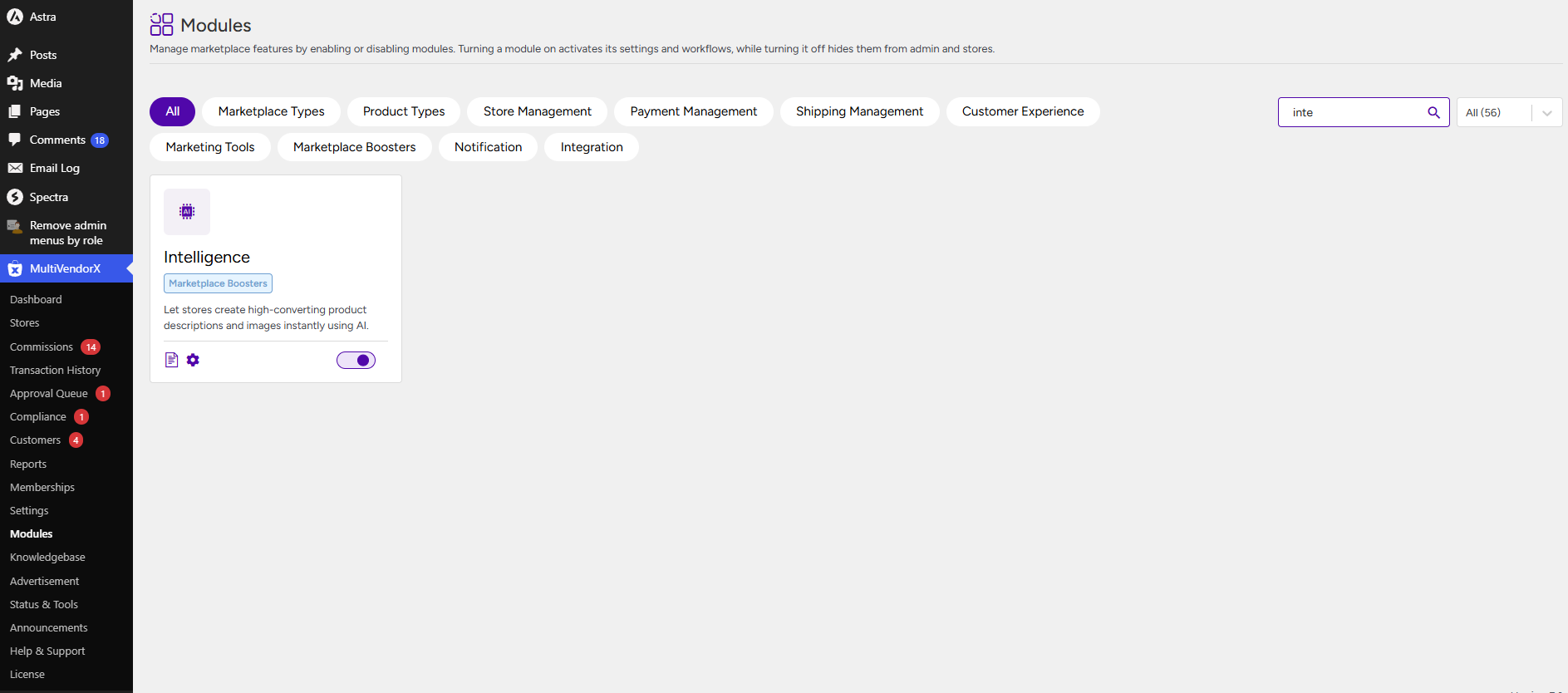
- Go to MultiVendorX → Modules
- Find Intelligence
- Click Activate
Once activated, you’ll be able to configure AI settings.
Where to Configure AI #
After enabling the module, navigate to:
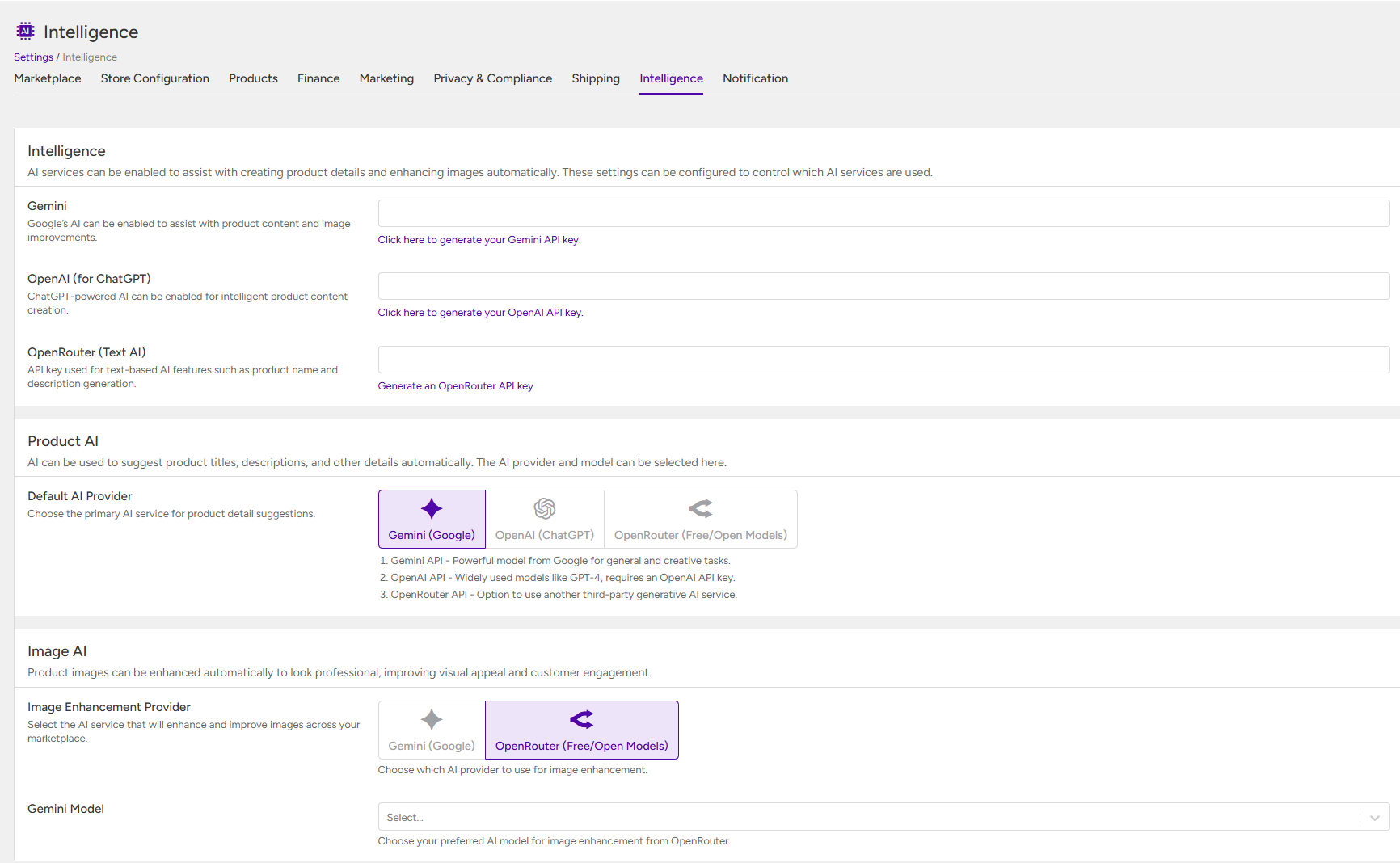
- MultiVendorX → Settings → Intelligence
This is where you connect AI providers and control how AI behaves across your marketplace.
Connecting an AI Provider #
MultiVendorX allows you to use different AI services. You only need to set up one, but you can configure multiple if needed.
- Gemini (Google) : Gemini can be used for both product content and image-related tasks. It is a good all-round option if you want a balance of creativity and performance.
- How to set it up:
- Visit: https://aistudio.google.com/app/apikey
- Sign in with your Google account
- Click on Create API Key
- Copy the generated key
- How to set it up:
- OpenAI (ChatGPT) : This enables ChatGPT-based content generation. It is especially useful if you want more polished, structured, and professional product descriptions.
- How to set it up:
- Visit: https://platform.openai.com/api-keys
- Log in to your OpenAI account
- Click on Create new secret key
- Copy the key
- How to set it up:
- OpenRouter : OpenRouter connects you with multiple AI models, including free and open-source options. It is useful if you want flexibility or lower-cost alternatives.
- How to set it up:
- Visit: https://openrouter.ai/keys
- Sign in or create an account
- Generate a new API key
- Copy the key
- How to set it up:
Product AI Settings #
Once your API is connected, you need to decide which AI service stores will use by default.
Default AI Provider lets you choose between:
- Gemini
- OpenAI
- OpenRouter
This selection controls how product titles and descriptions are generated across the platform.
Image AI Settings #
Image AI improves how product images look, making them more appealing and professional.
You can select:
- Gemini
- OpenRouter
This helps with:
- Enhancing image quality
- Making visuals more marketplace-ready
⚠️ Image AI is available only in MultiVendorX Pro
How Stores Use AI #
Once everything is set up, stores will start seeing AI options while creating or editing products.
Instead of typing everything manually, they can click an AI icon and generate content instantly.
- Generating Product Titles : When adding a product, stores will see an AI icon next to the title field.
- They simply:
- Click the icon
- Enter a short prompt
- Generate the title
- For example:
- “Eco-friendly reusable water bottle”
- “Premium handmade ceramic coffee mug”
- The AI will instantly suggest a suitable product title.
- They simply:
- Generating Product Descriptions – The same process applies to product descriptions.
- Stores can:
- Click the AI icon in the description field
- Enter a prompt describing the product
- Generate content
- A good prompt usually includes:
- Product type
- Key features
- Target audience
- This results in a more complete and engaging product description.
- Stores can:

- Using AI for Images – If Image AI is enabled, stores can also improve or generate product visuals.
- They just need to:
- Click the AI option near the image section
- Describe the image they want
- Generate or enhance it
- This is especially helpful when:
- Images are low quality
- Stores don’t have professional product photos
- They just need to:


