





Brief Introduction #
Marketplace Compliance helps marketplace owners ensure that stores meet essential marketplace requirements through automated policy checks. It streamlines compliance monitoring, identifies potential issues, and helps maintain consistent standards across all stores-reducing manual checks and keeping your marketplace aligned with its policies.
Requirements #
Configuration from the Admin Dashboard
#
To get started, the admin needs to enable the module from the MultiVendorX dashboard:
Admin Dashboard → MultiVendorX → Modules → Marketplace Boosters
Locate the Marketplace Compliance module and enable it.
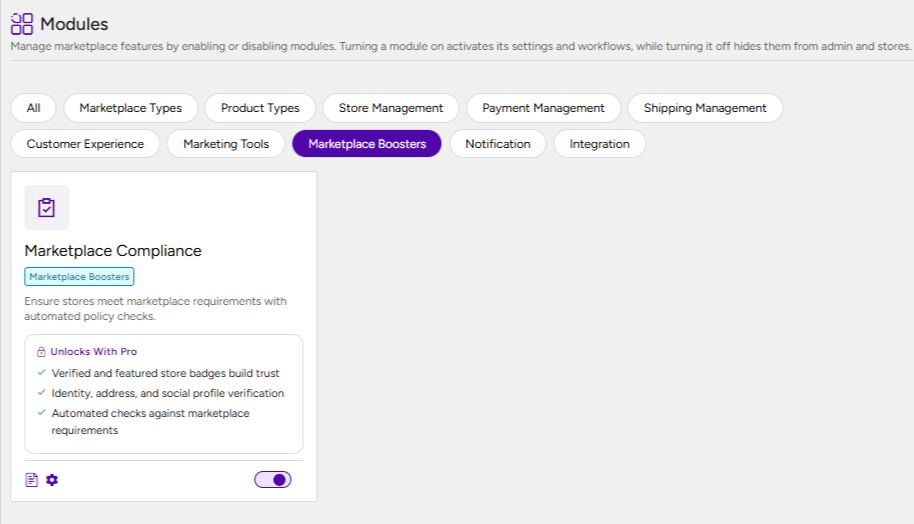
Once the module is enabled, the admin can configure the compliance requirements from:
MultiVendorX → Settings → Privacy & Compliance → Compliance Management
Under Compliance Management, the admin can configure and enable different types of compliance requirements for marketplace stores.
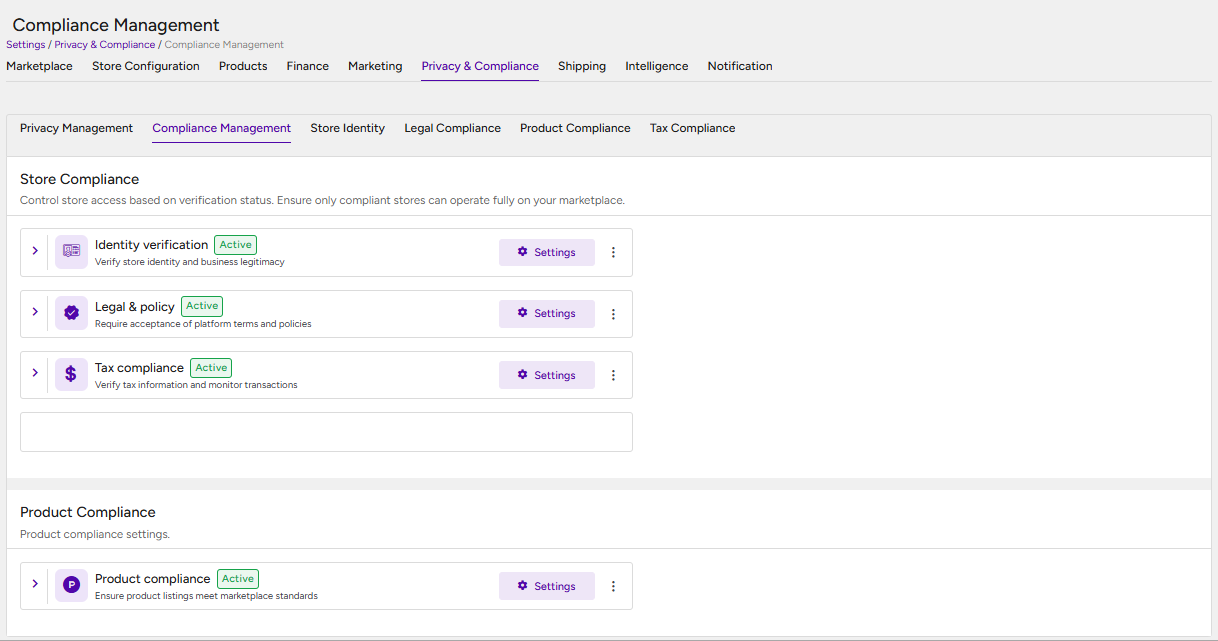
Identity Verification #
The Identity Verification option allows the admin to require store owners to verify their identity before they can fully operate on the marketplace.
For detailed information about configuring Identity Verification, refer to our documentation here.
Legal & Policy Compliance #
The Legal & Policy compliance option allows the admin to configure the legal agreements and policy documents that store owners must review, accept, or submit as part of the verification process.
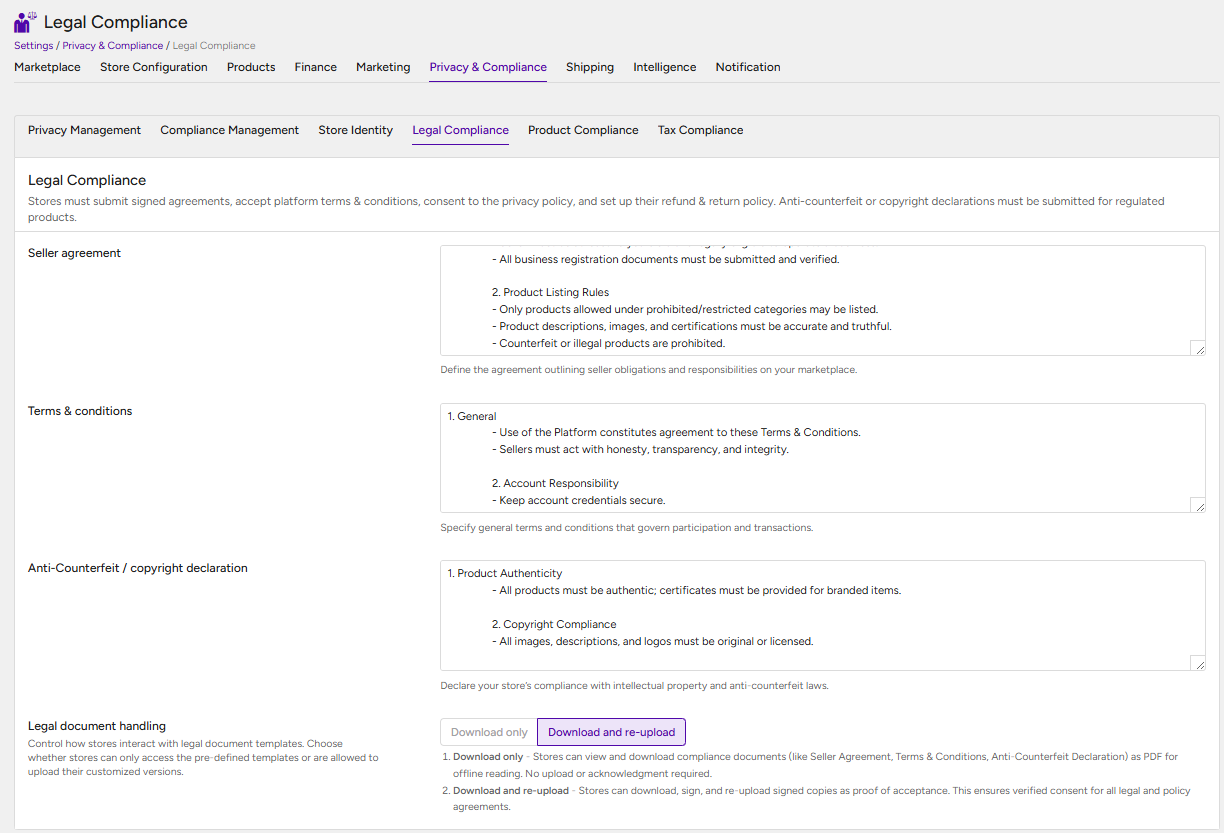
Click Set Up to access the Legal Compliance settings.
The admin can configure the following:
- Seller Agreement – Define the agreement outlining the obligations, responsibilities, and requirements that sellers must follow while operating on the marketplace.
- Terms & Conditions – Specify the general terms and conditions that govern seller participation and transactions on the marketplace.
- Anti-Counterfeit / Copyright Declaration – Require sellers to acknowledge their compliance with intellectual property, copyright, and anti-counterfeit requirements.
- Legal Document Handling – Control how sellers access and submit legal and compliance documents. The admin can choose between the following options:
- Download Only — Sellers can view and download compliance documents, such as the Seller Agreement, Terms & Conditions, and Anti-Counterfeit Declaration, in PDF format for offline reading. No document upload or acknowledgment is required.
- Download and Re-upload — Sellers can download the required documents, sign them, and re-upload the signed copies as proof of acceptance. This helps the admin maintain documented consent for the applicable legal and policy agreements.
Tax Compliance #
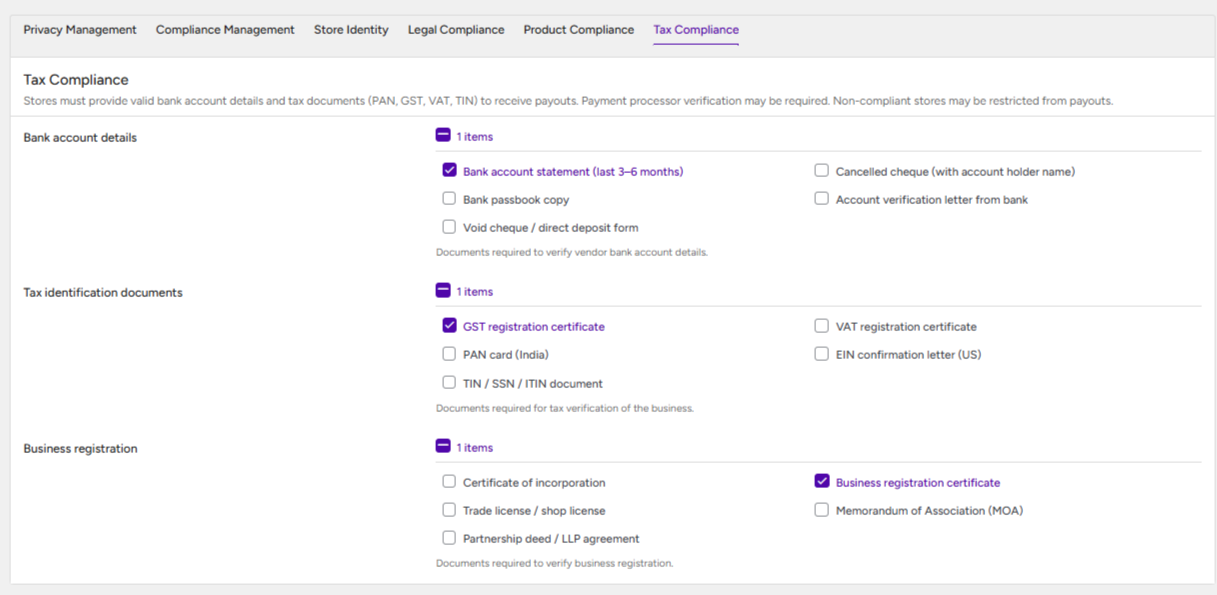
The Tax Compliance section allows the admin to configure the documents that sellers must submit to verify their banking, tax, and business registration details.
Click Set Up to access the Tax Compliance settings.
The admin can configure the following requirements:
- Bank Account Details – Select the documents that sellers must provide for verification of their bank account details.
- Tax Identification Documents – Select the documents sellers must upload to verify their business tax identification and registration details.
- Business Registration – Specify the documents required to verify the seller’s business registration.
Product Compliance #
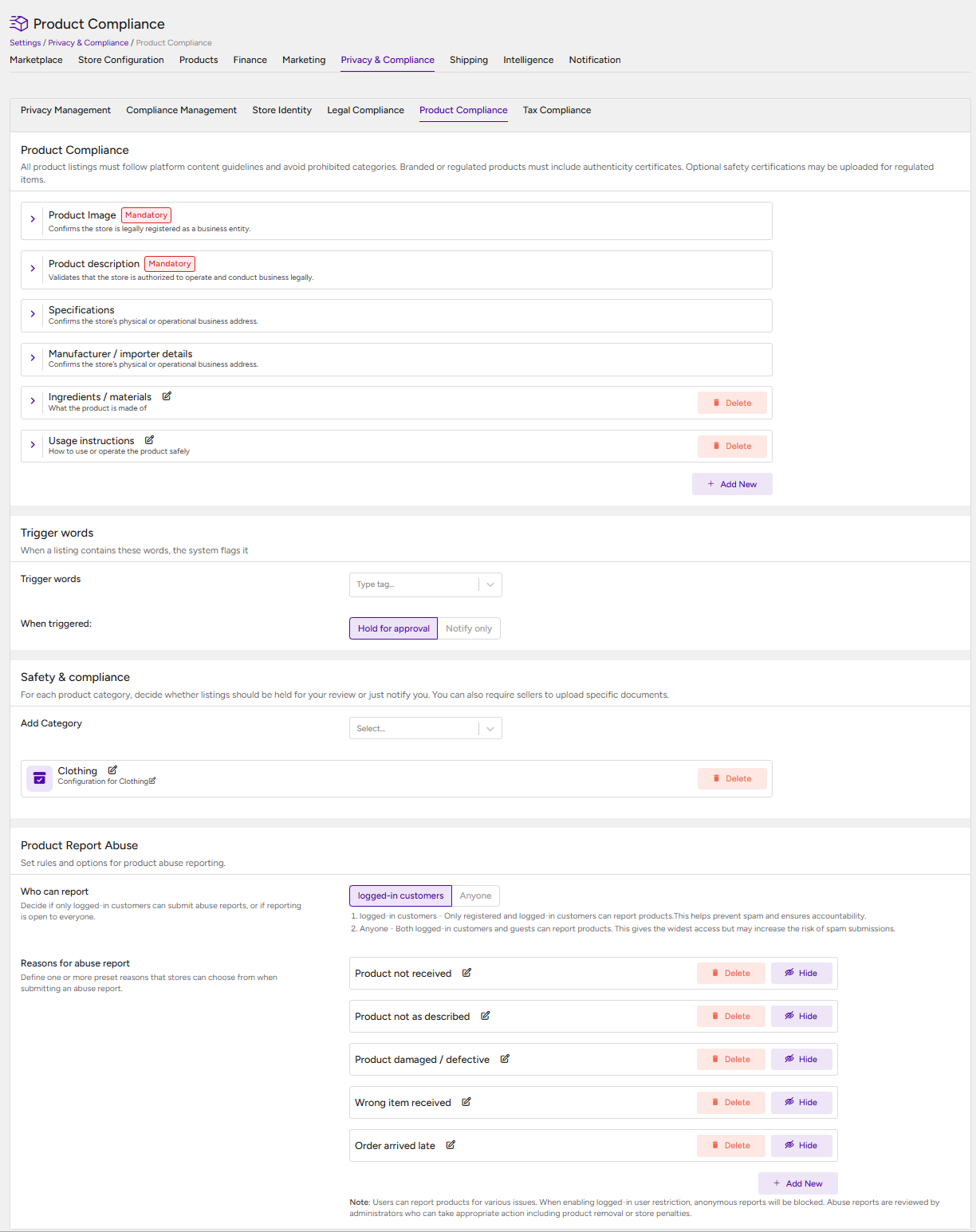
The Product Compliance settings allow the admin to define compliance requirements for products listed on the marketplace.
Click Set Up to access the Product Compliance settings.
Product Compliance – Using these settings, the admin can establish requirements such as:
Product listings must comply with the marketplace’s content guidelines.
Sellers must avoid listing prohibited product categories.
Branded or regulated products may be required to include authenticity certificates.
Safety or compliance certificates can be required for regulated products.
Trigger Words – The admin can define specific trigger words that should be monitored in product listings.
When a product listing contains one of the configured trigger words, the system can flag the listing for further action.
- The admin can determine what happens when a trigger word is detected, such as:
- Holding the product for admin approval.
- Notifying the admin while allowing the product to remain active.
Safety & Compliance – The admin can configure compliance requirements based on product categories.
For each category, the admin can decide whether:
Products should be placed on hold for admin review.
The admin should only be notified about the compliance issue.
Sellers should be required to upload specific safety or compliance documents.
- Product Report / Abuse – The Product Report / Abuse functionality allows marketplace users to report products that may violate marketplace policies or compliance requirements.
For detailed information about this functionality and its workflow, refer to the documentation here.
Compliance Configuration from the Store Dashboard #
Once the admin has configured the required compliance settings from the Admin Dashboard, store owners can complete the applicable compliance requirements from their Store Dashboard.
To access the compliance settings, the store owner needs to navigate to:
Store Dashboard → Compliance
The Compliance section provides store owners with the necessary options to complete verification, submit required documents, and review products that do not meet the marketplace’s compliance requirements.
Verification #
Under the Verification section, store owners can complete the identity verification requirements configured by the admin.
Depending on the requirements enabled by the admin, the store owner may need to:
- Upload the required identity verification documents.
- Provide the requested personal or business information.
- Complete the available social verification process.
Once the required information and documents have been submitted, they can be reviewed by the admin as part of the verification process.
Tax Compliance #
The Tax Compliance section allows store owners to submit the tax-related information and documents required by the marketplace.
Depending on the requirements configured by the admin, the store owner can upload the required documents for:
- Bank account verification.
- Tax identification verification.
- Business registration verification.
The submitted documents are sent for admin review and approval.
Legal Compliance #
The Legal Compliance section allows store owners to complete the legal and policy requirements configured by the admin.
Depending on the configured document handling settings, the store owner may be required to:
- Review the Seller Agreement, Terms & Conditions, and Anti-Counterfeit/Copyright Declaration.
- Upload the required documents for verification and approval.
The submitted documents are available for the admin to review and approve.
Product Compliance #
The Product Compliance section allows store owners to review products that do not meet the compliance criteria configured by the marketplace admin.
Products that are identified as non-compliant are listed in this section for the store owner to review.
The store owner can then take the required action, such as:
- Reviewing the compliance issue.
- Updating the product information.
- Removing or correcting content that violates the configured requirements.
- Uploading any required compliance or safety documents.
Once the required changes have been made, the product can proceed through the configured compliance review process.
Compliance Approval/Rejection by the Admin #
Once a store owner submits the required compliance information and documents from the Store Dashboard, the submitted details become available to the admin for review.
To review the submitted compliance information, the admin needs to navigate to:
MultiVendorX → Compliance
Under the Compliance section, the admin can view the compliance submissions made by store owners and review the uploaded documents.
After reviewing the submitted information, the admin can take the following actions:
- Approve — Approve the submitted compliance documents when they meet the marketplace’s requirements.
- Reject — Reject the submitted documents if they do not meet the required compliance criteria.
If a submission is rejected, the store owner can review the compliance requirement and take the necessary action to provide the required information or documents again.