





Brief Introduction #
In any growing marketplace, defining clear and consistent platform fees is essential for sustaining operations, covering administrative expenses, and ensuring a smooth experience for all participants. Whether it’s handling transaction costs, maintaining infrastructure, or supporting store services, an efficient fee management system helps maintain transparency and profitability.
The Marketplace Fee module in MultiVendorX Pro streamlines this process by giving admins complete control over how fees are structured and applied. With flexible options to set and manage fees per order or per store, it ensures your platform can easily recover operational costs while keeping stores informed and aligned. This module brings clarity, automation, and convenience to marketplace fee management- making your operations smoother and more sustainable.
Requirements #
Configuration of the Marketplace Fee Module #
To begin setting up the Marketplace Fees feature, navigate to your WordPress admin dashboard. From the sidebar, go to MultiVendorX → Modules, and under the Marketplace Boosters section, enable the Marketplace Fee module.
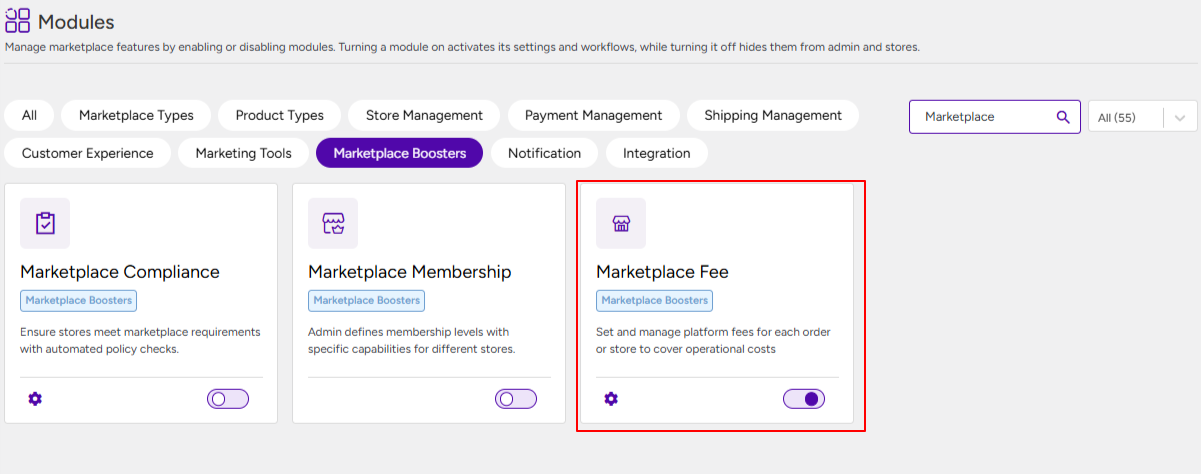
Once the module is activated, you can configure the platform fee structure from the admin panel.
Navigate to MultiVendorX → Settings → Finance → Commissions, and scroll down to the Platform Fees section. Here, you can define how platform fees should be applied to orders or stores based on your marketplace requirements.
You can choose between two fee application methods:
- Added to the customer’s order total – the fee is charged to the customer during checkout.
- Deducted from the store’s commission – the fee is adjusted from the store owner’s earnings.
The selected option determines how the platform fee is calculated and applied.
Example Configuration #
- Total product/listing price = $100
- Marketplace commission = $2 + 10%
- Platform fee = 5% (calculated on the total product price)
Option 1: Added to the Customer’s Order Total #
- Platform fee = 5% of $100 = $5
- Customer pays = $100 + $5 = $105
- Store receives = $100 − $12 = $88
Option 2: Deducted from the Store’s Commission #
- Customer pays = $100
- Marketplace commission = $2 + 10% of $100 = $12
- Platform fee = 5% of $100 = $5
- Store receives = $100 − ($12 + $5) = $83
This configuration allows you to manage operational fees efficiently while maintaining transparency in how charges are applied across your marketplace.


