





Brief Introduction #
Ensuring privacy and controlling what information is visible to customers and users is an essential aspect of managing a marketplace. To make this easier, MultiVendorX introduces a new Privacy Module.
This module allows the admin to manage various privacy settings for both stores and customers. It provides the ability to hide or restrict specific store details from different users, as well as limit the customer information visible to store owners, ensuring greater control over what data is shared publicly.
Required Module #
- Privacy
To enable the Privacy Module:
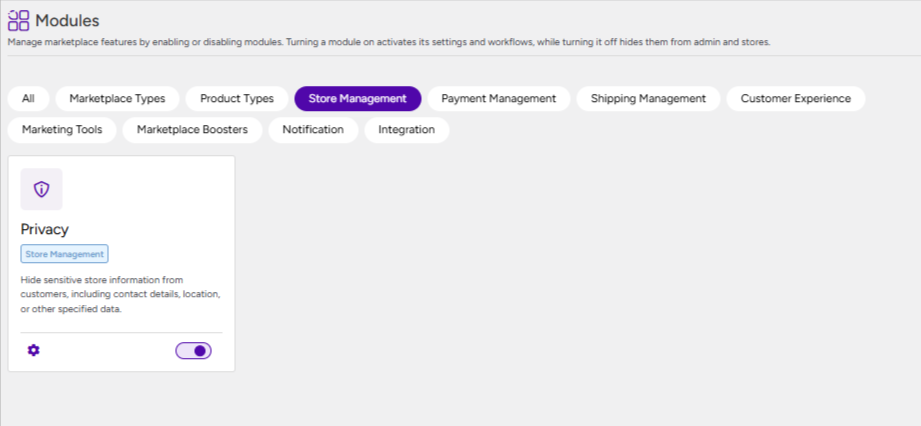
- Go to MultiVendorX → Modules
- Select the Store Management tab at the top to filter modules
- Find Privacy and enable it
Admin configuration #
- Go to MultiVendorX → Settings
- Open Privacy & Compliance → Privacy Management to adjust settings
Store Branding #
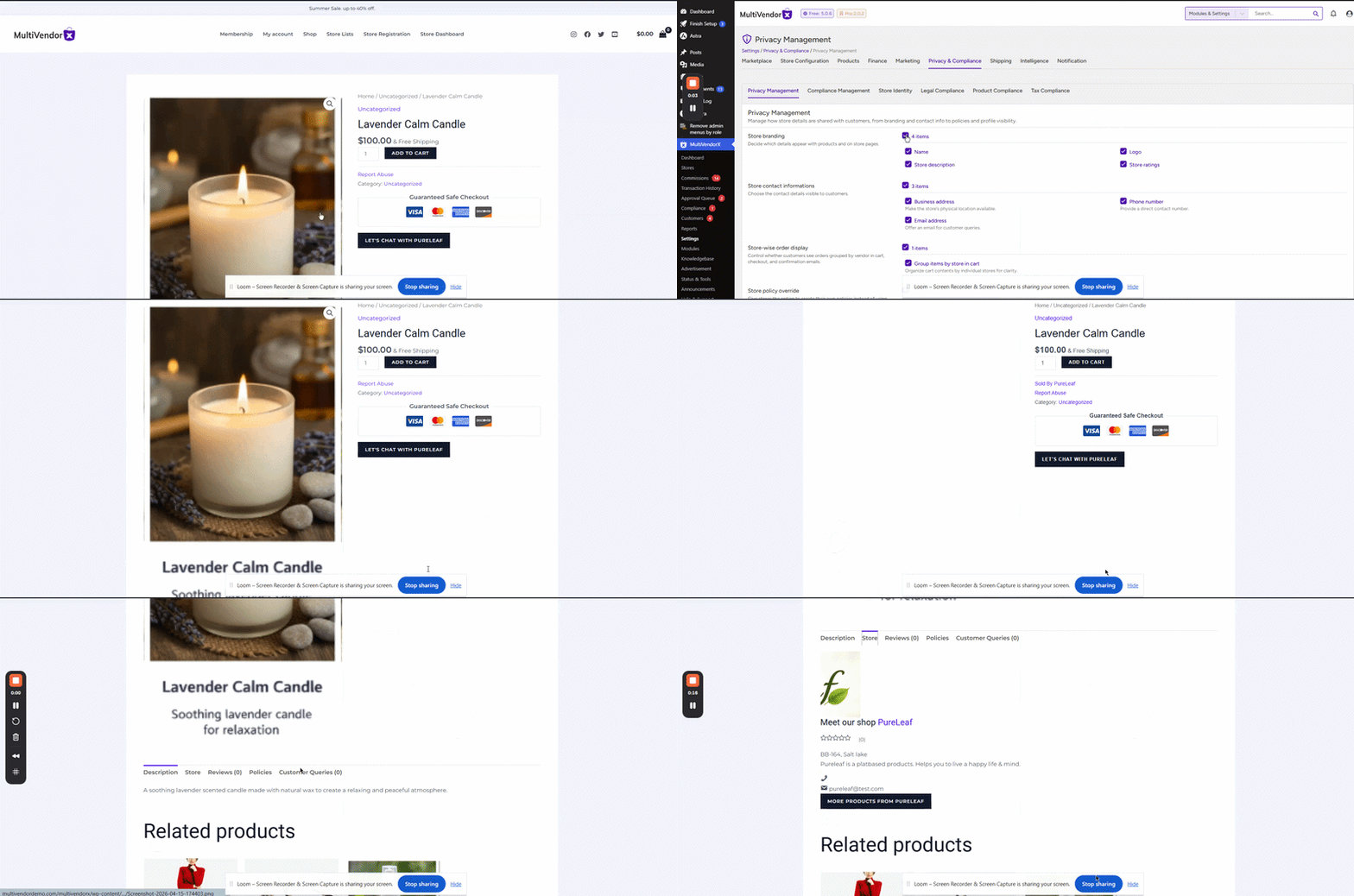
This setting allows the admin to control which store details are visible on the front-end. For example, if Store Name is selected, the store name will appear in product listings, archives, checkout, and cart pages.
Store Contact Informations #
The admin can choose which contact details of stores are visible to customers. For instance, enabling the Business Address option will display the store’s address on the store front-end, order emails, and the Thank You page after purchase.

Store-wise Order Display #
This option controls whether customers see orders grouped by store in the cart, checkout, and order confirmation emails, providing clarity when purchasing from multiple stores.
This configuration gives the admin full control over store visibility and privacy while allowing stores some flexibility to manage their own information.
Customer Data Privacy #
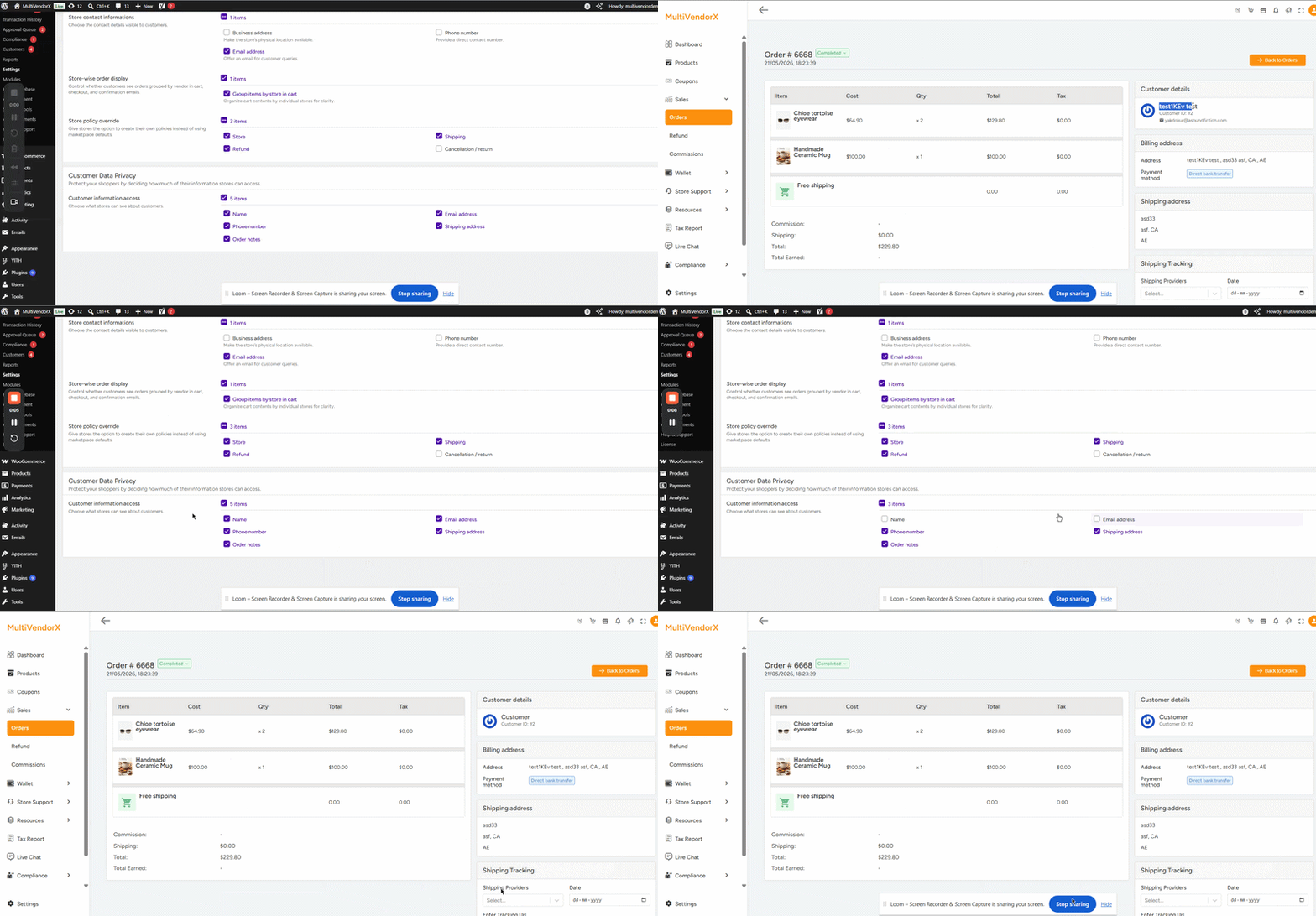
In this section, the admin can control how much customer information is shared with store owners. This helps protect shopper privacy while still allowing store owners to access the details they need to fulfill orders.
Under Customer Information Access, you can choose which customer details will be visible to store owners in the order details page or order notification emails.
You can enable or disable the following fields as needed:
- Name
- Email address
- Phone number
- Shipping address
- Order notes
Store policy override #
The Store Policy Override setting allows the admin to decide whether store owners can create and manage their own policies instead of using the marketplace-wide default policies.
The marketplace admin can configure global policies from:
MultiVendorX → Store Configuration → Policies
From there, the admin can define default marketplace policies for:
- Store policy
- Shipping policy
- Refund policy
- Cancellation / Return policy

These global policies are automatically applied across the marketplace unless store owners are allowed to override them.
Under the Store Policy Override settings, the admin can control which policies store owners are allowed to customize from their dashboard:
Store Dashboard → Settings → Policy
For each policy type, the admin can either:
- Allow store owners to override the marketplace default policy
- Restrict store owners from making changes
For example:
- If Refund Policy Override is enabled, the store owner can add their own refund terms from their dashboard.
- If it is disabled, the marketplace default refund policy will continue to apply, and the store owner will not be able to modify it.
Any policy added by the store owner will be displayed on that store’s shop page, allowing customers to review store-specific terms before making a purchase.
This setup helps maintain marketplace-wide policy consistency while still giving stores flexibility where needed.


